
Our reader forms allow readers to let us know when their Amazon reviews have been approved and posted on Amazon, or leave their reasons for not reviewing the book, as well as leave optional comments for the author about the book. Hidden Gems readers are required to fill out their reader form for each book we send them.
The reader form includes the following key elements:
- A country specific (based on your Amazon profile, such as Amazon.ca or Amazon.co.uk) review link to the book on Amazon (if published)
- A button to notify us that your review has been written, approved and posted on Amazon so that we can find it
- A reason for not reviewing field in case you have decided NOT to review this book for some reason
- An optional comment field in case you have something extra to write to the author that was not included in your review (or about why you didn’t review).
Here’s what an empty form looks like (note that depending on what you’ve filled out, if you’ve clicked the buttons, or if you’re viewing a page that shows multiple forms at once, your form may look a bit different, but the overall functionality should be the same and is explained below):
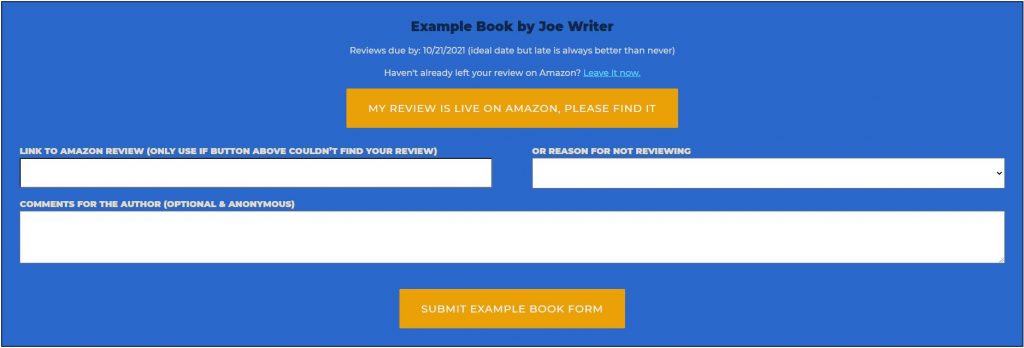
For the most part we’ve designed these forms to be fairly self-explanatory and very easy and quick to fill out, but here is a brief explanation of each element and how they work (from top to bottom).
Title and Author
The title and author of the book we sent is in black at the top. Note that some books by different authors have the same titles, or books by the same author have similar sounding titles. Always be very sure that you are leaving a review for the correct book. When in doubt, please use the links to the book that we have provided on the form as that will take you to the correct book. If the link is not yet available, you can wait until it is. We’ll add it once we have it and email you as a reminder on the review date.
Review Date
The review date is posted as a reminder of when to aim for leaving your review, but keep in mind that it is ALWAYS better to send your review in late than not at all, so please feel free to finish reading the book even if you have passed the due date.
“Leave it now” review link
If you haven’t already left your Amazon review for this book, you can click on the review link* to go to Amazon and leave it now. Note that this review link will go to your country specific Amazon store (.ca, .au, etc), determined by the profile link we have for you on file.
*Note: If we don’t yet have the Amazon link to this book on file, this line will not show up. Sometimes the book is published before we notice which means it’s possible you can still find the book on your own and review it, but you can also just wait until we have the link at which point it’ll be included in the reminder email we send you and then also show up on your dashboard and reader form.
Button: My Review Is Live On Amazon, Please Find It
If we have your Amazon public profile link on file, you will see this button and should click it if you have left your review for this book AND the review has been approved and posted by Amazon. Once you click it, the button will be replaced with a message that we’re looking for your review link. Your reader form will remain in this state until we find your link or determine we cannot find it. If we find it, you’re done (although you can still add a comment for the author if you like, while we’re looking or even after). If we cannot find it, we’ll either update your reader form with the issue, send you an email with next steps, or both.
Important Note: If you are still waiting for Amazon to approve and post your review, just leave the form blank for now and come back to it once your review is live. Only once your review is live on Amazon should you click the button. Sometimes Amazon takes a while to approve and post reviews (from hours to a few days), don’t worry about going past your due date, just click it once the review is approved. Amazon usually sends you an email when this is done.
Button (alternate): Enter Amazon Profile Info
This button replaces the one above, and only shows up if we don’t already have your Amazon profile on file. If you click it, you will be able to add your profile. We only need it once, and instructions about what it is, why we need it and how to provide it can be found here.
Field: Link to Amazon Review field
ONLY USE IF BUTTON ABOVE COULDN’T FIND YOUR REVIEW
This field is only to be used as a last resort, in cases where our button cannot find your review but you have absolutely left it and it is approved and posted. However, there are almost no cases where this should still happen, and the only reason we’re leaving this field here is in case there are bugs or cases we missed. Once we’re 100% sure that we are finding reviews in all cases, we will be removing this field altogether.
For now, this field can ONLY be used if you have already clicked the “My review is live…” button first and gotten the message that your review could not be found. If that is the case, you’ll also get an email with a bunch of possible reasons why. Please go through that email carefully, as the reason we couldn’t find your review is very likely listed and is something you can resolve, and then hopefully in the future you won’t have that same issue. Only once you have gotten that email and gone through the steps and determined that none of them apply should you attempt to use this field. And even then, we would prefer if you just email us with the issue so we can investigate.
Remember, the goal is for this field to be removed entirely, and the more cases we see where a legitimate review could not be found, the more we can improve the button to handle those cases.
The most common reasons why the review could not be found is when readers leave a review against the wrong book (similar or same title, different author, etc), or when Amazon has not yet approved and posted the review you left (it can sometimes take days). The email lists all of the possible reasons, but feel free to contact us if you are sure that your review was posted (and is still posted) on Amazon prior to when you clicked this button. If it posted AFTER you clicked it, feel free to try clicking the button again and we’ll take another look for your review.
Field: Or Reason For Not Reviewing
If you are not planning on reviewing this book at all, then select your Reason For Not Reviewing from the dropdown instead. The dropdown includes a number of common reasons, some of which will simply remind you of an action you should take, while others will save to the form (after you click the SUBMIT button). You can even choose Other if you wish to leave a reason that is not covered by any of the existing selections.
Make sure to click the SUBMIT button at the bottom of the form after selecting your Reason.
Remember to ONLY use this field if you do not plan on reviewing this book on Amazon at all. Do NOT use it if you are simply waiting for Amazon to approve your review or the book to get published, etc. If you are planning on reviewing the book at some point, better to leave the form blank until then.
Field: Comments for the Author
If you wish, there is an optional field to leave any comments you have for the author of the book. These are comments that you did not leave in your review. For example, some readers choose to use it to thank the author or express their feelings about the book and desires for sequels, some to mention small issues they noted in their review copies, or even to let them know that you decided not to leave a review because you didn’t finish the book. Whether you use this field and what you put is up to you, however please be polite and keep in mind that it is against the rules to leave any sort of contact or personal info for the author (such as email address, names, etc). Any such comments will be removed.
Button: Submit [Title] Form
After you have added a Reason For Not Reviewing, a Comment or if you have added your review link manually (which in most cases you should avoid, see above), make sure to click the Submit [BOOK TITLE] Form button at the bottom of the form to save your selection.
Please keep in mind that for some Reason selections, you will see a popup giving you further instructions and then the Reason field will get cleared. This means the Reason you selected is not saved, and you should instead follow the instructions in the popup or select a different reason.
NOTE: When you haven’t completed the reader form for multiple books, you may see multiple copies of the reader form in a single page (depending on where you clicked from). Each form has the name of the book at the top, so please be careful to fill out the correct information for the correct books.