
If you’re already an ARC reader with Hidden Gems, you’re familiar with the ARC dashboard, however the Beta Reader Dashboard is different and requires you to sign in to access it. Links to access (and login to) your dashboard will be available in all of the Beta Reader emails you’re sent, however if you’ve forgotten your password or have any other issues logging into your dashboard, see here for more help.
It is recommended that you bookmark your dashboard so that you can access it at any time.
Unlike with ARCs, completing your Beta Reader books by the due date is not only essential to remaining in the program, but also to getting paid for them. If our emails end up lost to Spam or elsewhere, that is no excuse for not getting them done on time because your dashboard has all of the same information. Whitelisting our emails is your best bet to make sure you’re notified, but checking your dashboard regularly, especially after signing up for a specific book, is essential as well.
Here’s how the Beta Reader Dashboard looks in general (each Dashboard will have some differences based on your specific books and settings), followed by an explanation of how each section works so that you can use it most effectively.
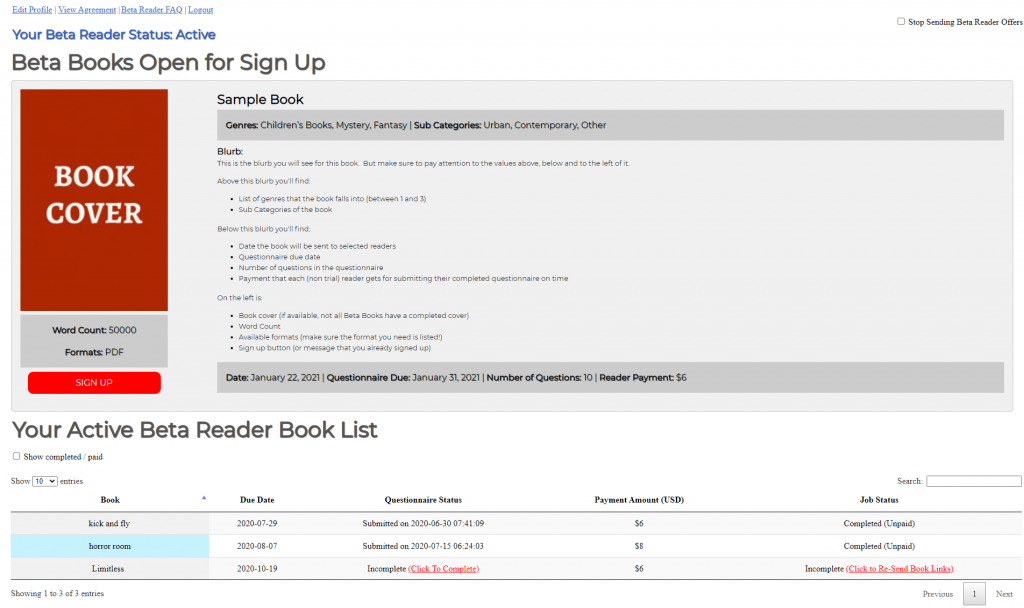
Top Left Links
- Edit Profile –Click this to view or edit your demographic info and genre preferences
- View Agreement – Click this to view your Beta Reader agreements or to update your Paypal email address
- Beta Reader FAQ – Click this to view Frequently Asked Questions about being a Beta Reader
- Logout – Click this to log out of your Dashboard (it’s not recommended you do this unless you’re sharing a computer/device with someone you don’t want to be able to access your dashboard)
Stop Sending Beta Reader Offers [Checkbox]
Use this to pause or unpause your account temporarily
Beta Books Open for Sign Up section
This section shows any Beta books available to you that are open for sign up. If you’re already signed up, the red sign up button will be replaced with a message that you are already signed up. All of the book details can be found on this form, similar to the emails you are sent. Make sure to pay attention to ALL of the relevant info (Questionnaire due date, # of questions, word count, etc) before clicking the sign up button to ensure you will be interested in this book and able to meet all of the deadlines and requirements.
Your Active Beta Reader Book List section
Your Beta Reader Status
- Trial – new potential Beta Readers
- Active – Beta Readers that have been approved after reading their Trial book and are a full Beta Reader
- Paused – Beta Readers that have clicked the flag to Pause their account – they will not get any further Beta Book offers until they click to unpause it again
- Inactive – Beta Readers that are no longer eligible to participate or have left the program
Show completed/paid [Checkbox]
Use this to change the filter of the table that displays your current or completed jobs. By default (unchecked) you will only see in progress and unpaid Beta Books that you have been assigned. By checking the box, you will also see your past completed books.
Beta Reader Book List table
This table displays the beta book jobs you have been assigned, along with their status and the links needed to complete each one. You can use the filter checkbox or search box to show more or less records, as well as the navigation and show entries dropdown to determine how many results are shown or to navigate to the next page if you have many entries. The table shows the following fields:
- Book – Title of the Beta Book
- Due Date – Latest date you can submit your questionnaire for this book and still be paid for the job (Due Dates are in EST)
- Questionnaire Status – Whether your questionnaire has been submitted (and when), or if it is still incomplete (along with a link to click to complete it). Remember that you must SUBMIT your questionnaire by the due date, saving it to draft is only used for you to save it to come back to later. If your questionnaire is submitted after the due date, a Late tag will be added to this field
- Payment Amount (USD) – The amount you will be/were paid in USD if all [criteria met]. Note that if a book was assigned when your [status was Trial], this field will be blank as Trial books are used for evaluation to determine if a new potential Beta Reader is a good fit for the program. Additionally, if you were not a Trial user but didn’t submit the questionnaire for this book by or before the due date, this amount will be adjusted to $0
- Job Status – The status of the Beta Book job
- Incomplete – You haven’t submitted your completed questionnaire for this Beta Book. If it is not yet past the due date, you will have the option to request the book files be resent to you from here. If it is after the due date, this will be labeled as Late
- Submitted – Your completed questionnaire has been submitted for this Beta Book
- Completed – You’ve submitted your questionnaire for this book, and the book has been marked complete (usually because the due date has past). Additional labels will further define this:
- Late – you submitted the Questionnaire after the due date
- Trial – you were sent this while your status was still in the Trial stage
- Unpaid – You haven’t yet been paid for this job
- Paid – You have been paid for this job
- Payment Failed – We attempted to pay you for this job, but there was an issue with your Paypal email (contact us if you see this message on your dashboard)