
Submitting Your Amazon Profile for the first time
As we’ve explained, we need your Amazon profile link in order to find your reviews once you’ve left them, but as your profile never changes (unless you create a new Amazon account), we only need you to send it once and if you’ve already sent us reviews, we likely already have it.
If not, there are two ways you can submit your Amazon profile. If you’ve already been sent a book, then you can go to your Books You’re Reading tab and click “Enter your Amazon profile link“. The other way, which works whether you have been sent a book or not, is go to the Your Profile Links tab and then click the orange “Click to add profile link” button in the AMAZON PROFILE LINK section.
Regardless of which of the two options above you followed, you’ll see the same screens to add your profile link.
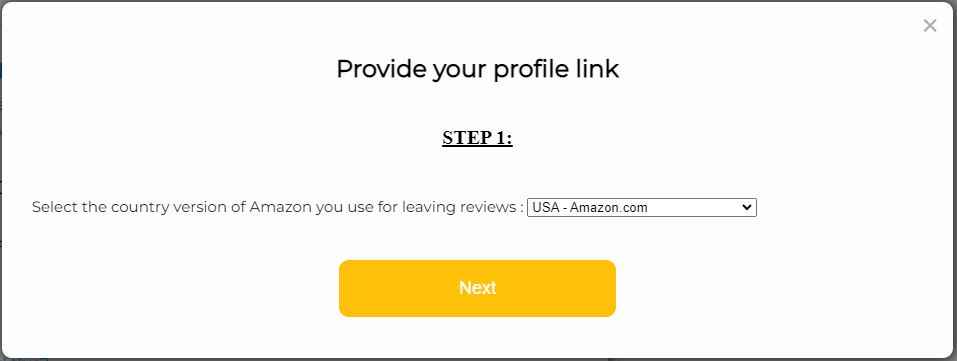
The first step is to select which of the Amazon storefronts you use for leaving reviews. As Amazon has a rule that customers must have spent at least $50 in the last 12 months in order to leave a review for a book they didn’t purchase, it is important that you select the profile of the account you met this requirement on even if you have more than 1 Amazon account. For instance, if you live in the United States, you are probably fine to leave the default (shown above) as Amazon.com is most likely the site your profile is on. But if you live in Canada, for example, then you would want to select “Canada – Amazon.ca” from the dropdown.
Once you’ve made your selection, click NEXT.
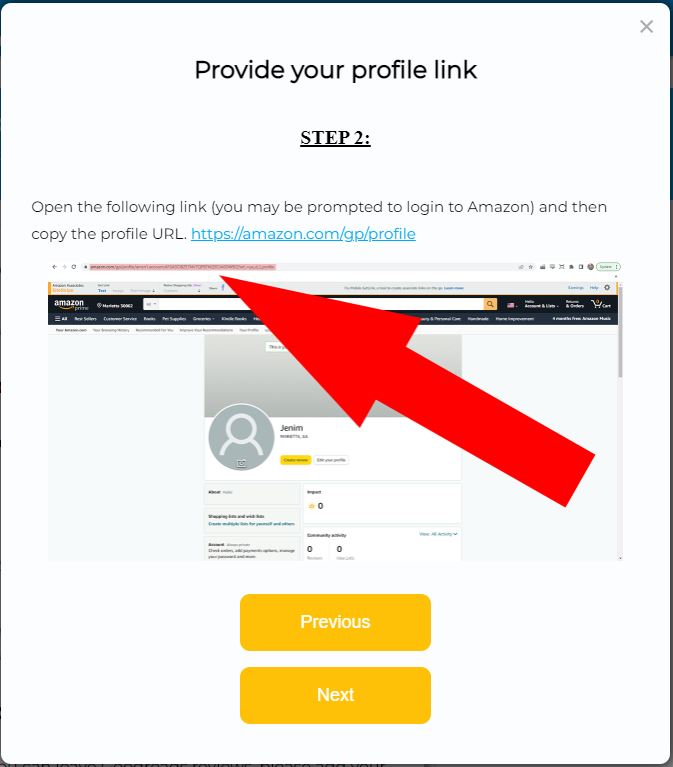
Next, you want to click the blue link at the top of the window, which will open your Amazon profile page. In the above example, it is going to open Amazon.com but if you had chosen a different country in the previous step, it would point to your country specific Amazon site instead.
When you click that link, your browser should open up to your Amazon profile page (the screenshot in the window above shows what that might look like) and what we need from here is the URL, which is found in the address bar of the browser up at the top – where the big red arrow is pointing. It would be something like “https://www.amazon.com/gp/profile/amzn1.account.AFLGHWB6KSW5REXXXX” where the ending is different for each profile. Highlight that whole URL and copy it so that you can paste it in the next screen.
Once you’ve copied it, click NEXT.
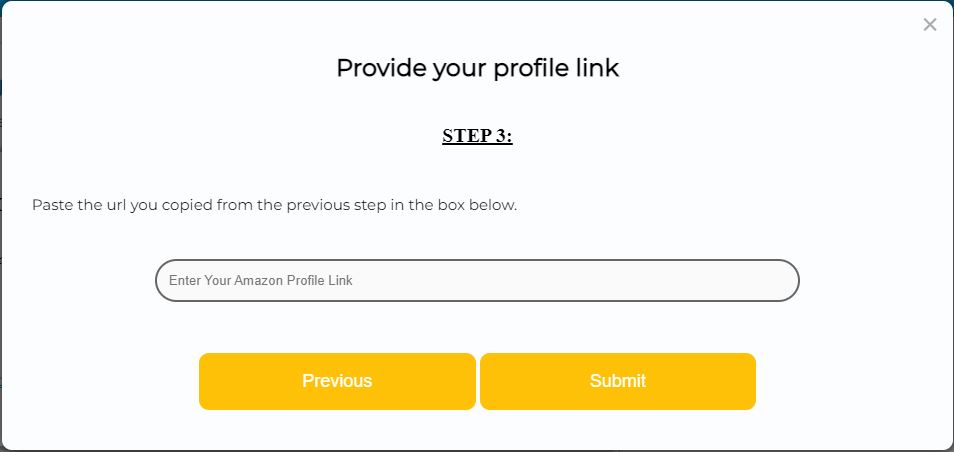
Finally, paste the URL you copied from the previous step into the box above (the one that says “Enter Your Amazon Profile Link”.
Hit SUBMIT and then you’re all done, we now have your profile and should be able to find your reviews whenever you add them to Amazon and let us know that they’re live.
Viewing/Changing Your Amazon Profile
You can view the Amazon profile we have for you on file (which is the profile we use to look up your reviews) via the Your Profile Links tab on your dashboard. Just have a look at the link in the AMAZON PROFILE LINK section. You can even click it to go directly to that publicly available Amazon profile page.
For most people, your Amazon profile will never change but there are cases where it does – such as when you create a new Amazon account for some reason, or if you change to a different Amazon country. In those cases, you can request to change your Amazon profile in that same tab and section, by clicking the orange “Request to Change URL” button. Once we approve the request to change your URL, you’ll be able to add a new one via the steps above but until then, your current profile will remain active.
Note that if you are having problems with any of this, please contact us for help!