
The term Reader Form simply refers to the information we ask readers to fill out for each book that they are sent. They are primarily found on the Books You’re Reading tab, where it can be found to the right of the book information (when viewed on a desktop – for mobile it may look a bit different, depending on your screen size). Alternatively, you can also update it from the Completed Books tab, in case you need to make changes or updates to a previously completed book.
Remember that the free ARCs we offer are provided by authors in the hopes of getting honest and voluntary reviews. So in most cases when you reserve and read a book, you will be leaving reviews and then adding them to our system so we can keep track of them for the author. Even when you decide not to leave a review, you still must enter your reason for not reviewing in this same section. And there is even a place to enter an optional comment to the author that will be sent to them directly, in case you have something to say that you didn’t add to your review.
Once your review is live on wherever you posted it, filling out the reader form is quick and easy. In most cases it’s just a matter of clicking a button or two, and each completed form earns HGB points and can improve your Gem Level!
Quick Tip: Even when an author is asking for reviews on multiple sites that you can review on, you only need to add a review on one of them. However, if you leave reviews on more than one you will earn even more HGB points. So feel free to review on as many sites as you want per book. The author will greatly appreciate it!
Write your Review
Once you’ve finished reading a book, you must go to one of the review sites that the reader was looking for reviews on and submit your review. As a reminder, you will see an icon corresponding to each of those sites on the Books You’re Reading tab.

If the icon is blue, it means we have your profile information for that site and by clicking on the icon you will be taken to the book on that review site where you can leave your review (if you haven’t already). If you aren’t logged in already, you may be required to login to that review site before leaving your review. Note that in some cases we don’t yet have the link to the book (sometimes we send the books out before they are published), in which case you will see a message that we don’t have it yet and to check back later.
If the review site icon is gray, it means we do not have the link to the book on that review site yet.
Once you have read a book and reviewed it on one of the review sites that was requested, and your review has been approved and posted on that site, you can use the buttons on the right side of the reader form for that book to add your review(s). If you are unwilling or unable to review a book at all, you can also add your reason for not reviewing to your reader form.
Adding a Review Link Automatically
After the review you’ve written has been posted on the review site, you can click the button for that review site to let us know to go and look for your review. Our system will then look for your review link (based on the profile we have for you for that review site) and add it to our system. Note that this process does not happen immediately, and may take up to a couple of days. During that time, you’ll see a message on your reader form similar to this:

But you don’t need to worry about it anymore unless we can’t find it, in which case you will get an email giving you some potential reasons why we couldn’t find it and how to resolve them. You will also see a message on your reader form similar to this:
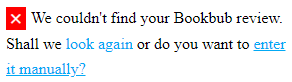
Quick Tip – In some rare cases our system may fail to find your review link automatically even when it exists. In those cases, you may see a link to enter it manually instead (via copy and pasting). By clicking the “enter it manually” link you will find instructions on how to find your link. Note that not all of the review sites have direct review links, so this option will only be available for those that do.
Manually Adding a Review Link
If we cannot find your link and you wish to enter it manually, simply click the link to do so and you’ll see a popup that asks for your review link. You can paste your link into that box, and then click the Submit button. After your review is validated (it may take a few seconds), your form will be complete. If there is an issue with the link, you will see an error message.
There is also a link on that popup giving you instructions on how to find your review on the site and copy and paste it, if needed. You can also find those instructions here.
Finished leaving Reviews?
If the author is looking for reviews on multiple sites that you can review on, after you leave a review you will still have the option to add reviews on any of the other sites. It’s up to you if you review on more than one (the author would love it, and you’ll earn more points if you do), but when you’re done just click the I’m Finished With This Book button. This button only shows up after you have successfully added at least one review.
If you are Unable to Review at book at all
It is understandable that there may occasionally be reasons why a reader cannot or chooses not to review a particular book. That’s fine, we aren’t going to force you to finish a book you didn’t like, for example. In those cases, instead of submitting your review you can click the I’m Unable to Review This Book button.
From there, please select the choice that most closely matches the reason you are not reviewing this book. Note that some of the reasons in that list are resolvable, and if you select those you will be shown a message on how to resolve the issue first so that you can hopefully still finish reading and/or leave your review. In those cases, no reason for not reviewing will be added to your reader form.
Remember to only use this field if you will not be reviewing the book at all, instead of to just let us know that you are delayed. In those cases just leave the reader form blank and fill it in whenever you’re done. And feel free to contact us if you need help getting your issue resolved.
Optional Comments to the Author
After you have either submitted your review or reason for not reviewing, you will be given the option to write an anonymous comment to the author. You can also access this field at any time for books that are on your Completed Books tab.
This is an optional field, and is meant for readers to provide any additional feedback about the book that they didn’t include in their review, or thank the author, etc. Please DO NOT leave any identifying information in this field as it will be removed (such as your email address, real name, etc). Please do not leave comments about issues you have with the ARC program or anything that isn’t specific to the book or this author. Instead, send those via email to contact@hiddengemsbooks.com.
Remember that ARC readers are expected to fill out their reader form for each book they have been sent, it only takes a few seconds.