
After you place your order, you’re prompted to create your questionnaire which you can choose to do right away, or later via the link to the questionnaire builder form you’ll find on your author dashboard. (Just make sure you complete AND submit it at least 3 days prior to your scheduled date).
Using the Questionnaire Builder Form
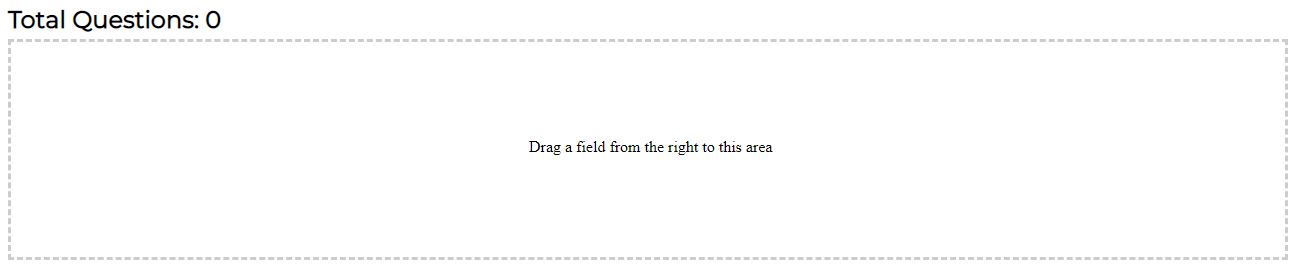
Once you enter the questionnaire builder form, you’ll see a set of instructions at the top along with your questionnaire status of Draft, and below that you’ll see your empty questionnaire.
To the right of the empty form is a list of the types of questions you can add to your form, and below that are the buttons used for clearing, saving, submitting and previewing your questionnaire.
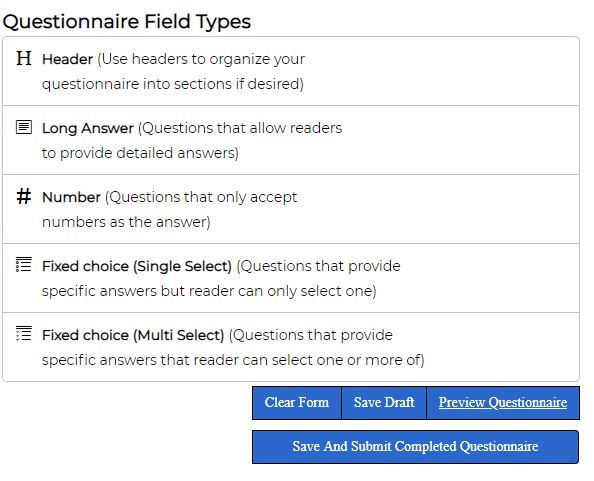
To create your questionnaire, simply drag the type of question (or header) you wish to add from the list on the right over to the form on the left. You can place them down in the order you want them to appear, but if you change your mind you can also drag them around on the left to re-order them as necessary.
As each new question is added, the Total Questions above the form displays the total number of questions added so that authors can keep track.
IMPORTANT: The total number of questions added to your final submitted form is the number of questions your final invoice will be based on, even if this number differs from the initial number you added to your order form. This is done specifically so as not to restrict an author from changing their mind by adding more or less questions than they originally thought they would need, but the author is still responsible for making sure they do not add more than they are willing to pay for.
Types of Questions
There are four different types of questions you can add to your form, as well as headers to separate them out into different categories. Here are a list of the different types and a brief description of each.
Note that regardless of question types, beta readers are REQUIRED to answer EVERY question on your reader form.
- Header – Headers can be used to break up a long questionnaire into different categories, but are completely optional and their use is up to the author putting together the questionnaire. Headers will display as a bigger and bolder font than the question and have no reader input component – as such, headers do NOT count as one of your questions.
- Long Answer – The long answer question type provides a big box for beta readers to enter in a free form answer to the question asked. Readers can enter in as much or as little detail as desired, so it is the least restrictive of all the questions. While this means that it can be the most useful of the question formats, allowing readers to enter in whatever they felt about the question, it may not be as useful in cases where the author is looking for very specific types answers.
- Number – A number question type can only accept numeric values. This type will probably be the least useful for most authors.
- Fixed choice (Single Select) – With this question type, authors can define a pre-set list of answers to their question where the reader must select one, and only one, of the given answers by way of a radio button type format.
- Fixed choice (Multi Select) – With this question type, authors can define a pre-set list of answers to their question where the reader must select ONE OR MORE of the given answers by way of a checkbox type format.
Important Note: Because answers are required for each question on your form, if the fixed choice questions are used and the author wishes to allow the reader to not choose one of the given answers, they must include a possible answer for them to select, such as “None of the above” or “Not applicable”.
Editing Your Questions
After you drag a type of question to your form on the left, you’ll see that question displayed with the type of question it is, and if you hover over it you will see 3 icons appear on the right.

- Delete – First icon is used to delete your question
- Edit – Second icon is to edit your question
- Copy – Third icon is to create a copy of your question
For each question you add, you will need to click the Edit icon in order to change the default text of the question from the type of question it is (in the example above, that is “Long Answer”) to the text of the actual question you want to ask the reader.
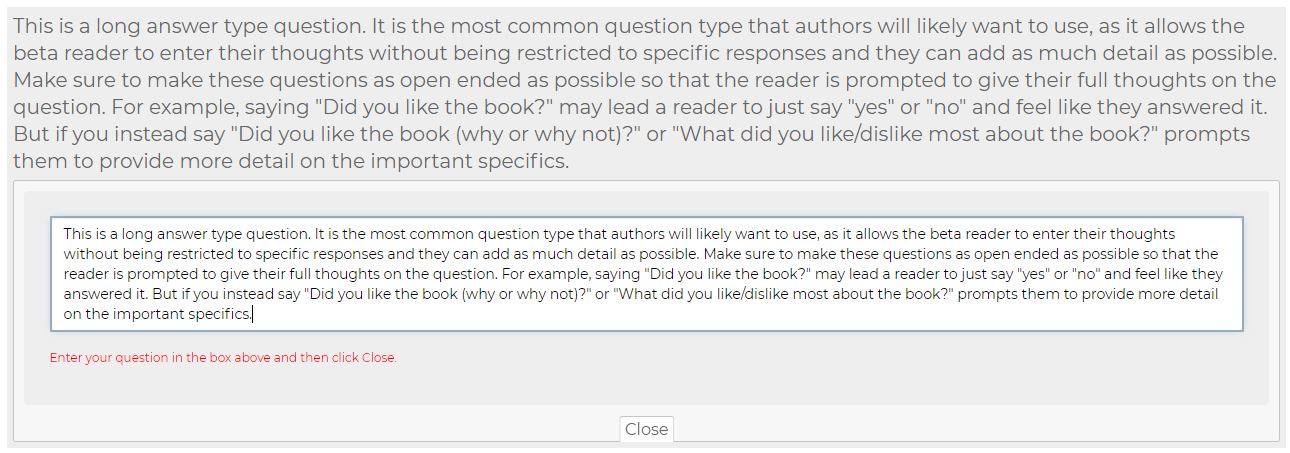
What you type in the white box is your question, and it will display above. Click Close when you’re done editing that question and repeat for the next question.
Headers, Long Answer and Number type questions all work similarly to the above example, but the Fixed Choice single or multi select questions have some additional steps so that you can define your possible answers.
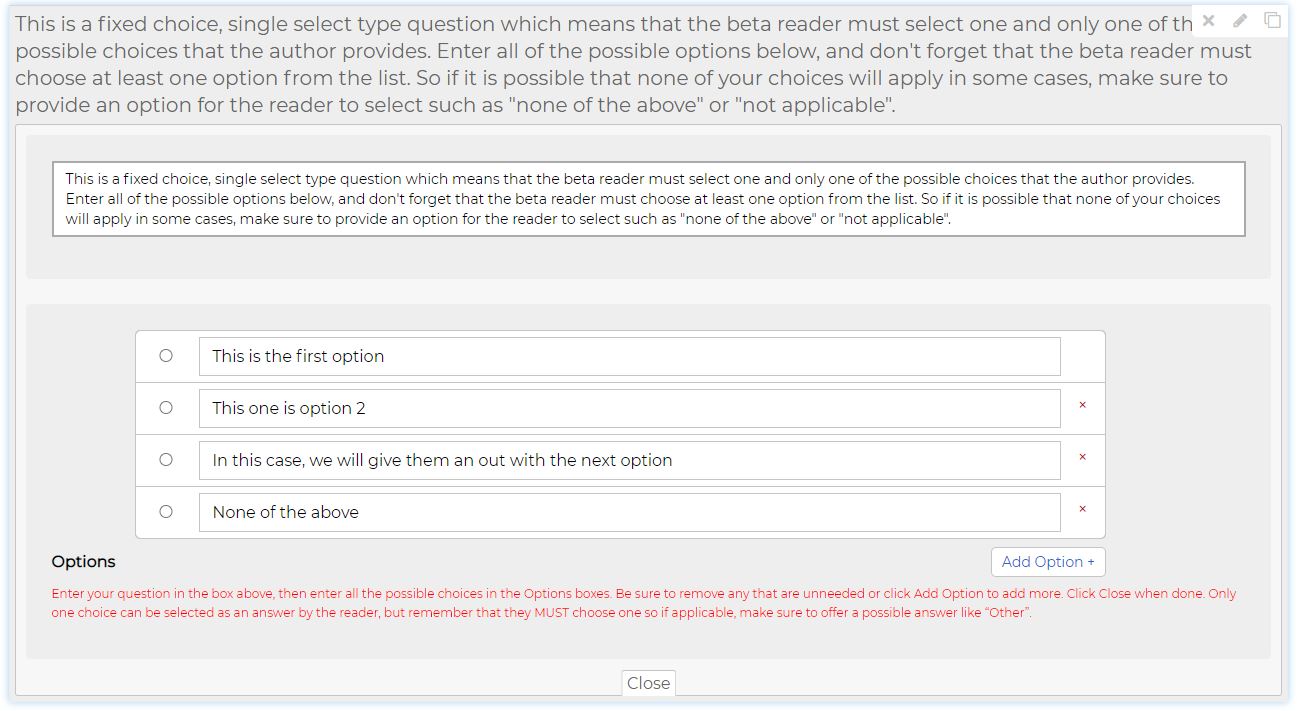
For these types, you fill in your question as with the other types, but you must also define your possible answers. You do this by filling in as many of the options below. To add more options, click the Add Option button, and to remove an option click the X button to the right of the option. Click Close when done.
Previewing, Saving and Submitting Your Questionnaire
There are a number of buttons that can be found on the right, beneath the list of question types that can be used for various purposes.
- Clear Form – Only use this button to clear your form entirely and start over. This will delete all of your questions and work you’ve entered so far, so only use it if you are sure you want to start over.
- Save Draft – As with anything, it’s always a good idea to save your work periodically so that nothing is lost in case of some sort of issue, or if you need to stop for a time and come back to finish up later. You can do this with the Save Draft button. Click this to save your questionnaire. After you do that, you’ll be given the option to return to editing or go back to your dashboard.
- Preview Questionnaire – You can click this button at any point to see a preview of your questionnaire. Note that to do so, however, you will first need to save your draft if you’ve made any changes since your last save.
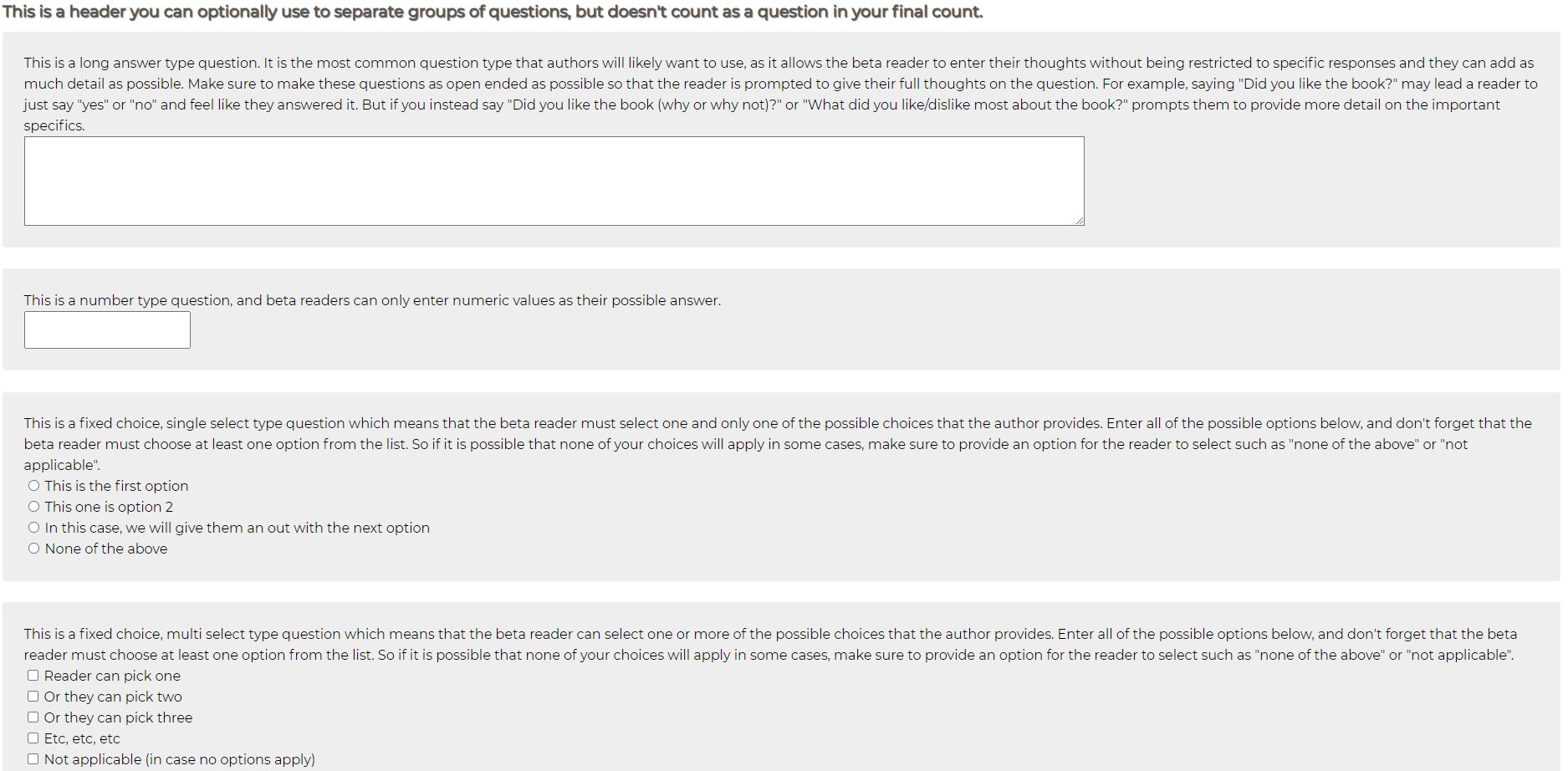
Your preview is useful for seeing how your questionnaire will appear to the beta readers that will need to fill it out.
- Save and Submit Questionnaire – When you’re happy with your questionnaire and think you’re done adding to it or editing it, use this button to save it and submit it. Remember that your questionnaire MUST BE SUBMITTED 3 days prior to your scheduled date or we cannot send out the sign up email to potential beta readers on time, which may lead to the service being delayed or cancelled. However, even if you submit your questionnaire but later still decide to edit something, you can do so provided it is at least 3 days prior to your scheduled date. Just remember that you will have to click the submit button again if you do so, in order to get your questionnaire back into the submitted state.
The status at the top of this form will indicate if the questionnaire is submitted or in a draft state, as will the order on your author dashboard.