
In most cases, we can find your review links automatically but there are some circumstances in which you may have to submit them manually.
In those cases, you need to be able to copy and paste the review link for that book onto your reader form. As each review site is different, the steps to find your review and copy the link differ. For further instructions and screenshots, expand the site link below corresponding to where you left your review.
There are a couple of different ways to find your review link on Amazon. The first would be to navigate to your Amazon profile, which normally displays all of the reviews you have left. If you aren’t sure how to find your profile, remember that you added it to the Your Profile Links tab of your dashboard, so by going there you can find and click the link to your Amazon profile to be taken to it directly.
From there, you should see a set of boxes that contain products you have reviewed. If you see your review of the book, click on it and you will be taken to a page that just displays your review of that book.
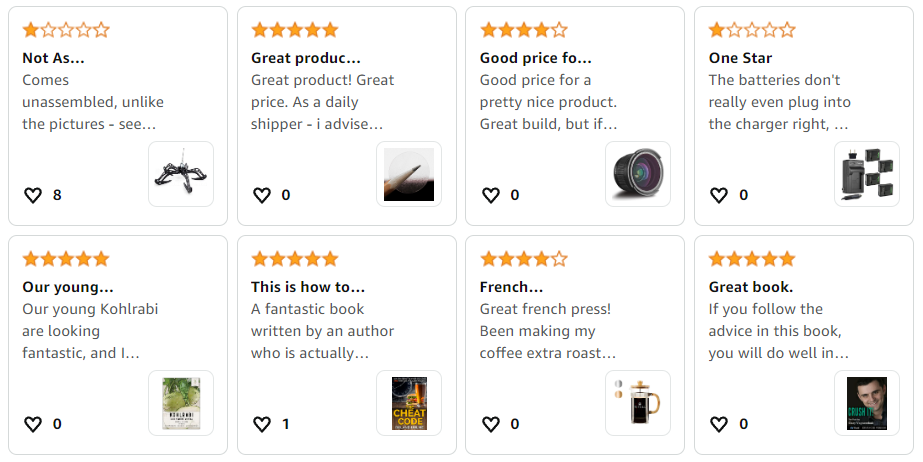
However, depending on your sensitivity filter settings as well as how many other books you have reviewed, it may be hard or impossible to find your review for this book from your profile page.
An alternative is to go to the book you reviewed on Amazon, scroll down to the list of reviews and find yours (depending on how long ago you reviewed and how many others have reviewed it since then, you may need to scroll through a few pages before you find yours.) Once you do, click on the title of your review which will take you to a page that displays just your review.
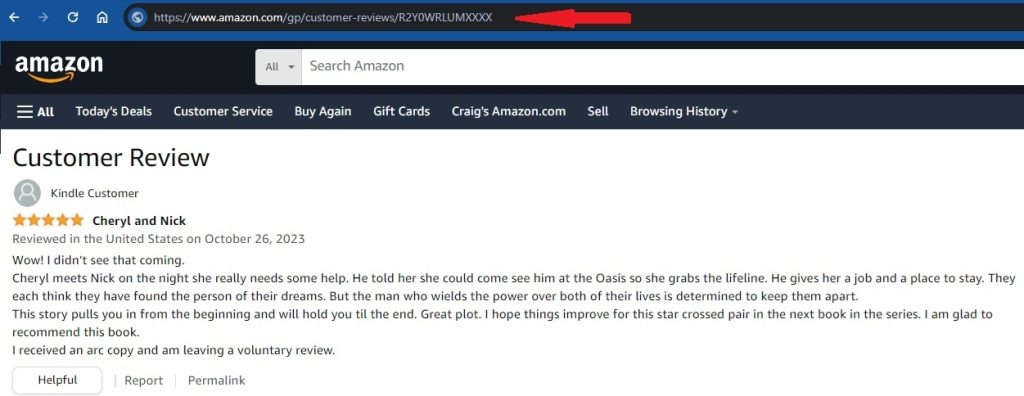
From there, simply click into the address bar at the top of your browser (as indicated by the red arrow) and highlight the URL. Then copy it and go to our reader form and paste it into the box asking for your Amazon review link.
Quick Tip: If Amazon sent you an email letting you know that your review was live, then it will have included a link to that review. Simply click on it and then follow the steps above.
There are a variety of ways to find your review on Goodreads, but the easiest is to just go to your Goodreads profile page. If you aren’t sure how to find your profile, remember that you added it to the Your Profile Links tab of your dashboard, so by going there you can find and click the link to your Goodreads profile to be taken to it directly.
From there, you should see your number of reviews on the top left, under your profile image.
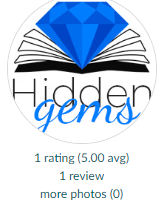
In the example above, it says 1 review but yours will say the number of reviews you have left. Click that line and you will be taken to a page that lists all of the reviews you’ve left. From there, simply find the row for your review of the book you’re looking for and click the “View” link at the far right of the row.
This will take you to a page that displays just your review.
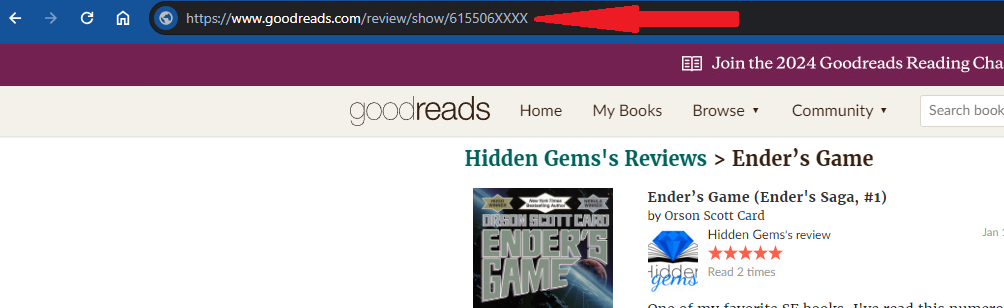
From there, simply click into the address bar at the top of your browser (as indicated by the red arrow) and highlight the URL. Then copy it and go to our reader form and paste it into the box asking for your Goodreads review link.
There is no easy way to find a list of all your reviews on Kobo, nor is there a way to go to a page that just has your review link on it. For this reason, we do not ask for manual review links for Kobo and you can only use our find automatically button.
That is why it is important that you ALWAYS add your reviews using the same reviewer name on Kobo that you added to the Your Profile Links tab on your dashboard or we won’t be able to find it. Kobo lets you use different names when you leave reviews if you want, so make sure that you are always consistent with the ones you leave for books you received from Hidden Gems.
There is no easy way to find a list of all your reviews on Barnes & Noble, nor is there a way to go to a page that just has your review link on it. For this reason, we do not ask for manual review links for B&N and you can only use our find automatically button.
That is also why it is important that you ALWAYS add your reviews using the same reviewer name on B&N that you added to the Your Profile Links tab on your dashboard or we won’t be able to find it. Barnes & Noble lets you use different names when you leave reviews if you want, so make sure that you are always consistent with the ones you leave for books you received from Hidden Gems.
The easiest way to find your review on Bookbub is via the Bookbub profile page. If you aren’t sure how to find your profile, remember that you added it to the Your Profile Links tab of your dashboard, so by going there you can find and click the link to your Bookbup profile to be taken to it directly. Alternatively, when you login to Bookbub you can click the arrow next to your username name at the top left and then select “My Profile” (see the red arrow in the screenshot below).
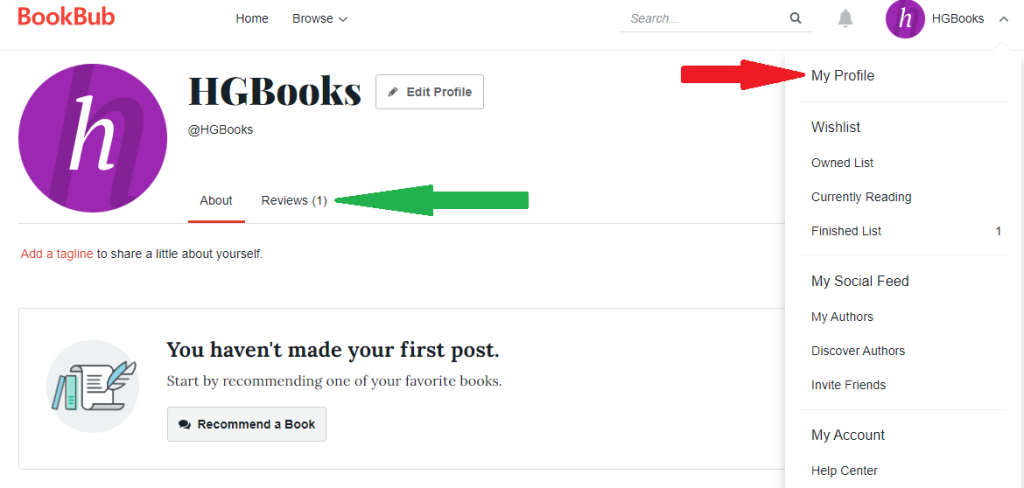
After that, you can then click the Reviews link in the middle of the page (see the green arrow above).
From there, you’ll see a list of all the books you have reviewed. If you click on the one you’re looking for, that will take you to your review of that book and the page we need.
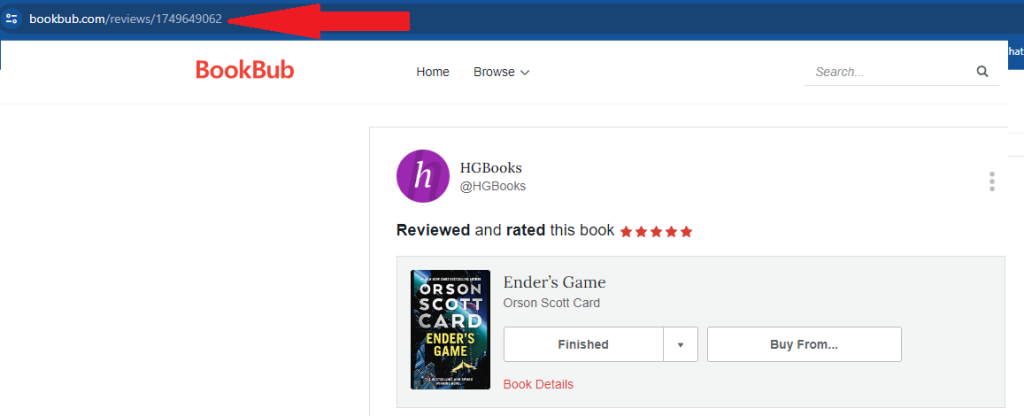
From there, simply click into the address bar at the top of your browser (as indicated by the red arrow) and highlight the URL. Then copy it and go to our reader form and paste it into the box asking for your Bookbub review link.
There is no easy way to find a list of all your reviews on Apple Books, nor is there a way to go to a page that just has your review link on it. For this reason, we do not ask for manual review links for Apple and you can only use our find automatically button.
There is no easy way to find a list of all your reviews on Google Play Books, nor is there a way to go to a page that just has your review link on it. For this reason, we do not ask for manual review links for Google reviews and you can only use our find automatically button.
That is also why it is important that you ALWAYS add your reviews using the same reviewer name on Google that you added to the Your Profile Links tab on your dashboard or we won’t be able to find it. Google allows you to change your name or add a nickname, which is then reflected as your reviewer name. If you change that name you must update your profile information on our site.