
Our ARC books are usually sent in 2 different formats, each with their own benefits and uses, and readers can choose the one that works best for them and their device. Note that to use either of these files, just click the corresponding link in the email we sent you or found in the Books You’re Reading section of the app.
PDF Format
A PDF file can be read by most devices and you can usually open it just by clicking on the link we sent. This normally opens the book up and the user can begin reading immediately. This format is best for graphical and colorful books, like illustrated children’s books.
Samsung users please note: Samsung devices can sometimes cause issues when attempting to view PDF files due to application defaults. You can reset these defaults using this method:
- Go to Settings > Apps > All
- Scroll to Google PDF Viewer app and tap it.
- Scroll down to the “Launch by Default” section and tap the “Clear Defaults” button.
- You can also try Settings > Apps > Drive and then repeating steps 2 and 3.
ePub Format
Most eReading devices, including Amazon’s kindle, support the ePub format. For kindle devices and apps, the ePub can be sent to your @kindle.com email address (more details below). Other devices may have different ways to load your ePub, so you may need to consult with the instructions of your particular device if you aren’t sure how.
ePub File Delivery options
There are 3 options when it comes to how we send you the ePub file, and you can view or modify these via your Settings menu. Just select the option you prefer and click Update.
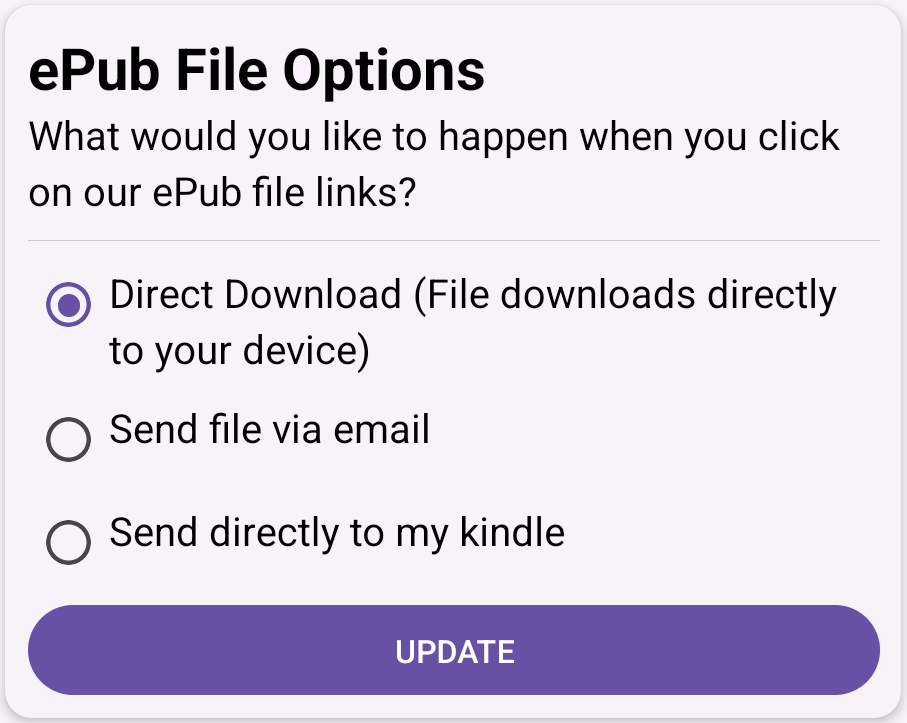
Direct Download – If this option is selected, when you click the ePub link for a book we’ve sent you, the ePub will immediately be sent to the device you’re using via a browser download. Depending on your device, you would then have to find this file and load it onto your eReader.
Send file via email – If this option is selected, whenever you click the ePub link for a book we’ve sent you, the file will be sent as an attachment via email to the email we have on file for you (the one on your settings page). This option works well for people using iOS devices since there is no file system to find the files sent directly via the first option.
Send directly to my kindle – This option directs us to send the ePub directly to your kindle device whenever you click on the ePub link for a book we’ve sent. In order to do this, there are a couple of set up steps. First, when you select this option, a new field will appear asking for your @kindle email address. This is the address Amazon has associated to the kindle device you want the book sent to. Next, you must go onto Amazon and add “kindle@hiddengemsbooks.com” as one of the email addresses that are approved to send to your device. More details on those steps below, in the section on sending the file to your device manually.
Manually sending ePub files to your Kindle Device
If you don’t want us to send the file to your device directly (which is much easier, see above for more details), then you will have chosen one of the first two options for getting your ePub file. Once you have it, you’ll need to send it to your kindle device so that you can read it on there. We have a quick video on how to do that, or you can follow the steps below:
- Navigate to https://www.amazon.com/manageyourkindle and click on “Devices” (you may need to log in to Amazon first)
- Select your kindle device and note down the @kindle.com address
- Click Preferences and then Personal Document Settings and verify that your own regular email address is added in the Approved Personal Document Email List (if it’s not, add it)
- Go to your email program and send an email to the @kindle address you noted down above, and add the .epub file as an attachment
- Within a few minutes, the book should be available on your kindle!
For future books, you will only have to repeat steps 4 and 5 to get them onto your kindle.
Trouble adding attachments to your email on your device?
As some devices (like iOS based ones) don’t allow you to download a file directly so that you can attach it to an email and send to your @kindle email address, there is an option to have the EPUB file emailed to you directly. If you’re using this Send file via email option, then whenever you click the EPUB link from us, you’ll get an email with the file attached instead of it downloading to your device directly. You can then forward this email to your @kindle email address to complete the steps above.
Reading files in a Kindle App (any device)
In order to view your eBooks within your Kindle reader app, the steps depend on what sort of device you’re using, but these simple instructions should help.
Having Issues Reading Files on Your Kindle Fire?
Here are some specific steps to try if you’re using a Kindle Fire device:
- Open the Books app on your Kindle Fire and click the “hamburger” icon in the upper left (the three stacked horizontal lines).
- Click “Collections”, then the little plus sign on the top right to create a new Collection. Call it something like “ARCs”.
- Add any old Amazon-bought book into your new Collection (only needs to be one) and then click “Add” at the top right. Note: never remove this “anchor” book from the Collection, or the Collection will disappear.
- Go back to the Home screen and open the Docs folder. All of the books that you’ve emailed via Send-to-Kindle that have been processed by Amazon should be listed. For each that you’d like to add to the ARC Collection, just click the three vertical dots on the right, then “Add to Collection”. Check the box next to your new ARCs Collection and click “OK”.
- Now if you go back to the Books app and click either the hamburger icon again and the Collections OR you can click “Sort” and then “Collections”. Either way, you should see your new Collection contains all of the books you added from the Docs app. They should function just like any other book in your Library.
Note: Once you’ve set up your Collection via steps 1-3, you will not need to repeat those steps to add more books. Simply add new books to the Collection you’ve already created.
Most important – these book files are for your personal use only. Please do not share them with anyone. Instead, why not just encourage your friends to join Hidden Gems themselves by sharing a link to the app with them?