
The Hidden Gems ARC Program - Reader FAQ
Frequently Asked Questions
App Version
Switch to Web FAQBecome a book reviewer today!
An ARC is an Advance Review Copy of a book. Generally, a lot of reviews on a book help it get noticed on Amazon and other online retailers, and let potential buyers know that others have already read and enjoyed it – thus helping sales as well. Sometimes these early reviews also help to generate excitement and buzz about their upcoming work, especially when the reviews start coming in positively, or if they start getting picked up or posted to different blogs or websites.
The earlier a book has reviews, the sooner this positive effect can begin. To achieve this, an author may choose to send out free, advance copies of their newest book to fans or interested readers in the hope that those readers will then leave honest reviews of the book when it goes live.
In some cases, they may even send out these copies after the book is already for sale.
Hidden Gems sends out books of both types, whether they have already been published or soon will be.
The Hidden Gems ARC program has been around for over a decade, and become one of the most trusted ARC programs around for both authors and readers. It all started as a website and still continues as such to this day, although we’ve recently expanded the program as an Android (and soon iOS) app. Regardless of how you use it, though, the program works essentially the same way.
Hidden Gems Books (HG) sends out a variety of new novels every day of the year, from the thousands of authors that use our service. With so much variety, every reader will eventually see something that interests them, but at the same time, they will not be interested in (or have time to read) all the ARC offerings. For that reason, each of our books is opt-in but there are often only a limited number of copies available for distribution.
Here’s how the process generally works:
1. Author Contacts HG About Their Book
An author looking for reviews on their novel contacts us and provides us with the details of their book (cover, blurb, genres/categories, etc), how many reviewers they want us to send the book to, where they want it reviewed, and when they want it to go out.
2. Book Details Sent to Readers
A couple days before it is scheduled to be sent to readers, the book becomes available for you to reserve with the details showing up in the New ARCs section of your app (as well as to your email, depending on your settings). The reservation period is open for just under 2 days, before the book will be made available for download by those that were interested.
The books available in the New ARCs section of the app depend on the following factors:
-
- Your genre preferences
- Your review profiles (whether you can review on the sites that the author is looking for reviews on)
- Whether you have enough points to reserve the book (most people can reserve at least one per day)
- Whether there are still copies available to be reserved
We ask that readers ONLY sign up for books that look interesting to them, and that they think they will enjoy and have the time to read and review in a reasonable amount of time. There are always more books to come!
3. Book Files Available For Download
On the scheduled date of an ARC, any books you’ve reserved will be available for download from either the Books You’re Reading section of the app, or through links in the email sent to you. Note that you are responsible for reading the book even if you miss the email (or if it got lost to spam/junk/promo folders) so it is highly recommended that you add our email address to as a trusted sender, and/or that you make sure to allow the HG app to send you notifications. At the very least, make sure to check your Books You’re Reading section regularly, to ensure you haven’t forgotten about any.
Authors are counting on your reviews!
4. Readers Must Fill Out Reader Forms for ALL books they’ve received
Any books you’ve reserved and that were sent to you will be listed in the Books You’re Reading section of the app. Each book listed here shows the details of the book and are separated onto their own “Reader Forms”. This is where you go to notify us when your review has been posted, or if you decided not to review a particular book, or even to download the book files.
Note that only one of those fields (review or reason for not reviewing) needs to be filled out for each reader form, and is one of the requirements for remaining in the HG ARC program and continuing to get new books. Readers that fall too far behind on filling out their reader forms may end up dropping in gem levels and even be restricted from signing up for more books.
However, it is perfectly fine if it takes you longer to read and review a book than the review date posted – review dates are simply guidelines that the author hopes readers will aim for but it’s always better to get it in later than not at all. The important thing is to fill the reader form out when done, and only use the reason for not reviewing field when there are no plans to review the book at all.
Periodic reminder emails will be sent when reader forms are incomplete and past their review dates, but these reminders are automated, so should not be taken personally.
Also note that for those that wish to do so, there is a place on the reader form to leave an optional private comment to the author about the book – but it only shows up after leaving a reason for not reviewing, or at least 1 review link has been filled out. Books that have already had their reader form filled out can still be viewed in the Completed Books section, where comments can also be added or edited.
If you love to read books, love to share your opinions about the books you’ve read by leaving reviews, and are willing to fill out our extremely short and quick reader form for each book we send you, then this is the program for you.
Here are the main points for getting free books:
- Only reserve the books that interest you and that you will have time to read in a reasonable amount of time (we provide a review date to aim for, but it’s okay if it takes you longer – just try not to reserve so many books at once that you fall far behind)
- As often as possible, leave honest, fair and useful reviews on at least one of the review sites that the author is looking for reviews on
- Always fill out the reader form for each book we send – whether it is with your review link or the reason you decided not to review it*
As long as you are able to meet the above criteria, we’d love to have you read and review with us. If you have any issues doing any of the points above for any of the books we send, please contact us for help.
*Filling out the reader form is a requirement of the program and is used to judge your continuing participation. In fairness to both other readers and our authors, Hidden Gems reserves the right to remove readers/reviewers from the program (or limit the number of books we send them) that we feel (in our sole judgement) seem to no longer have the time or the interest in continuing.
Congratulations! You’re now part of one of the oldest and most popular ARC programs around, which means loads of free books in the genres you want are ready for you to read and review. Here’s how it all works.
Once you created an account and logged in, you should have seen a very brief tutorial and selected the book genres you’re interested in and added at least one review profile for a site you can review on. If you didn’t do either of those things, don’t worry, you can still do them. Just remember that until you do, you won’t see any free book offers as we need to know what you like to read and where you can review!
To select or change your genre preferences, click the menu icon from the top left corner and then tap on “Settings”. From there, you can select your genres of interest, but don’t forget to tap “Update” to save them.
To add your profile link(s), click the menu icon from the top left corner and then tap on “Manage Profile Links”. We accept reviews from 7 different review sites, and the more you fill out, the more offers you’ll see as different authors want reviews on different sites.
Quick Tip: Almost all authors want Amazon reviews, so if you can review on Amazon* you’ll be able to see almost all the books available. But there are 6 other review sites as well, so you’ll still get offers even if you can only review on some of those. You can also always come back to this page and fill out the profile info for a site later, if you haven’t yet created an account on those sites.
Each day, new books become available and those that match any of the genres you’re interested in, as well as are looking for reviews on any of the sites you can review on, will show up in the New ARCs section of the app. Click the “Read More/Reserve” button to view the full book info to decide if you’re interested, and then if so, click the “Reserve Your Copy” button. You will be able to reserve the book as long as their are still copies available and you have enough HGB Points (don’t worry, unless your gem is cracked, you’ll get enough points each day to reserve at least one new book – and those that participate in our program the most will be able to get even more than one book a day!)
(Note that a brief ad will show after you click the “Read More/Reserve” button, but once you get your Gem Level high enough, those ads will stop appearing.)
The reservation period for each book lasts a little less than 2 days, at which point you will be able to download the book via the Books You’re Reading section or via an email we send you.
Remember: Each book is only looking for a limited number of readers in total and by Gem Level, which means the earlier you check the more likely you are to be able to reserve a copy. But that’s also why we ask, in fairness to other readers and the author, that you read all the book details carefully and ONLY click on the reserve button for the books that interest you and that you have time to read and review in a reasonable amount of time. By keeping on top of your reader forms (which are found in the Books You’re Reading section and are where you leave your reviews, comments or reasons for not reviewing), your Gem Level will automatically increase which will allow you to reserve more books (and stop seeing ads).
The book files available are usually in ePub and PDF format, allowing you flexibility on how to open and view them with some tips on doing so found here.
When you’re finished reading the book and left a review on one of the review sites that the book is requesting reviews for, you can fill out the reader form for that book. If the review date for a book comes up and you haven’t yet filled out the form, you may start getting email reminders about them. If you’re still reading the book, you can just ignore those reminders. They are simply meant to make sure you haven’t forgotten. The review date is simply the date to aim for, but it’s perfectly fine to leave your review later. We just ask that if you are starting to fall behind, that you try to catch up before reserving too many more books.
Feel free to participate in as many or as few ARC reviews as you have time and interest for, but always keep in mind:
It is VITAL that you not fall too far behind on your reader forms. Your Gem Level is tied closely to how reliably you fill these out, and if your Gem Level falls too low, the books you can reserve will become more restricted or even stop altogether until you can get caught up. If you are having any technical issues, or anything else that is preventing you from participating, please let us know ASAP so that we can help get you back on track. We want ALL readers to be able to read and review as many books as possible!
That’s about all you need to know about participating and getting a steady stream of free books to review.
*Amazon has a number of rules and restrictions around who can leave reviews for a book that they didn’t purchase on their site. The one that trips most people up is that you have to have spent at least $50 in the last 12 months on Amazon to be able to leave those reviews. Those purchases have to have been made with a credit card, and Prime memberships don’t count. Hidden Gems has nothing to do with that rule, it applies to anyone that uses Amazon and is specific to each local store (so if you live in Canada and shop on Amazon.ca and can review there, that doesn’t mean you’ll be able to leave reviews on Amazon.com as well, unless you also spend enough on that account).
The Hidden Gems app allows users to sign in via a few different ways:
- Username and password
- Biometrics.
Sign in with Username and Password
To sign in by entering your username and password, just tap the login button from the sign in page, then enter your email address and password. Then tap LOGIN.
If you’ve forgotten your password, tap the “Forgot Password?” link that is found below the login fields and button. Then enter the email address associated with your account and tap the SUBMIT button. This will send you an email with steps to reset your password. If you don’t see the email, check your spam/promo/junk folders. If you still don’t find it, ensure the email address you entered matches the one you signed up with originally.
Note that you can also change either your email or password from the Settings link in the menu.
Sign in with Google
To sign into the app using your Google credentials, just click the big red G circle below the text “Sign in/up using” on the login page. When you do, you may be prompted to select the Google account you wish to use. Make sure to select the account with the same email address as your existing Hidden Gems account (if you signed up previously with your email directly).
IMPORTANT NOTE: If you sign up with a Google account with a different email than the one we have for you, a new Hidden Gems account will be created for you, and it will not have any of your old stats. If you do this in error, please contact us for help. We can either merge the two so that you can always use the new one, or delete one of them.
Sign in with Biometrics
The first time you sign in, you will be asked whether or not you want to allow Biometrics for future sign ins (if your device supports Biometrics, like fingerprint or face ID). If you selected yes, then you can use your biometrics for future sign ins to keep your account secure.
Quick Tip: In order to make it easy and not break your flow of reading books, you will usually remain logged into the app unless you explicitly select the Logout option from the menu. However, occasionally, due to app updates or after a certain length of time, you may be required to log in again.
If you’re still having any issues getting logged in, feel free to contact us for more help.
After logging into the Hidden Gems App, you’ll see a Dashboard that gives you access to everything you need to read and review an endless supply of free books. Learning to navigate the app is easy, and doing so is your key to reserving new books, keeping track of the books you’ve been sent, downloading book files, filling out reader forms (your reviews, etc), managing your account, and much more. We highly recommend ensuring notifications is turned on and that you check in regularly to make sure you never miss a great read or forget about the ones we’ve sent!
The following is what the app looks like, and a brief description of the different elements, along with links to more info about each.
In order to keep things organized, the app is divided into sections and screens, with the most important sections along the bottom (New ARCs, Books You’re Reading, Completed Books) and the rest accessible by tapping the menu button (3 horizontal lines) found at the top left of the screen.
On the right side, across from thee menu button, is a little bell icon that may or may not have a little red number next to it. Those are your Notifications, with the number corresponding to how many unread ones there may be. Just tap it to view them when you can, as they may include important messages or reminders.
Just below those but still at the top of the screen, you’ll notice your Gem Level and HGB points. Your Gem level increases as you participate in the program, and your HGB points are used to reserve new books. Most people will get enough points to reserve at least 1 new book a day, but as your gem level increases, so will your points.
You will also see your username along the top (which will be your email address until you change it via the settings screen).
New ARCs Available
The New ARCs section (displayed above) lists the quick details of all of the new books available for reservation (based on your genres of interest and where you can review). Clicking the Read More/Reserve button will give the full details and allow you to reserve the book if you want to read and review it. Note that you may see a quick ad before the book details are displayed, but once you reach the top gem levels, those will stop appearing.
Books You’re Reading
The Books You’re Reading section is where you’ll find a list of all of the books we’ve sent you that you have not yet filled out the reader form for (that is, you haven’t submitted either your review link or reason for not reviewing). From this section you’ll see the details of these books, be able to download the files if you haven’t already, find the links to where you can leave your review(s), the buttons to let us know that your reviews are already posted and live, or the field to let us know that you won’t be reviewing the book and why. Once done, you’ll also have the ability to leave the author a comment about the book, if you wish.
Completed Books
The Completed Books section is where you can find all of the books we’ve sent you that you have already completed the reader forms for. From here, you can view any review(s) you’ve submitted, view or edit any reason for not reviewing fields you filled in, or even add any new reviews you may have left for the book (always better late than never)! You can also view the comments you left, or add some if you didn’t already do so (although they are optional).

The following screens accessed via the Menu (top left)
Manage Profile Links
Before you can see any books, you need to set up at least 1 profile link, telling us where you can leave reviews. Tapping the Manage Profile Links menu item will take you to the screen where you can do this. The more places you can review, the more books you’ll have access to reserve, so fill out as many as possible and then check the New ARCs section to reserve the ones you want.
You only need to fill the info out for each particular review site once, and we have more detailed instructions here if needed. The sites we currently support are Amazon, Goodreads, Kobo, Barnes & Noble, Bookbub, Apple Books and Google Play Books. If you have any questions or issues with adding your info, please let us know and we can help get you set up.
Settings
Use the Settings item from the menu to setup your username, your file preferences (such as having us send the books directly to your kindle), your email preferences, your genre interests, change your password, and more.
Your Stats
Tapping Your Stats from the menu will show you more details about your Gem level and what it gives you, how many books you’ve read, reviews you’ve left, etc.
FAQ
Just click the FAQ link at any time to view our complete ARC reader FAQ.
Contact Support
Have you encountered a bug, or a usability issue, or maybe you just have a suggestion for a feature you want to see? You can click Contact Support to send us a quick message. Just be sure to include as much info as you can, including any screenshots if relevant.
Logout
Click Logout if you wish to log out of the app completely, although unless you are using a public device or sharing it with someone you don’t trust, we recommend you stay logged in.
There are two main reasons why we need the profile info for all the sites a reader can leave reviews on.
First, as authors send out free copies of their books in the hopes of getting reviews (because reviews help sell books), and each author desires their reviews only on specific sites, we need to know where readers can review to be able to send the right offers to the right people. This allows us to not clutter your inbox or dashboard with books that you can’t review even if you wanted to, and only show you ones that are relevant.
The second reason is that, for each book we send you, you’re required to fill out a reader form with either your review link or your reason for not reviewing. To make the process of adding your review links as easy as possible, we do it for you after you simply click a button letting us know they’re ready to be found.
Providing us with your publicly available profile information for the sites you can review on allows us to do all of that. The info for each site only has to be added once, and from that point on we know you can review there and will start displaying all of the free ARC books that want reviews on that site. That means the more review sites you can review on and that you add your profile info for, the more book offers you’ll see.
The profile info we need depends on the review site, usually it is either the link to your profile or your reviewer name from that site. Here is a list of the sites we are currently accepting reviews on, and the public info we’re asking from you.
Note that Hidden Gems does NOT provide any way for anyone, including authors, to tie your review names to your email addresses. Email addresses are never shared with anyone, and the only people that will be able to see your review links will be the author whose book you reviewed.
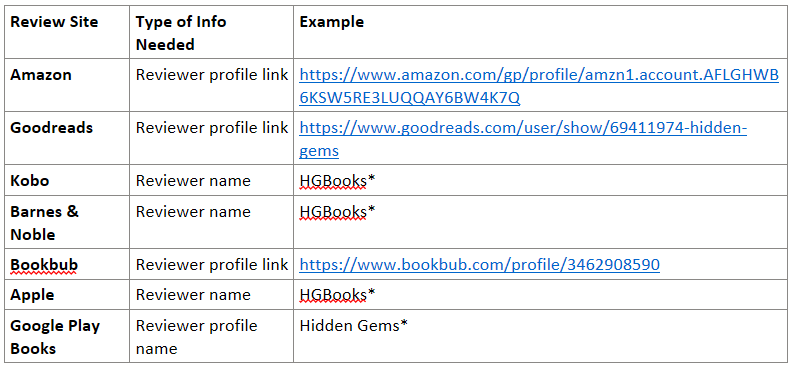
*With the exception of Google, these are the public reviewer names that you entered when you created your account on these review sites, or when you left your review. For Google, it is the name on your Google account. Note that Apple has been removed due to their requirement that books be bought from them in order to leave reviews.
All of this information can be added via the Manage Profile Links link found from the menu at the top left of the app. More information on how exactly to find your own profile link or name can be found here.
Remember that your profile links and names are not secret, so there is no privacy concern in providing us with that information. Anyone that views your public review of a book on any of the sites above can access this information either simply by looking at your review or clicking on your review name to get to your profile page. Those profile pages don’t show any private information either, which is why the sites allow anyone to view them. Generally they are used to see what other reviews you have left.
We use it to find your reviews when you click the “Submit Review” button on your reader form, and then select which site you left your review on. (In the case of Amazon, we also use it to determine what country specific version of Amazon you use, so that we can direct you to the correct site to leave your reviews in the first place.)
The New ARCs section of the app is where you can view all of the ARC books currently available for reservation within your genres of interest and that are looking for reviews on at least one of the sites you can review on (based on what you filled out via the Manage Profile Links menu option).
From this section you can view quick info on each of the available books, including cover, title, author name and genre.
If you received an email from us about available ARCs that are not showing up on this page, it could be that your Settings are set to send you the Compact version of our daily new ARC email. That version mentions all books regardless of genre settings, but only shows limited info like covers, titles and genres. If you saw something that interested you that isn’t listed, you can either go to your Settings to add that genre, or use the quick and handy View All Genres slider at the top of the New ARCs section. That slider will change your filter to show you the books from all genres (but still only ones that match your filled out review profile sites).
Quick Tip: The View All Genres slider will be reset to No whenever you next come back to this tab. If you want to see more books regularly, then you should change your genre preferences from the Settings menu option.
You can also further filter the list by review sites using the Select Review Site dropdown and then picking one of the review sites available. Note that ALL Review sites we support are listed here, but if you choose a site you don’t have set up, you will not see any books listed. Similarly, even if you do have the review site listed, it is possible there may be no books looking for reviews on the site you select as not all authors want reviews on all sites. The default selection is to show all books from all the sites you can review on, giving you the most choice possible.
You can vertically scroll through the available ARCs and when you see one that interests you, click on the Read More/Reserve button to view the full info and reserve your free copy, if you’re interested.
Note – A brief ad may show up before the details of the book, but once your gem level reaches Radiant or Flawless, those ads will no longer appear (unless your Gem level falls below again in the future).
Read More/Reserve Section
Once you click this button for a book, you will see the details of the book and reservation information. The following are a description of the elements you’ll see and can interact with.
Cover/Title/Author Name/Genre: At the top of the screen you will see all of these basic elements of the book.
Description/Blurb: Right below that will be the full description/blurb for the book, as entered by the author. You may need to click the Read More link to expand this. We recommend you always read the full blurb to ensure you get a good idea about what the book is about and any notes the author may have about the copy or story, before deciding if you want to reserve it.
Categories: These are the sub-categories of the book, as entered by the author. The top level genre is noted in the first section under the cover, but the type of book within that genre is what is described by these category fields.
Review Date: This is the date that the author is hoping you will aim to have your review ready by, but it is PERFECTLY FINE if it takes you more or less time. Just get the book read and reviewed as soon as you can and then move on to the next one. Even if you miss the date by a lot, never feel like your review is no longer needed or welcome!
Reviews Requested On: Here you will see icons of each of the potential review sites that the author is looking for reviews on. You will only see books where at least one of the sites you can review on are listed here. You only need to leave a review on one of the sites, although authors would be thrilled if you left reviews on more than one if you’re able to do so. And when in doubt, if you can review on Amazon and the author is looking for reviews there, that is almost always their most preferred site.

Time Remaining: This shows the remaining time for the reservation period of this book. Once it’s over, you will no longer be able to reserve a copy of this book.
Quick Tip: The number of copies remaining is populated when you refresh the page, which means it is possible that even though it shows that there are some available, by the time you click the button all of the remaining copies may be taken. If this happens, you’ll see a message that there are no copies available when you attempt to reserve it.
Copies Remaining: This shows how many copies are still available to be reserved for you. This number may change based on your gem level, as some copies are reserved for the higher gem levels.
Reserve Your Copy: The big blue button at the bottom of your screen is what you tap if you want to reserve a copy of the book to read and review. The button will display how many points are needed to reserve a copy, and almost every gem level will be given enough daily points to reserve at least one book. If you click this button and have enough points, a copy will be reserved for you and then you’ll be notified once the book is available for download (typically the morning after reservations are closed – which you’ll see a note about right above this button after you reserve it). Note that if you have notifications turned on for the app (highly recommended) you will be notified when the book is available for download, which you can find in the Books You’re Reading section. You’ll also get an email letting you know that they’re ready.
Unreserve This Book: If you have already reserved the book but changed your mind, you can click the Unreserve This Book button, which replaces the Reserve button but only lasts until the reservation period is closed. After that you cannot unreserve the book. If you do unreserve a book, the points you spent for reserving it will be immediately readded to your account.
What if there are no books to sign up for?
If you don’t see any new books listed here, that means there are no new books that match your criteria. But new books become available each day, and stay open for sign up for close to 2 days, so if you check back tomorrow or the day after, you’re sure to see something that interests you.
However, it also depends on your genres of interest and profile settings. The more genres you have selected, and the more review sites you can leave reviews on, the more books you’ll see offered. Each day there are usually 4 or 5 new titles added, so if you aren’t seeing anything you like, consider selecting more genres or filling out more review profiles.
IMPORTANT NOTES:
Remember that you are responsible for keeping up with the books you reserve, and all of them will be listed in the Books You’re Reading section of the app, so make sure and check there often in case you miss the emails or notifications.
Only sign up for books that you are interested in reading, think you can at least come close to reading it by the review date, and that you think you’ll enjoy. Otherwise just skip it, another book that suits you better is sure to come along soon!
Any books that you were sent and haven’t yet filled out your reviews or reason for not reviewing for will show up in the Books You’re Reading section. This allows you to keep track of all the books you were sent that you’re still working on, as well review the key info, download the book files, etc.
By default, all books that you haven’t completed the reader form for will show up in this list, with 10 books showing per page. You can move to the next page via the arrows at the bottom of the list if you have more than 10.
Quick Tip: The Reader Form simply refers to each book found in this section. So when we say to fill out the reader form for a book, it just means to add your review, reason for not reviewing, etc, for that book.
Filtering, Sorting and Search
For those with many books in this list, you will find the ability to filter/sort your list or search for specific books useful.
To shorten the list, you can select New from the Filter By section at the top, which will filter the list to only show you books sent recently. Alternatively, you can select the Ready for reviews filter, which will show only the books that have reached or passed their review dates. As a reminder, the review dates are just dates that the author is hoping you aim for, but it is always okay to send your reviews in past those dates.
To sort your list, use the Select Order By Review Date field to toggle between either Oldest to newest or Newest to oldest.
To search for a specific book, you can type the title of the book in the Search by Title box and then select the title that matches. This will filter your list to only that book, and you can use the X to unfilter it.
Get the Book Files
If you haven’t yet downloaded the book files, you can get them from the book details as well, provided they are still available.
Simply tap the desired format you want the book sent in (most books will have both EPUB and PDF available). The PDF version will likely open on your device right away, but the EPUB version will be sent based on your EPUB delivery preference found in your Settings.
Fill Out Your Reader Form
Once you’ve downloaded and read the book, it’s time to leave your review and add it to our reader form. To begin, click the Review button (found under the cover image, to the right of the title/author/etc info) to fill out the reader form for the book.
The reader form will display info about the book that you saw when you reserved a copy, including the icons of the review sites you can leave reviews on.
Note that only the icons of the review sites you have added your profile for will show up here.
Quick Tip: If you haven’t yet left your review, just tap on the icon for the review site you want to leave it on and you will be taken directly to the book on that review site, without having to search for it. But if the icon is greyed out, that means we don’t yet have the link to the book on that site in our system.
Submitting Your Review Links
Once you have posted your review on at least one of the review sites and the site has approved it, you can click the Submit Review button. When you do so, you will be presented with the icons of the various review sites available for that book, and you can click on the one where you left your review. If you have left a review on more than once site, simply repeated that process for each.
Once you do that, you will see a Review Status section show up at the bottom that indicates the status of your review. We use your profile information for that site to try and find your review but if we can’t, you’ll be sent an email listing the various reasons. You will also see a message in this section asking if you want to try again, or even if you want to add the review link manually by copy and pasting it.
When Not Leaving Any Review
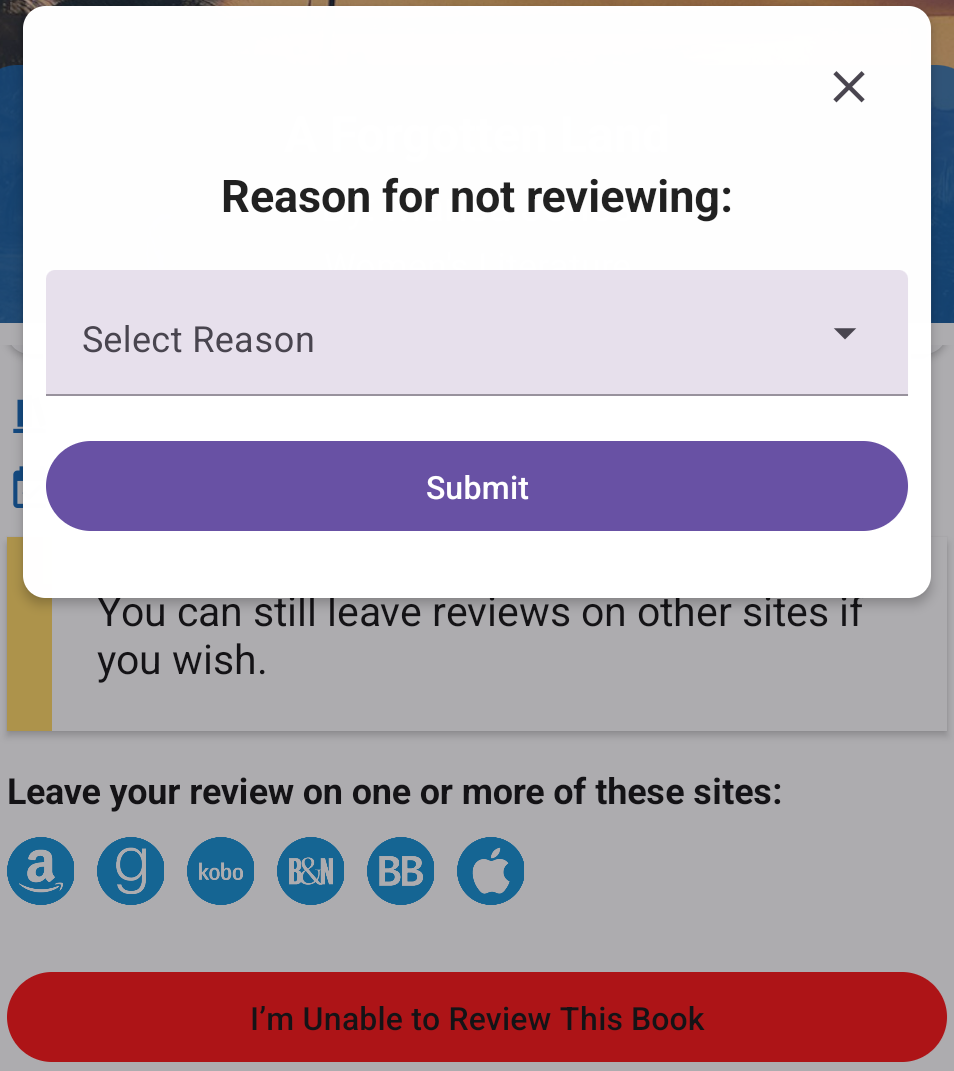
Although Hidden Gems is a program for book lovers that regularly leave reviews, there may be times where you cannot or choose not to leave a review for one of the books we send. For example, maybe you didn’t like it and decided to stop reading it, and thus didn’t want to leave a review for a book you didn’t complete. In cases like that, where you are not going to be leaving a review for a book at all (NOT for cases where your review is just late and you plan to do it later), you can tap the red I’m Unable to Review This Book button.
This will bring up a dialog that includes a dropdown list of potential reasons you are not reviewing. Simply select the one that applies and click Submit. If you select Other from the dropdown, you will be able to add in a custom reason if none of the selections are appropriate.
Finished With a Book?
After you’ve either successfully added at least 1 review link or a reason for not reviewing, you will be asked whether you are finished with the book. If so, you will have the option to leave a comment to the author and then the book will move over to the Completed Books section of the app. If you aren’t done, for example if you wish to leave further reviews for the book on other sites, just don’t click that you’re finished. Although you can still leave more reviews later, as well as add or edit your comments, from the Completed Books section. The Finished button is simply a way to clean up the Books You’re Reading section to keep it focused only on the books you’re still working on.
For more detailed instructions on completing your reader form, please click here.
Quick Tip: Don’t forget to complete your reader form for each book we send, and try not to fall too far behind as it may affect your gem level. Plus, you get additional HGB points for completing your form!
Any books that you have already completed the reader form for will show up in the Completed Books section. This allows you to keep track of all the books you’ve already read, view/add your reviews/reasons for not reviewing, and add/edit your optional author comments.
Note that as this list can eventually become quite long, we only display 10 books per page but you can move to the next page via the arrows at the bottom of the list.
Quick Tip: You can request a complete list of books we’ve sent you in csv format, via the Your Stats tab.
Filtering, Sorting and Search
For those with many books in this list, you will find the ability to filter/sort your list or search for specific books useful.
To shorten the list, you can use the Filter by field at the top. By default it is showing All books, but you can toggle between showing only books that you Reviewed or books that you Did Not Review instead.
To sort your list, use the Select Order By Review Date field to toggle between either Oldest to newest or Newest to oldest.
To search for a specific book, you can type the title of the book in the Search by Title box and then select the title that matches. This will filter your list to only that book, and you can use the X to unfilter it.
View/Update Book Info
Once you’ve found the book you are looking for, you’ll see the basic info like title and author, along with the cover if it’s still available in our system (covers eventually get removed for space reasons). To view the book description or update any of your info like adding new reviews or comments, click the Reviews/Comments button.
From here, you can edit or add a new comment for the author, if you wish. These comments are anonymous and optional, and are sent to the author. Often they are messages of encouragement or thanks, or include things that you didn’t want to add in your review. Please be polite and considerate when sending author comments.
If you left a Reason for Not Reviewing, you’ll see that reason here.
If you left reviews, you’ll see links to them on this page.
If any reviews were not found, you can still click to enter them manually or have us look for them again. Or you can use the Submit Review button if you’ve added any new ones.
As we’ve explained in detail elsewhere, the main reason we need your review site profile information is to be able to tailor which books to show you based on where you can review. That means you need to fill out your profile information for the sites you can review, otherwise you won’t see any books! The Manage Profile Links menu item is where you do that.
From this page you can also request to change existing profiles or even temporarily pause getting offers for a specific review site.
Hidden Gems currently supports all six of these review sites:
- Amazon
- Goodreads
- Kobo
- Barnes & Noble
- Bookbub
- Google Play Books
Each individual author determines which of these sites they want reviews on for their books. That means that if, for example, you can only review on Amazon and Goodreads, you would not be able to see offers or reserve books that only want reviews on Bookbub and Google. That’s why you should add your profile info for ALL of the sites where you can leave reviews.
Each review site works in their own way, so the profile requirements you need to add for each differs. Each site is shown in it’s own section, with a button to add your profile information.
Tapping the button to add your profile info will open up a popup with instructions or steps you can follow to find the information you need, but you can also find that information below.
Profile Information Details
Amazon is the site that most authors want, which means if you can leave reviews on Amazon, you’ll have the biggest selection of free ARCs available. Not everyone can leave Amazon reviews, as they have a lot of rules and restrictions. One of the biggest ones is that you have to have spent at least $50 on Amazon in the past 12 months in order to leave a review on a book you didn’t buy from them. These purchases must be made with a credit card, and Amazon prime memberships don’t count.
But as your Amazon profile rarely changes (unless you create a new Amazon account), we only need you to send it once.
You can do this from the Manage Profiles Links menu option. The top section is for the Amazon Profile Link, and if we already have it you will see the URL to your profile there. If you click it, it will take you to your Amazon public profile page. If this is the wrong profile for you for some reason, then click the Request to Change Profile Link button, which we’ll talk more about in the Editing section of the main part of this FAQ question.
If we don’t have it, then you can add it via the Click to add profile link button. This will open up a set of windows that will guide you towards finding and adding your profile link, but we’ll go over all of that here as well.
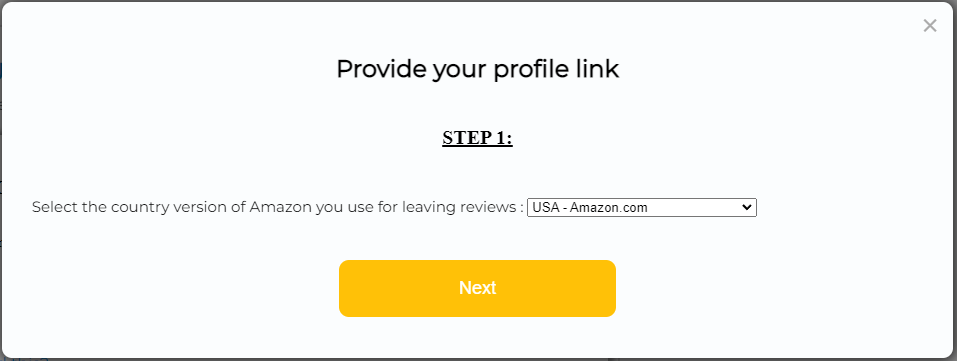
The first step is to select the country specific version of Amazon that you use, as that is the only one you are likely to be able to leave reviews on. If you’re in the USA, you would select USA – Amazon.com. But if you’re in the UK, for example, you would select the Amazon.co.uk link from the drop down, or if you’re in Canada you would select Amazon.ca. Once you’ve done that, click Next.
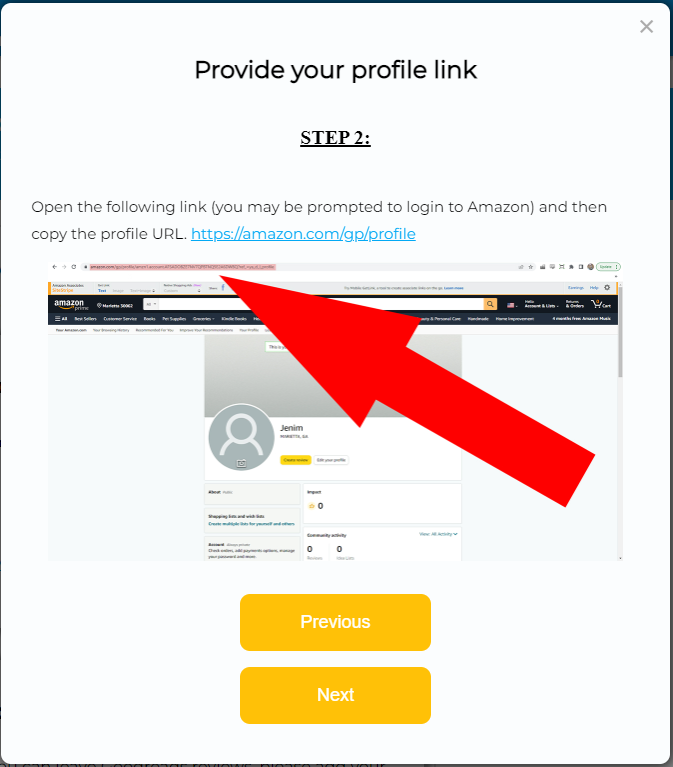
Next, you want to click the blue link at the top of the window, which will open your Amazon profile page. In the above example, it is going to open it on Amazon.com but if you had chosen a different country in the previous step, it would point to your country specific Amazon site instead.
When you click that link, your browser should open up (taking you out of the Hidden Gems app) to your Amazon profile page (the screenshot in the window above shows what that might look like – except yours will show your own public Amazon reviewer name) and what we need from here is the URL, which is found in the address bar of the browser up at the top – where the big red arrow is pointing. It would be something like “https://www.amazon.com/gp/profile/amzn1.account.AFLGHWB6KSW5REXXXX” where the ending is different for each profile. Highlight that whole URL from your browser and copy it so that you can paste it in the next screen. Once you’ve done that, return back to the app to continue.
Once you’ve copied it, click Next.
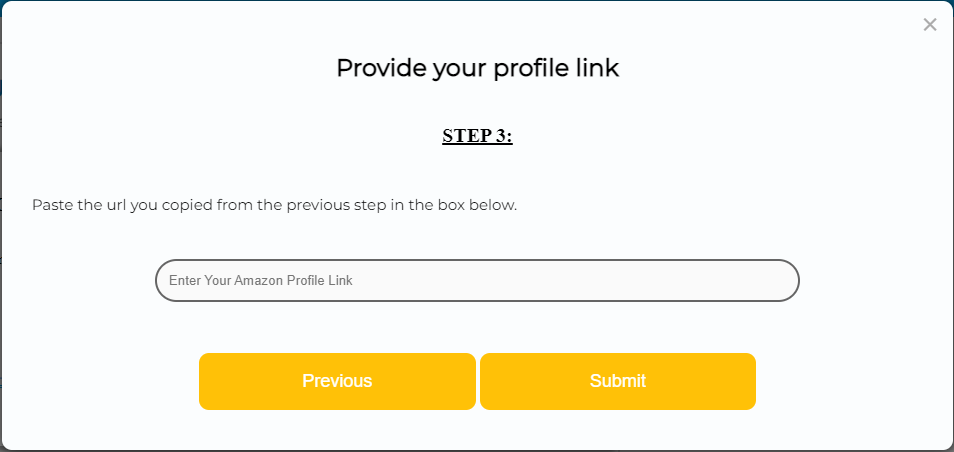
Finally, paste the URL you copied from the previous step into the box that says “Enter Your Amazon Profile Link”.
Tap Submit and then you’re all done (it may take a few seconds as it validates your profile).
We now have your Amazon profile and should be able to find your reviews whenever you try and submit your review from your Reader Form to let us know that they have been added and approved!
Note: If you have any problems with any of this, please contact us for help!
Not all authors want Goodreads reviews, but as anyone can create an account, it is an option available to all ARC readers and will provide you with some book review options even if you don’t have any other review sites you can use.
While it is possible to have more than one Goodreads account, we can only track one so please add your profile for the account you plan to use to leave reviews on from the books you get from us.
You can do this from the Manage Profiles Links menu option. The Goodreads section is near the top, and if we already have it you will see the URL to your profile there. If you click it, it will take you to your Goodreads public profile page. If this is not the profile you wish to use, then click the Request to Change Profile Link button, which we’ll talk more about in the Editing section of the main part of this FAQ question.
If we don’t have your profile yet, then you can add it via the Click to add profile link button. This will open up a couple of windows that will guide you towards finding and adding your profile link, but we’ll go over all of that here as well.
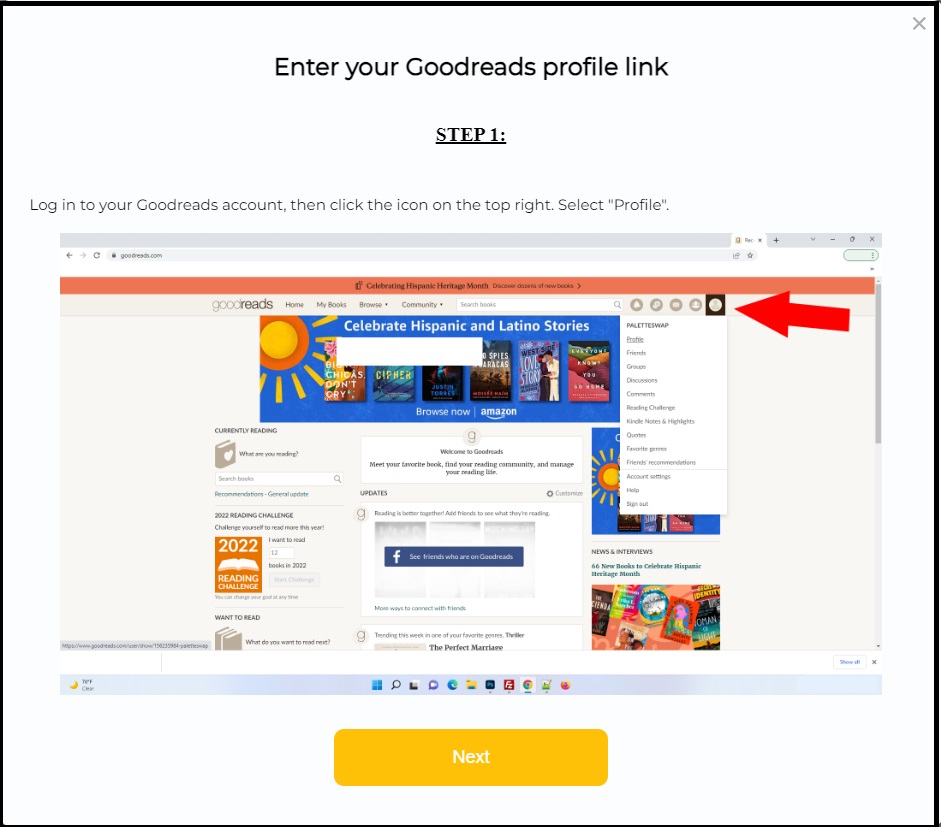
The first step is to login to your Goodreads account and click on the profile icon found at the top right of the screen, as indicated in the screenshot above by the big red arrow. This should open your Goodreads profile page (the screenshot in the window above shows what that might look like – except yours will show your own public Goodreads reviewer name) and what we need from here is the URL, which is found in the address bar of the browser up at the top – where the big red arrow is pointing. It would be something like “https://www.goodreads.com/user/show/XXX” where the ending is different for each profile. Highlight that whole URL from your browser and copy it. Once you’ve done that, return back to the app and click Next.
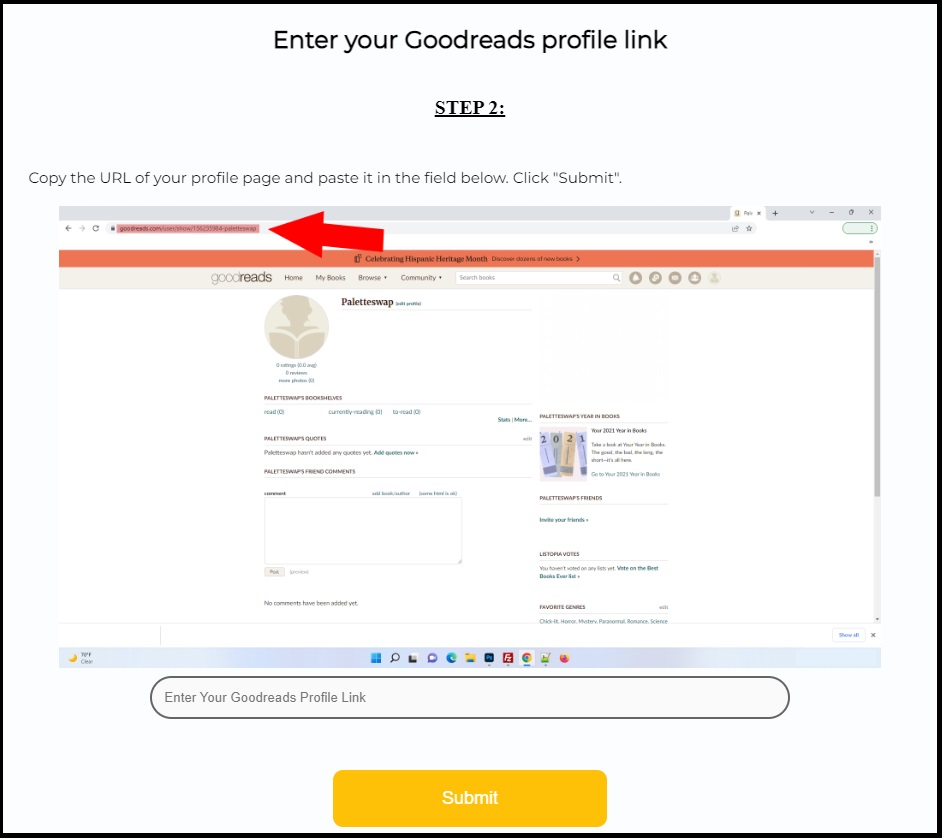
When you see the screen above, paste the link into the box that says “Enter Your Goodreads Profile Link” down at the bottom of that window.
Hit Submit and then you’re all done (it may take a few seconds as it validates your profile).
We now have your Goodreads profile and should be able to find your reviews whenever you try and submit your review from your Reader Form to let us know that they have been added and approved!
Note: If you have any problems with any of this, please contact us for help!
If you can review books on Kobo, then all we need is the reviewer name you are going to use on Kobo. However, because Kobo does not provide a unique url or account for us to track, we require that your reviewer name be unique amongst our readers. That is, although Kobo may allow more than one user to use the same reviewer name, we do not because it prevents us from knowing which Hidden Gem reader reviewed which book.
If you are a Kobo reviewer, please add the reviewer name that you use (or are planning to use) on Kobo. You can do this from the Manage Profiles Links menu item. Find the Kobo section near the middle of the page and check whether or not you’ve already added your Reviewer name. If you did, it will be displayed in the Kobo box and you can change it to something else by clicking the Request to Change Profile Link button, which we’ll talk more about in the Editing section of the main part of this FAQ question.
If we don’t have it, then you can add it via the Click to add your reviewer name button. This will open up a window that will allow you to type in your unique Kobo reviewer name, and then click the Submit button. If the name you enter is already used by another Hidden Gems user, you will get a message telling you to select a different, unique name. So it is to your benefit to add your Kobo reviewer name ASAP to ensure you get the name you want before someone else does!
Just remember to always leave reviews on Kobo under the name you enter here or we won’t be able to find them.
We now have your Kobo name and should be able to find your reviews whenever you submit your review on your Reader Form to let us know that they have been added and approved!
Note: If you have any problems with any of this, please contact us for help!
If you can review books on Barnes & Noble (B&N), then all we need is the reviewer name you are going to use on B&N for all of your Hidden Gems reviews. Note that Barnes and Noble allows you to use more than one reviewer name on their site if you choose, however it is important that you use the same one for all of your Hidden Gems reviews, at least. If you are choosing a new one, make sure to add it to your B&N account first to make sure it is available, as each reviewer name can only be used by one account (although one account can use multiple unique names).
If you are a B&N reviewer, please add the reviewer name that you will use for your Hidden Gems reviews. You can do this from the Manage Profiles Links menu option. Find the B&N section near the middle of the page and verify if you’ve already added your Reviewer name. If you did, it will be displayed in the B&N box. If you need to change it to something else, do so by clicking the Request to Change Profile Link button, which we’ll talk more about in the Editing section of the main part of this FAQ question.
If we don’t already have it, then you can add it via the Click to add your reviewer name button. This will open up a window that will allow you to type in your unique Barnes and Noble reviewer name, and then click the Submit button.
Just remember to always leave reviews on B&N under the name you enter here or we won’t be able to find them.
We now have your Barnes and Noble reviewer name and should be able to find your reviews whenever you submit your review on your Reader Form to let us know that they have been added and approved!
Note: If you have any problems with any of this, please contact us for help!
Not all authors want Bookbub reviews, but as anyone can create an account, it is an option available to all ARC readers and will provide you with some book review options even if you don’t have any other review sites you can use.
We can only track one Bookbub account per reader, so please add your profile from the Bookbub account you plan to use to leave reviews on from the books you get from us.
You can do this from the Manage Profiles Links menu option. The Bookbub section is near the bottom, and if we already have it you will see the URL to your profile there. If you click it, it will take you to your Bookbub public profile page. If this is not the profile you wish to use, then click the Request to Change Profile Link button, which we’ll talk more about in the Editing section of the main part of this FAQ question.
If we don’t have your profile yet, then you can add it via the Click to add profile link button. This will open up a couple of windows that will guide you towards finding and adding your profile link, but we’ll go over all of that here as well.
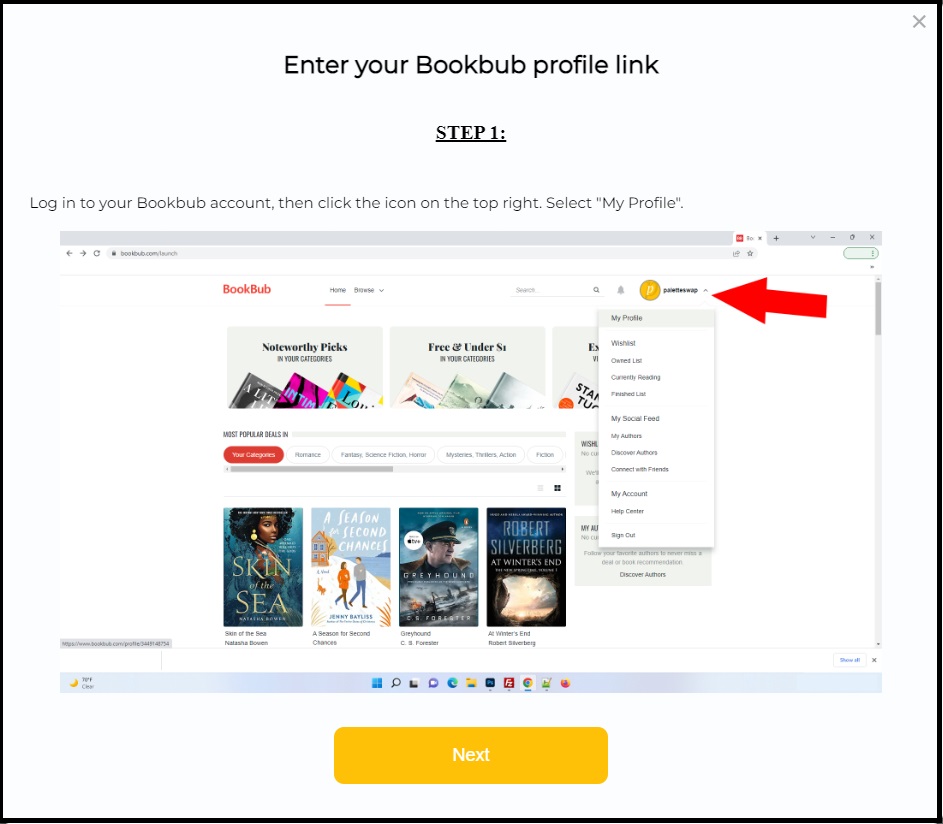
The first step is to login to your Bookbub account and click on the My Profile link found via the dropdown at the top right of the screen, as indicated in the screenshot above by the big red arrow. Once you’ve done that, click Next.
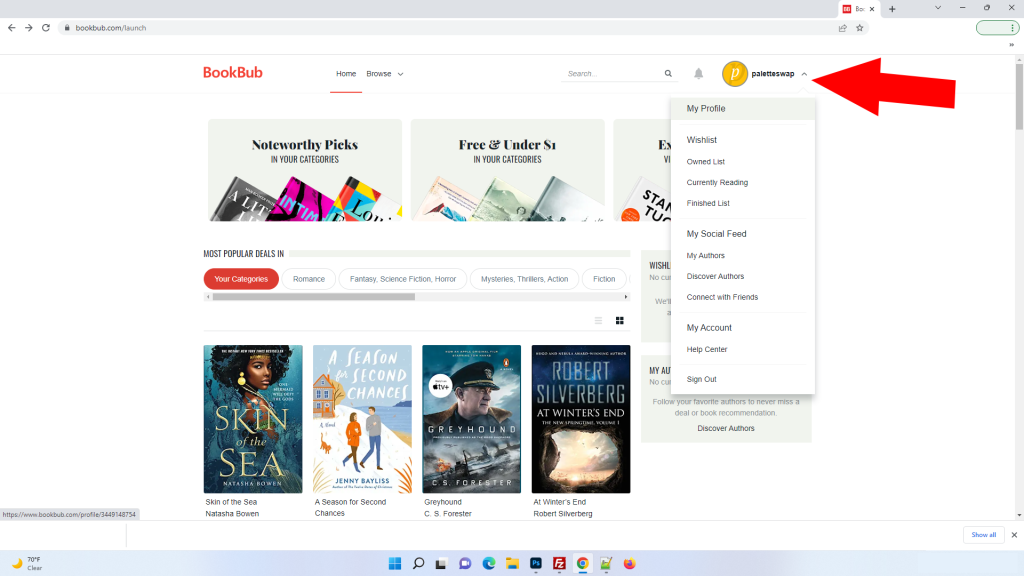
Once you click that, your browser should open up to your Bookbub profile page (the screenshot above shows what that might look like – except yours will show your own public Bookbub name) and what we need from here is the URL, which is found in the address bar of the browser up at the top – where the big red arrow is pointing. It would be something like “https://www.bookbub.com/profile/346290XXXX” where the ending is different for each profile. Highlight that whole URL from your browser and copy it, then paste it into the box in this step that says “Enter Your Bookbub Profile Link” down at the bottom of that window.
Hit Submit and then you’re all done (it may take a few seconds as it validates your profile).
We now have your Bookbub profile and should be able to find your reviews whenever you submit your review on your Reader Form to let us know that they have been added and approved!
Note: If you have any problems with any of this, please contact us for help!
If you can review books on Google Play Books, then your reviewer name is the same as your profile name for the reviews that you leave. To figure out what that is, go to https://myaccount.google.com/ and click the Personal Info link on the left. Your profile name is found in the Basic Info section on the right, under Name.
Note that if you click on the Name field, you can edit it or add a Nickname. You can then tell Google how to display your name and nickname in that Name field.
For example, after clicking the name field you are taken to the screen below and in this case we entered HGB as our nickname. Google combined them and thus the name we would enter into our reviewer name field would be: Hidden “HGB” Gem Books
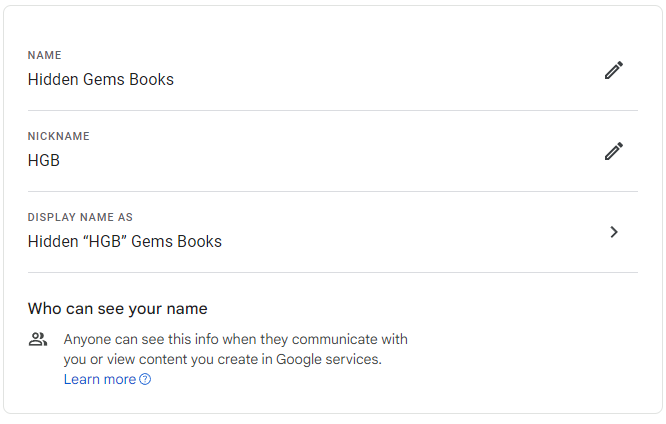
Google Play Books reviewers can add your profile display name to our system via the Manage Profiles Links menu option. Find the Google section at the bottom of the page and check whether or not we already have your Profile name. If we do, it will be displayed in the Google Play Books box and you can change it to something else (if it’s wrong) by clicking the Request to Change Profile Link button, which we’ll talk more about in the Editing section of the main part of this FAQ question.
If we don’t have it, then you can add it via the Click to add your profile name button. This will open up a window that will allow you to type in your Google profile name (as described above), and then click the Submit button.
We now have your Google Play Books profile name and should be able to find your reviews whenever you submit your review on your Reader Form to let us know that they have been added and approved! Just remember that if you change your name or add a nickname on Google, etc, you must come back and edit your name on our form here!
Note: If you have any problems with any of this, please contact us for help!
Once we have your profile, you’ll see it in the box for that review site.
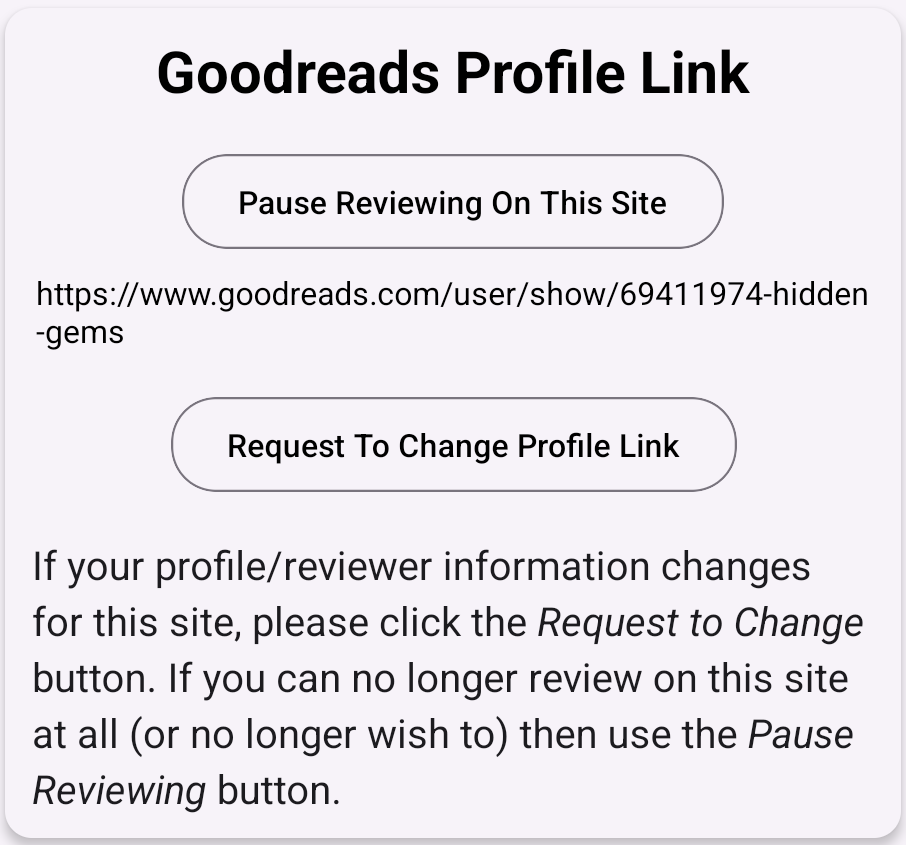
Pause Reviewing on a Specific Site
If you want to stop reviewing and getting offers from a specific site, you can click the Pause Reviewing On This Site button. Note that unless you pause all of your review sites where you have filled out your profile, you may still end up getting offers for books that want reviews on those unpaused sites. Also note that even if paused, you can still leave reviews for books you were previously sent. Just don’t forget to Unpause it once you want to start getting offers again!
Quick Tip: If you simply wish to stop getting sign up emails, but still want to reserve books using your app, do NOT use the pause button here. Instead, go to your Settings and select the No Sign up Email option.
Editing Review Site Information
Once we have your review info for a particular site, there is rarely a reason to edit it as most of the information is tied to your account on that site. However, there are occasions where someone needs to create a new account on a site or change their reviewer name. If you do that, the button to find your reviews will no longer work as it will be looking for reviews on your old profile. If that happens, return to this page and click the button to Request to Change your profile info for that specific site.
Once that request is approved (approval is required to prevent abuse and fake reviews), you will be able to add your new profile info using the same steps as outlined above.
From your Settings menu you can do things like change your genres of interest, set your username, change the email address we use to contact you, change your password, determine how ePub files are delivered, modify email preferences and more.
Genre Interests
The ARC books that are available for reservation on the New ARCs view are determined by the genres you indicated you were interested in reading when you first signed up. If you wish to change those selections, you can do that at any time from the Settings page. Just add a checkmark for any of the genres you wish to see offers for, and remove them from any that you don’t. Just don’t forget to hit the Update button to save your changes!
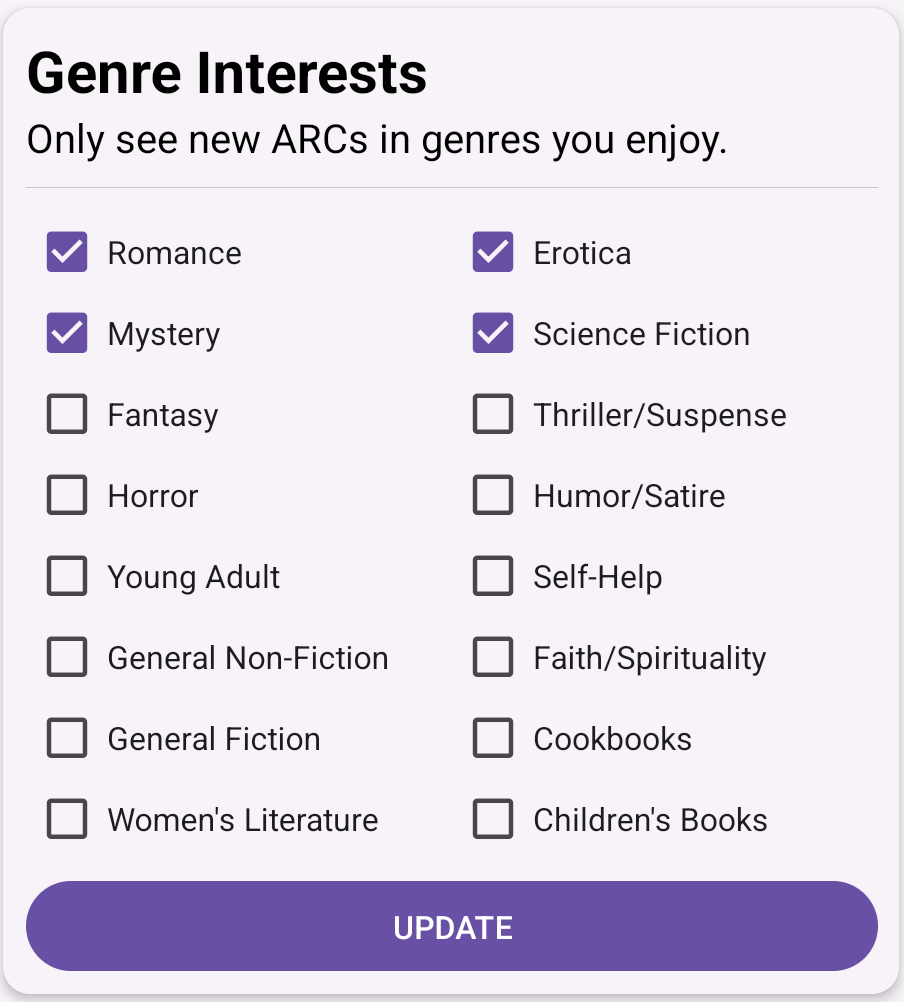
The next time you visit the New ARCs page you will see the available books that match those genres (and your review profiles).
Important Note: If you remove any genres for books that you already reserved or were previously sent, you will still see those books those books and be responsible for completing the reader forms for them.
Account Settings
From this section you can add a username, update your email or change your password.

Set Username
By default your username is your email address, but you are urged to change it to something unique and unidentifiable to you as it will eventually be used publicly in things like leaderboards (so we HIGHLY RECOMMEND that you DO NOT use your real name) or displayed at the top of your dashboard. You can only set your username one time, so choose carefully.
Change Email Address
You can change the email address that we use to send you things like your daily ARC emails and review reminders, and all other correspondence. The email we currently use is shown, but you can change it by typing in the new one and clicking the “Change” button. Note that you will need to validate your new address by clicking the link in the email we send to it, and a verification email will also be sent to your previous address (no action needed for that).
Change Password
You can change your password from this section by entering in your old password and then your new password in the two subsequent boxes.
Remember, for any of the above changes you must click the corresponding Update button to save those changes!
Email Options
From this section, you can modify the delivery and/or format of the emails we send.
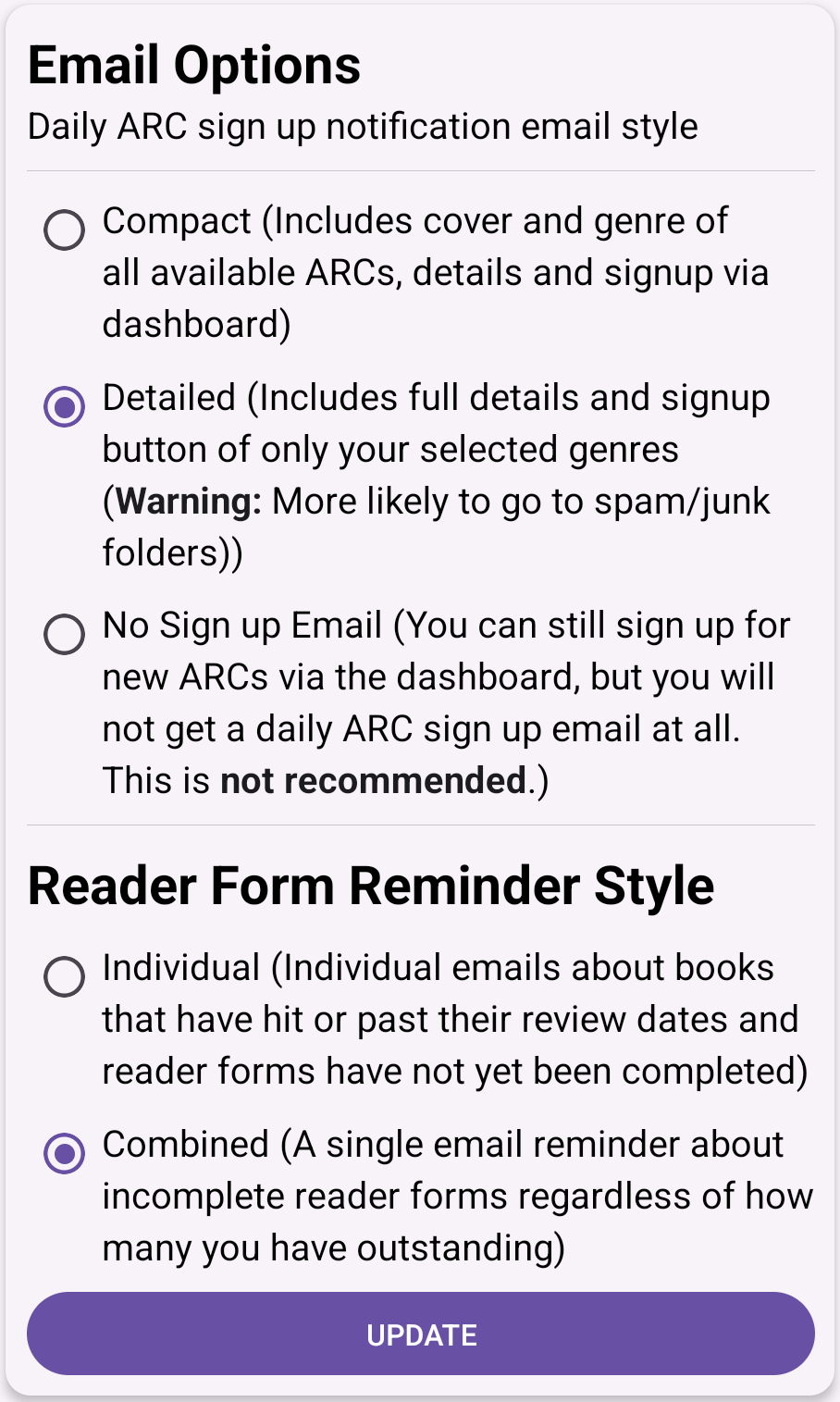
Daily ARC sign up notification email style
Compact: This option will send your daily new ARCs available email in a format that includes only the cover and genres of the 6 most recent ARC books available for reservation. This will include all of the books that were made available that day, as well as a few from the day before that are still open.
Note that this email does not consider genre preferences or review profiles, it is showing the covers of ALL the books available. That means that if you click on any of the covers and go to your app, you may not actually see those books (if you don’t match the genre or review preferences).
Detailed: This option will send a more detailed daily new ARCs email that ONLY includes the books that match your genre preferences and review sites, and it will include all of the details of the book (title, author, cover, blurb, genres, sub genres, etc). If you there are no books that match your preferences and settings, you will not get an email that day.
No Sign up Email: Only use this option if you regularly visit the New ARCs section of your app on your own, or you have your notifications for the app turned on. If not, you won’t know about any of the new books available for reservation. Remember that books are only open for reservation for a limited time, so without a reminder when new ones are available, you may miss out on ones that interest you.
Reader Form Reminder Style
Individual: Use this option to get individual reminder emails about books that have past their review dates and you haven’t yet filled out the reader form for. These are simply reminders though, so don’t worry about being “late”. Just get your reviews in whenever you finish. Note that with this option you may get more than one reminder in a day.
Combined: This option is used to send at most one reminder in a day, but it will simply notify you that you have reader forms that need to be filled out. It will not specify which ones.
Remember to click Update if you change any of the options above!
ePub File Delivery Options
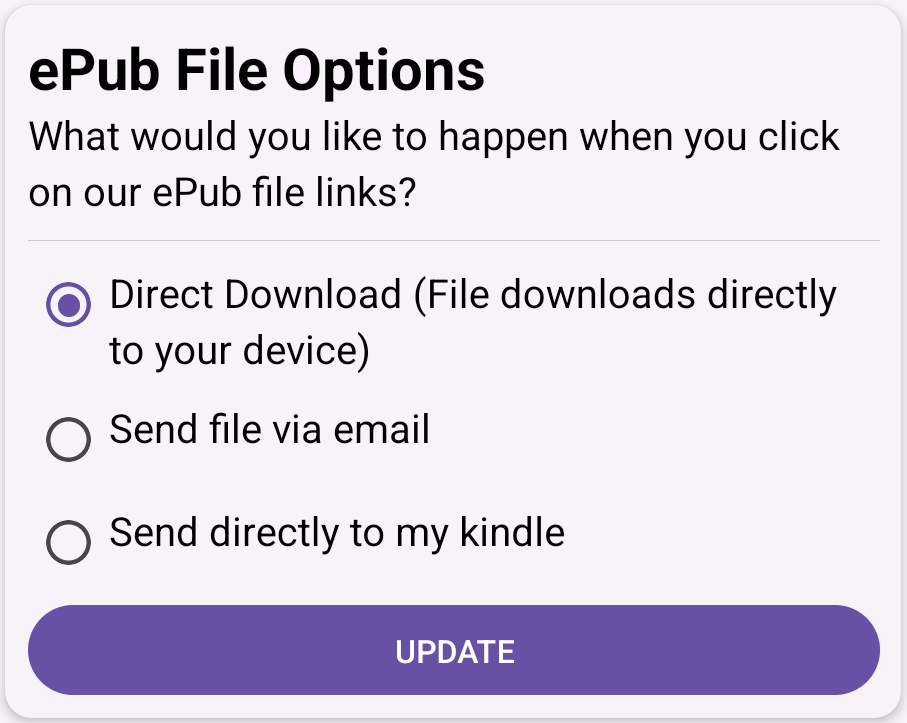
Most of the books we send will give you the option of either PDF or ePub. If you choose the ePub option, then how it is delivered depends on your settings in this section. Click here for more information on these options.
Other Settings
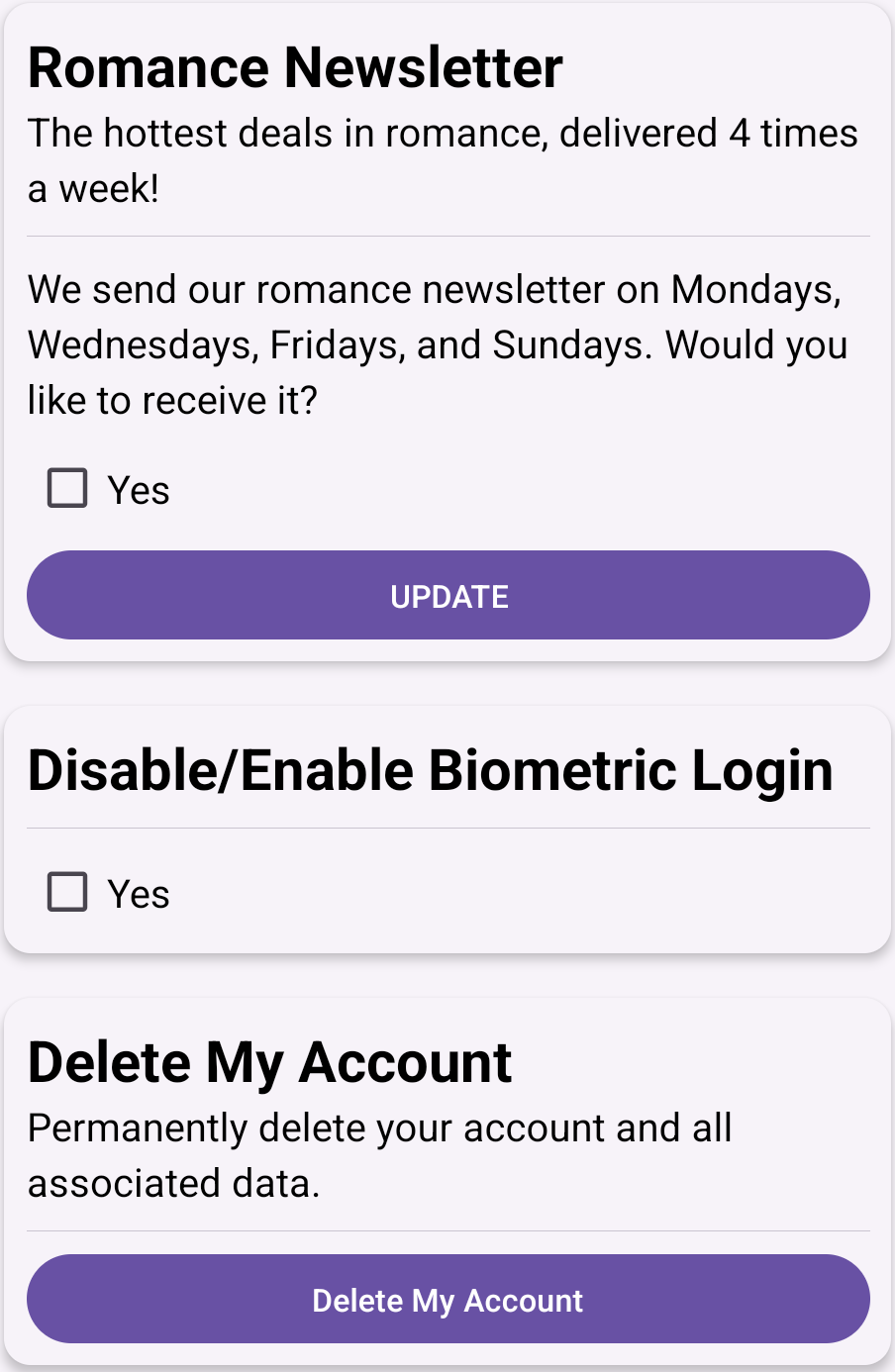
If you’d like to receive our romance email newsletter, letting you know about 99 cent and FREE romance novels available, select Yes in the Romance Newsletter section.
Use the Disable/Enable Biometric Login section to control whether you want to use Biometrics to login to the app.
If you ever decide to completely leave our ARC program and want us to delete all of your data, you can do so via the button in the Delete My Account section. But this should only be used if you plan to never come back, as it will completely delete all your settings and stats.
If you select Your Stats from the menu, you’ll be shown a page with information about your membership (gem) level and some basic statistics about the books you’ve been sent.
At the top you’ll see your current Gem level, along with a brief description of what that level means and some of the benefits you get from it (number of HGB points, etc).
Below that, you’ll see some basic stats about the books we’ve sent you (as well as a circle graph to visualize these numbers) like total books sent and how many of those you have reviewed vs left a reason for not reviewing.
If you would like to get a complete list of all the books we’ve sent, you can click the Email Me List of All Books button. This will send you an email with a CSV of all of the titles. This does not send the book files themselves.
HGB Points are used to reserve books, and you can earn them in a variety of ways. We introduced these points as a way to allow our most active ARC readers to read even more books. However, all ARC readers (unless your gem level is Cracked) will always get enough points to reserve at least 1 book a day.
So if you want to completely ignore the idea of points and only ever want to reserve one book a day, you can ignore the rest of this section.
For those that want to have the ability to reserve more than 1 book a day, here’s all you need to know.
Earning HGB Points
There are various ways you can earn points.
- Daily Points – Simply logging into your account every day will earn you points! That’s right, for each day that you login, you’ll be awarded at least 100 points. And you’ll probably want to visit us daily anyway to check out the new ARC books that are available. This allows everyone to be able to get at least 1 book every day they log in to get one.
- Filling out your reader form – Filling out your reader form with your review link or reason for not reviewing will earn points. And if you leave more than 1 review for a book that is looking for reviews on multiple sites, you can earn even more points!
- Gem Level Bonuses -The higher your gem level, the more points you earn. You can see the full list of points on the gem level page, but as an example, if your gem level is Flawless (the highest level), you will earn 200 daily points (instead of 100) and your points awarded for filling out your reader form will be multiplied by 3!
Point MAX Caps and Point Bank
Each gem level has a point cap, which is the max number of points you can store. So if your level is Sparkling, for example, your maximum point cap is set at 350. That means if you get up to 350 points, you won’t earn any more until you spend some reserving a book. But the higher your gem level, the higher your point cap.
However, that means that if you drop in gem levels, your point cap will become smaller. If you had more points than your new point cap can hold, those points will be removed. But fear not, they aren’t lost forever. Those points will be stored in your point bank and if you regain your previous gem level they will be restored.
For example, if you had 350 points and were Sparkling and then dropped down to Dimming where the point cap is 270, your available points would become 270 but the 80 points that were lost will be added to your point bank and returned if you get back to the Sparkling level.
Any additions or subtractions of points due to gem levels and your point bank will be noted in your announcements window.
Using Points
Points are used for reserving books (although other uses for them may come in the future). Most of the time books are 100 points, which means that if you have 200 points, you can reserve 2 books that day, and the next day you’ll get at least 100 new points that you can use to reserve another one.
The gem levels used by our ARC program are a way to give our most active reviewers the best chance at reserving a copy of the books they want most, but unless your gem is Cracked, there will always be copies of each book available to all gem levels. And in cases where the author allows us to give out unlimited copies, then there are no gem level restrictions at all.
How are gem levels calculated?
The Hidden Gems ARC program is a program specifically for readers that love to read books and write reviews. Your gem level is designed to reflect how closely you match those criteria, and is calculated on a variety of different factors.
For a number of reasons we do not provide the exact formula we use to make this calculation, but the main factor that goes into it is how reliably you are filling out your reader forms and leaving reviews, since that is the main point of the program.
There are no quotas or requirements on how many books you need to read or how quickly, it is more about how reliable your participation is when you do. If you reserve a book, make sure to read it as soon as you can, and let us know when your reviews are published. But even in those odd times where you decide not to leave a review, you should still add that reason to your form so that we know you’re finished with the book.
So to be clear, the best way to maintain or raise your gem level is by filling out the reader forms, and it normally only takes a few seconds to do so!
The Gem Levels and their benefits
In total there are 7 gem levels, although one (Uncut) is specifically for new readers to our program, as a way to allow them to get used to how everything works.
Below is a list of all the gem levels, what they mean, and what benefits each one gives you. They are ordered from highest to lowest with the exception of Uncut which is just for readers that have read less than 5 books with us.
Uncut – (Only for New ARC readers)
New ARC readers to our program will initially start off as Uncut gems. Think of this as a trial period, while you get your feet wet learning how the Hidden Gems ARC program works, how to leave your reviews, fill out your reader forms, etc. This gem level is the only one that is not based on your participation and instead lasts until you have reserved and been sent 5 books. At that point, your true gem level will be calculated and you will be assigned one of the levels below. So make sure that you keep on top of your reviews and reader forms so that your gem doesn’t become Cracked!
While you’re Uncut, you will receive enough points to reserve one book a day, but will not be able to store more points.
Daily Points for Uncut: 100
Max Points for Uncut: 100
Ads: At this gem level, you may see a short ad on the New ARCs section before you can reserve a book.
Regular Gem Levels (from highest to lowest)
Flawless

This is the highest gem level you can achieve, and means that you rarely (if ever) miss leaving a review or filling out a reader form.
As long as you have the points and there are still copies available, you should be able to reserve any book you’re interested in. Congratulations, your participation is flawless!
Daily Points for Flawless: 200
Max Points for Flawless: 1200
Bonus: Points awarded for filling out reader forms accumulate 3x faster!
Ads: You will not see any in app ads at this gem level!
Radiant

You’ve almost reached the top tier of all of our ARC readers. Keep filling out your reader forms for every book, and leaving your reviews as often as you can to make sure you stay at this level, or continue to climb.
As long as you have the points and there are still copies available, you should be able to reserve any book you’re interested in.
Daily Points for Radiant: 150
Max Points for Radiant: 840
Bonus: Points awarded for filling out reader forms accumulate 2.5x faster!
Ads: You will not see any in app ads at this gem level!
Sparkling
You’re doing great, but you likely aren’t filling out all of your reader forms or maybe you’re choosing books that aren’t interesting you enough to finish or review. To improve your level, only reserve the books that interest you most, or if you’ve simply fallen behind, catch up on the previous books we’ve sent before reserving others. Keep on top of filling out any incomplete reader forms from the Books You’re Reading section, or update any old forms from your list of Completed Books.
You may find that there are not as many copies available to your gem level, which may prevent you from being able to reserve all of the books you’re interested in until you can improve.
Daily Points for Sparkling: 125
Max Points for Sparkling: 350
Bonus: Points awarded for filling out reader forms accumulate 1.5x faster!
Ads: At this gem level, you may see a short ad on the New ARCs section before you can reserve a book.
Dimming

Your gem is dimming, and the most likely reason is you have fallen behind on filling out your reader forms and leaving reviews. Go to the Books You’re Reading section to fill those out. Even if the review date for a book has passed, you can still write a review and submit it. The review date is just a date to aim for, but it’s never too late to review a book we’ve sent. But if you decide not to review a book at all, at least fill out your reason. Only leave reader forms blank if you are planning to review but haven’t yet gotten to it, or it’s not yet published.
There are less copies available of each book to readers of your level.
Daily Points for Dimming: 100
Max Points for Dimming: 270
Ads: At this gem level, you may see a short ad on the New ARCs section before you can reserve a book.
Tarnished

You’re in the danger zone now and really need to catch up on the books we’ve sent. Maybe you need to be more selective in the ones you reserve, or maybe you’ve requested too many and have fallen behind.
There are less copies available of each book to readers of your level.
Daily Points for Tarnished: 100
Max Points for Tarnished: 180
Ads: At this gem level, you may see a short ad on the New ARCs section before you can reserve a book.
Cracked

You’ve missed far too many books and in fairness to our authors and other readers, your ability to reserve new ones will be temporarily suspended until you can get caught up on what we’ve already sent.
If you are having any issues doing so, or think there is an error, please contact us as we want to get you back to reading and reviewing ASAP.
Daily Points for Cracked: 0
Max Points for Cracked: 80
Quick Tip: If you have been with us for a while and your gem level has been negatively affected by the fact that you were blocked from leaving reviews on Amazon but wish to participate now by leaving reviews on the other sites, please contact us to discuss resetting your stats.
Books are open for reservation for approximately 36-40 hours, but you’ll know how much time is left via the countdown timer on the New ARCs page. Once you reserve a copy of a book, that countdown timer will be replaced by a message telling you when you’ll be able to download the book. Typically it is shortly after 9am the day after the reservation period closes.
On some occasions, the book files are delayed but we’ll make them available as soon as we can. In very rare cases, the author cancels their ARC after people have reserved it. In those cases, we cannot send out the book at all and the ARC will be removed from your list and the HGB points you spent reserving that book will be refunded. In those cases, you will see a message about this in your notifications (click the bell icon in the top right of the app).
Once the books are available, we will send you an email with the links to download them so it is important that you make sure you are getting our emails. You will also find a link to download the books from the Books You’re Reading section of the app.
Our ARC books are usually sent in 2 different formats, each with their own benefits and uses, and readers can choose the one that works best for them and their device. Note that to use either of these files, just click the corresponding link in the email we sent you or found in the Books You’re Reading section of the app.
PDF Format
A PDF file can be read by most devices and you can usually open it just by clicking on the link we sent. This normally opens the book up and the user can begin reading immediately. This format is best for graphical and colorful books, like illustrated children’s books.
Samsung users please note: Samsung devices can sometimes cause issues when attempting to view PDF files due to application defaults. You can reset these defaults using this method:
- Go to Settings > Apps > All
- Scroll to Google PDF Viewer app and tap it.
- Scroll down to the “Launch by Default” section and tap the “Clear Defaults” button.
- You can also try Settings > Apps > Drive and then repeating steps 2 and 3.
ePub Format
Most eReading devices, including Amazon’s kindle, support the ePub format. For kindle devices and apps, the ePub can be sent to your @kindle.com email address (more details below). Other devices may have different ways to load your ePub, so you may need to consult with the instructions of your particular device if you aren’t sure how.
ePub File Delivery options
There are 3 options when it comes to how we send you the ePub file, and you can view or modify these via your Settings menu. Just select the option you prefer and click Update.
Direct Download – If this option is selected, when you click the ePub link for a book we’ve sent you, the ePub will immediately be sent to the device you’re using via a browser download. Depending on your device, you would then have to find this file and load it onto your eReader.
Send file via email – If this option is selected, whenever you click the ePub link for a book we’ve sent you, the file will be sent as an attachment via email to the email we have on file for you (the one on your settings page). This option works well for people using iOS devices since there is no file system to find the files sent directly via the first option.
Send directly to my kindle – This option directs us to send the ePub directly to your kindle device whenever you click on the ePub link for a book we’ve sent. In order to do this, there are a couple of set up steps. First, when you select this option, a new field will appear asking for your @kindle email address. This is the address Amazon has associated to the kindle device you want the book sent to. Next, you must go onto Amazon and add “kindle@hiddengemsbooks.com” as one of the email addresses that are approved to send to your device. More details on those steps below, in the section on sending the file to your device manually.
Manually sending ePub files to your Kindle Device
If you don’t want us to send the file to your device directly (which is much easier, see above for more details), then you will have chosen one of the first two options for getting your ePub file. Once you have it, you’ll need to send it to your kindle device so that you can read it on there. We have a quick video on how to do that, or you can follow the steps below:
- Navigate to https://www.amazon.com/manageyourkindle and click on “Devices” (you may need to log in to Amazon first)
- Select your kindle device and note down the @kindle.com address
- Click Preferences and then Personal Document Settings and verify that your own regular email address is added in the Approved Personal Document Email List (if it’s not, add it)
- Go to your email program and send an email to the @kindle address you noted down above, and add the .epub file as an attachment
- Within a few minutes, the book should be available on your kindle!
For future books, you will only have to repeat steps 4 and 5 to get them onto your kindle.
Trouble adding attachments to your email on your device?
As some devices (like iOS based ones) don’t allow you to download a file directly so that you can attach it to an email and send to your @kindle email address, there is an option to have the EPUB file emailed to you directly. If you’re using this Send file via email option, then whenever you click the EPUB link from us, you’ll get an email with the file attached instead of it downloading to your device directly. You can then forward this email to your @kindle email address to complete the steps above.
Reading files in a Kindle App (any device)
In order to view your eBooks within your Kindle reader app, the steps depend on what sort of device you’re using, but these simple instructions should help.
Having Issues Reading Files on Your Kindle Fire?
Here are some specific steps to try if you’re using a Kindle Fire device:
- Open the Books app on your Kindle Fire and click the “hamburger” icon in the upper left (the three stacked horizontal lines).
- Click “Collections”, then the little plus sign on the top right to create a new Collection. Call it something like “ARCs”.
- Add any old Amazon-bought book into your new Collection (only needs to be one) and then click “Add” at the top right. Note: never remove this “anchor” book from the Collection, or the Collection will disappear.
- Go back to the Home screen and open the Docs folder. All of the books that you’ve emailed via Send-to-Kindle that have been processed by Amazon should be listed. For each that you’d like to add to the ARC Collection, just click the three vertical dots on the right, then “Add to Collection”. Check the box next to your new ARCs Collection and click “OK”.
- Now if you go back to the Books app and click either the hamburger icon again and the Collections OR you can click “Sort” and then “Collections”. Either way, you should see your new Collection contains all of the books you added from the Docs app. They should function just like any other book in your Library.
Note: Once you’ve set up your Collection via steps 1-3, you will not need to repeat those steps to add more books. Simply add new books to the Collection you’ve already created.
Most important – these book files are for your personal use only. Please do not share them with anyone. Instead, why not just encourage your friends to join Hidden Gems themselves by sharing a link to the app with them?
There are no quotas on books you have to read and review. You can reserve as many or as few as you want and think you’ll have time to read by their review dates (although getting reviews in past those dates is okay, too, but please try to get them done as soon as possible), as long as you have enough HGB points to do so. Unless your gem is cracked, you should get enough points each day to reserve at least one book. But the higher your gem level, the more daily points you’ll get and be able to store, and the more books you’ll be able to reserve. And you earn even more points for each reader form you fill out!
The number of books you read has no bearing on your gem level or status as a reviewer, so just read whenever you have time. If you need to stop signing up for books for a week or a month or a year, and then all of a sudden you reserve one again, it will be like you never stopped.
The main thing that affects your status as a reader with us is the consistency with which you fill out our reader forms and seem to be participating with the books that you HAVE asked for and been sent. Remember that our membership is made up specifically of people that love to read and leave opinions of what they read – although we know that not everyone will choose to review every single book they’re sent.
Quick Tip: The most important thing is that you make sure to only reserve books that you have the time and desire to read as soon as possible. The review dates on the ARCs are simply the dates that the author is hoping most readers can start leaving their reviews by, but it’s okay if it takes you longer. Similarly, you can always leave your review sooner, if the book is already published. The review dates are always at least a week from when the book is available for download, but sometimes even longer, so don’t feel like you have to wait until then to log your review.
YES! Whenever an ePub version of a book is available (which is most of the time), we can send the book directly to your kindle device or kindle reading application. It does require a bit of setup on your end (in terms of adding our kindle email to your Amazon trusted list allowing it to send to your device, and providing us with your @kindle email address) but you can do all of that quickly and easily via your Settings.
You can find more detailed instructions on setting it up in the ePub section of this FAQ question.
For the most part, readers that regularly participate and keep up with their reader forms should be able to reserve any book that interests them, provided it is looking for reviews on a site that they have filled out a profile for. However, there are a number of factors that may limit or prevent books from being reserved.
Here is a list of the reasons you may be restricted or prevented from reserving a book and how to resolve them:
- The author wants reviews on a site you don’t review on
As mentioned above, unless you have filled your profile information for at least one of the review sites that the author wants reviews on, you won’t be able to reserve a book. In fact, you won’t even see that book in your list of New ARCs. In most cases, you won’t even know the book exists, although if you have the Compact sign up email setting, then you may have seen the cover in your daily ARC email.
Resolution: Fill out your profile information for ALL the sites you can review on to maximize the number of books available to you
- Your gem level is too low
If your gem level is Cracked then you are prevented from reserving more books until you raise it, but as long as it is above that level, there will always be at least some copies available of every book. Some books, however, only want a set number of readers and in those cases, some of those copies are reserved for the higher gem levels. When you go to reserve a book, you may see a message that all the copies have already been reserved for your gem level.
Resolution: Raise your gem level by participating more. You likely have too many incomplete reader forms, or aren’t picking books that interest you and thus leading to more reasons for not reviewing than actual reviews. Make sure to add reviews for the books you are sent as often as possible. You can even leave reviews on multiple sites for the same book (if the book wants reviews on multiple sites that you can review on). Even if you decide not to review, you should still complete your reader form to improve your gem level.
- You don’t have enough HGB points
Unless your gem is Cracked, you will always get enough daily HGB points when you login to reserve at least one book and if you don’t reserve a book that day, your points will carry over (up to your max). Higher gem levels get even more daily points (and have a higher max), allowing them to reserve more than one book a day. You also get points when you fill out your reader form, with higher gem levels earning more points for that as well.
Resolution: Raise your gem level, make sure to login every day to collect your daily points, and always fill out your reader forms. Adding more than one review for a book on your reader form earns even more points!
- There are no more copies available
Authors determine how many copies of their books they want to give out, and if we hit that number, you won’t be able to reserve the book. There are always copies available to all gem levels, but more copies available to higher ones that are more likely to participate.
Resolution: Make sure to visit your dashboard daily, as early as possible, to ensure you can reserve the books you want. Improving your gem level will also help!
First of all, please make sure that you’ve taken the steps to ensure you’re getting all our emails.
If you’ve done that and can’t find our book links emails in your spam/junk folders, you can still get the files from the Books You’re Reading section of the app. Just find the book and click the Review button to see the full details and options. Look for the “Need the Book files again?” section and then simply tap the desired format button (ePub or PDF) to get the files.
Quick Tip: Book files are only available for a limited time, and once they’re removed the download links above won’t show up as the files are deleted from our system. So please make sure to download them as soon as you can, even if you don’t plan to read them immediately.
The term Reader Form simply refers to the information we ask readers to fill out for each book that they are sent. They are primarily found on the Books You’re Reading section of the app, when you click the Review button, although you can also update it from the Completed Books section, in case you need to make changes or updates to a previously completed book.
Remember that the free ARCs we offer are provided by authors in the hopes of getting honest and voluntary reviews. So in most cases when you reserve and read a book, you will be leaving reviews and then adding them to our system so we can keep track of them for the author. Even when you decide not to leave a review, you still must enter your reason for not reviewing in this same section. And there is even a place to enter an optional comment to the author that will be sent to them directly, in case you have something to say that you didn’t add to your review.
Once your review is live on wherever you posted it, filling out the reader form is quick and easy. In most cases it’s just a matter of clicking a button or two, and each completed form earns HGB points and can improve your Gem Level!
Quick Tip: Even when an author is asking for reviews on multiple sites that you can review on, you only need to add a review on one of them. However, if you leave reviews on more than one you will earn even more HGB points. So feel free to review on as many sites as you want per book. The author will greatly appreciate it!
Step 1: Write your Review
Once you’ve finished reading a book we’ve sent you, head over to one of the review sites available for that book and post your review. As a reminder, you will see an icon corresponding to each of the available sites in the Books You’re Reading section of the app, after clicking the Review button. They’ll be found directly below the text “Leave your review on one or more of these sites:”
If the icon exists, it means the author wants reviews on that site, and you have entered a profile for that review site in our system. If you haven’t already written your review, you can simply tap an icon and be taken directly to the book on that site so that you can leave your review. If you aren’t logged in already, you may be required to login to that review site before leaving your review. Note that if the review site icon is greyed out, it means we don’t yet have the review link for the book to that site, but will add it as soon as we do.
Step 2a: Add Your Review to the reader form
Once your review has been approved and posted by the review site, you’re ready to add it to your reader form! To do so, simply click the Submit Review button, which will open up a list of all of the available review sites. Click the one that your review was posted on, and our system will go and find it for you.
Note that this process (of finding your review) can take up to 48 hours, and during that time you will see a message here that we’re looking for your review. But you can forget about it for now and move on to other books. If there is an issue with finding your review, we’ll send you an email and add a message to this section.
If we find your review and there are no other review sites for this book, the book will automatically move to your Completed Books section.
Adding further reviews, comments, and finishing up:
If there are other sites you can review this book on, you will still find the book in the Books You’re Reading section. You can either repeat the steps above to leave more reviews, or if you’re finished reviewing, simply click the red I’m Finished with This Book button.
If you click that button, you will be prompted to enter an optional comment to the author. You can either do so, or leave the field blank, then click the I’m Finished with This Book button on that form and the book will disappear from Books You’re Reading and move to Completed Books.
Quick Tip: The comment field is meant for readers to provide any additional feedback about the book that they didn’t include in their review, or thank the author, etc. These comments are completely anonymous, so please DO NOT leave any identifying information in this field as it will be removed (such as your email address, real name, etc). This field should also not be used for issues you have with the ARC program or anything not specific to the book or author – please send anything like that to us directly.
Manually Adding a Review Link
If we cannot find your review (which can sometimes happen for a variety of reasons), you will see a message here stating so and asking whether you want us to look again, or (in some cases) if you want to enter it manually. If you click for us to look again, we will do so. Just ensure that your book is reviewed under the same profile we have on file for you for that review site, and that you reviewed the correct book.
If you select to enter the link manually, you will be prompted with a dialog to enter the review link. You must copy and paste the link to your review in that box, and then click the Submit button. Your review will then be validated immediately. If the review link is properly formed (not a link to something else) and verified, you’re all done. If not, you will see a message about what’s wrong.
Click here for more details on finding your review links. However, if you are still having issues adding them, please send us an email with your link and we can try and help.
Step 2b: If you are Unable to Review the book at all
It is understandable that there may occasionally be reasons why a reader cannot or chooses not to review a particular book. That’s fine, we aren’t going to force you to finish a book you didn’t like, for example. In those cases, instead of submitting your review you can tap the I’m Unable to Review This Book button.
Once you do, you’ll be presented with a variety of choices. Please select the one that most closely matches the reason you are not reviewing this book. Note that some of the reasons in that list are resolvable, and if you select those you will be shown a message on how to resolve the issue first so that you can hopefully still finish reading and/or leave your review. In those cases, no reason for not reviewing will be added to your reader form.
Please only use this field if you will not be reviewing the book at all, It is NOT meant to simply let us know that your review is delayed. In those cases just leave the reader form blank and fill it in whenever you’re done. And feel free to contact us if you need help getting your issue resolved.
Remember that ARC readers are expected to fill out their reader form for each book they have been sent, it only takes a few seconds.
That’s up to you, as all reviews are your own. However, since we know that as a reader you aren’t necessarily also a writer, we’ve written up some general tips for writing reviews on our blog. Remember, it’s okay if you don’t like a book, but be aware that there is a difference between a bad review and a “bad” review…
Sometimes the review site icons in the Books You’re Reading section of the app don’t take you to the book on the review site, and instead show a message that there is no link available. Other times, you may get to the book on a review site (like Amazon) and it is in pre-order and you cannot review it.
In the first case, the reason for this is that many of the books that authors provide for us to send to our reviewers are not yet published, and they don’t yet exist on the review site. In the second case, the book may be on the review site but in pre-order status. Sites like Amazon do not allow reviews on books that are on pre-order, and thus cannot be reviewed until their publication date.
In either case, if you cannot leave a review as soon as you’re done reading, just leave it for now. If the link is missing, we’ll update it once it’s live and send you a reminder. Generally the review dates we have for a book are when the book is due to be published (if it isn’t already), and thus you can check back then. In some cases, however, a book’s publication date is delayed and the author forgets to let us know. In those cases, we will update the forms with the new date as soon as we have it.
In the meantime, go ahead and reserve other books to read and review. Just don’t forget to come back to this one later!
Quick Tip: If an eBook on Amazon is on pre-order but the Paperback version of that book is already live, you can leave your review on the Paperback (or hardcover) version and it will get linked to the eBook version. That’s one way to leave early reviews on a book!
In most cases, we can find your review links automatically but there are some circumstances in which you may have to submit them manually.
In those cases, you need to be able to copy and paste the review link for that book onto your reader form. As each review site is different, the steps to find your review and copy the link differ. For further instructions and screenshots, expand the site link below corresponding to where you left your review.
There are a couple of different ways to find your review link on Amazon. The first would be to navigate to your Amazon profile, which normally displays all of the reviews you have left. If you aren’t sure how to find your profile, remember that you added it to the Manage Profile Links section of the app, so by going there you can find and click the link to your Amazon profile to be taken to it directly.
From there, you should see a set of boxes that contain products you have reviewed. If you see your review of the book, click on it and you will be taken to a page that just displays your review of that book.
However, depending on your sensitivity filter settings as well as how many other books you have reviewed, it may be hard or impossible to find your review for this book from your profile page.
An alternative is to go to the book you reviewed on Amazon, scroll down to the list of reviews and find yours (depending on how long ago you reviewed and how many others have reviewed it since then, you may need to scroll through a few pages before you find yours.) Once you do, click on the title of your review which will take you to a page that displays just your review.
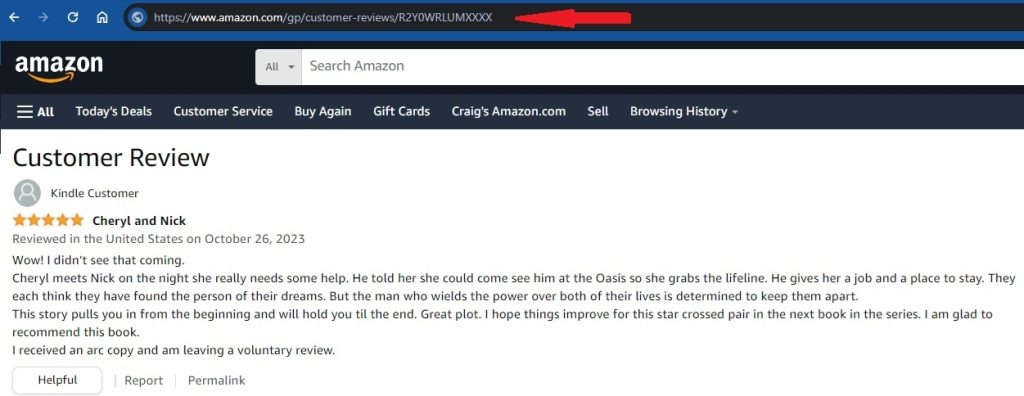
From there, simply click into the address bar at the top of your browser (as indicated by the red arrow) and highlight the URL. Then copy it and go to our reader form and paste it into the box asking for your Amazon review link.
Quick Tip: If Amazon sent you an email letting you know that your review was live, then it will have included a link to that review. Simply click on it and then follow the steps above.
There are a variety of ways to find your review on Goodreads, but the easiest is to just go to your Goodreads profile page. If you aren’t sure how to find your profile, remember that you added it to the Manage Profile Links section of the app, so by going there you can find and click the link to your Goodreads profile to be taken to it directly.
From there, you should see your number of reviews on the top left, under your profile image.
In the example above, it says 1 review but yours will say the number of reviews you have left. Click that line and you will be taken to a page that lists all of the reviews you’ve left. From there, simply find the row for your review of the book you’re looking for and click the “View” link at the far right of the row.
This will take you to a page that displays just your review.
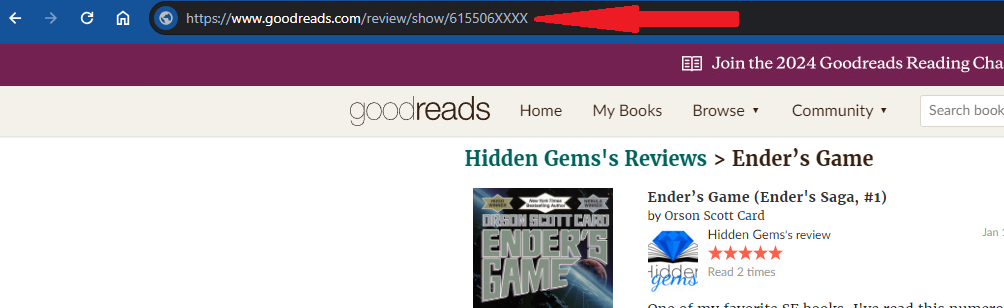
From there, simply click into the address bar at the top of your browser (as indicated by the red arrow) and highlight the URL. Then copy it and go to our reader form and paste it into the box asking for your Goodreads review link.
There is no easy way to find a list of all your reviews on Kobo, nor is there a way to go to a page that just has your review link on it. For this reason, we do not ask for manual review links for Kobo and you can only use our find automatically button.
That is why it is important that you ALWAYS add your reviews using the same reviewer name on Kobo that you added to the Manage Profile Links section of the app, or we won’t be able to find it. Kobo lets you use different names when you leave reviews if you want, so make sure that you are always consistent with the ones you leave for books you received from Hidden Gems.
There is no easy way to find a list of all your reviews on Barnes & Noble, nor is there a way to go to a page that just has your review link on it. For this reason, we do not ask for manual review links for B&N and you can only use our find automatically button.
That is also why it is important that you ALWAYS add your reviews using the same reviewer name on B&N that you added to the Manage Profile Links section of the app, or we won’t be able to find it. Barnes & Noble lets you use different names when you leave reviews if you want, so make sure that you are always consistent with the ones you leave for books you received from Hidden Gems.
The easiest way to find your review on Bookbub is via the Bookbub profile page. If you aren’t sure how to find your profile, remember that you added it to the Manage Profile Links section of the app, so by going there you can find and click the link to your Bookbup profile to be taken to it directly. Alternatively, when you login to Bookbub you can click the arrow next to your username name at the top left and then select “My Profile” (see the red arrow in the screenshot below).
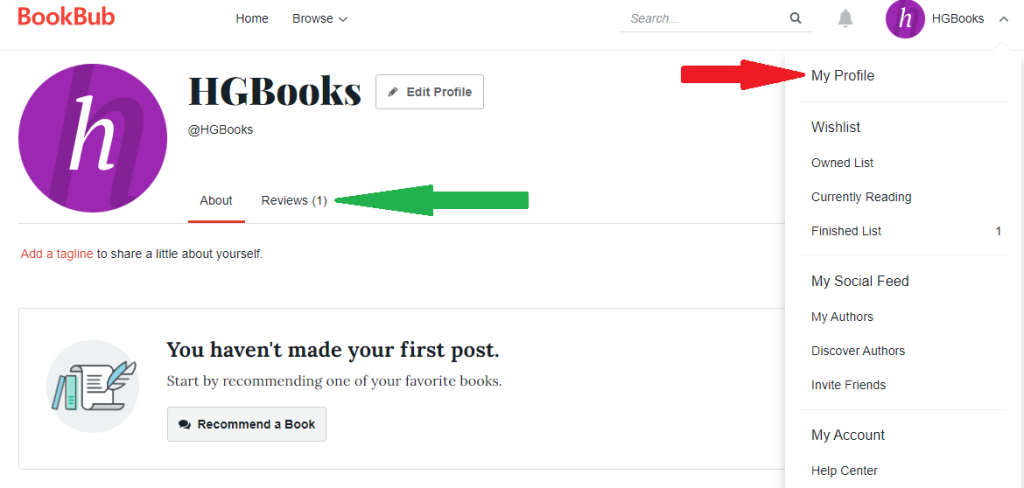
After that, you can then click the Reviews link in the middle of the page (see the green arrow above).
From there, you’ll see a list of all the books you have reviewed. If you click on the one you’re looking for, that will take you to your review of that book and the page we need.
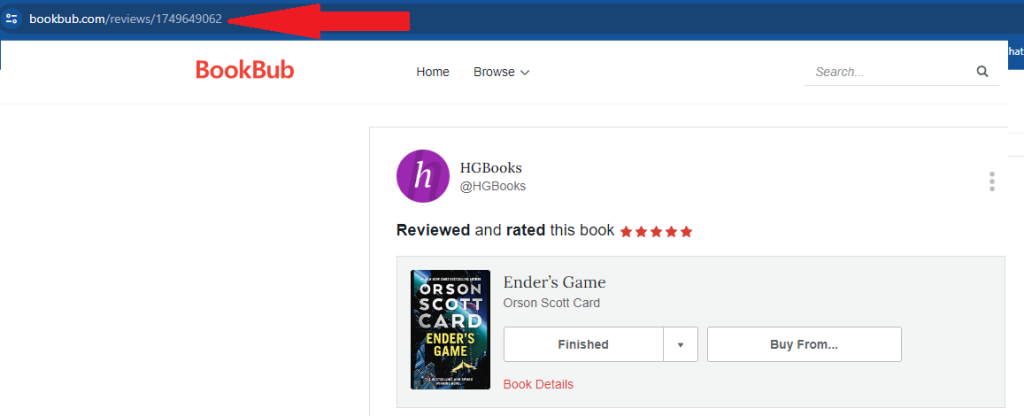
From there, simply click into the address bar at the top of your browser (as indicated by the red arrow) and highlight the URL. Then copy it and go to our reader form and paste it into the box asking for your Bookbub review link.
There is no easy way to find a list of all your reviews on Apple Books, nor is there a way to go to a page that just has your review link on it. For this reason, we do not ask for manual review links for Apple and you can only use our find automatically button.
There is no easy way to find a list of all your reviews on Google Play Books, nor is there a way to go to a page that just has your review link on it. For this reason, we do not ask for manual review links for Google reviews and you can only use our find automatically button.
That is also why it is important that you ALWAYS add your reviews using the same reviewer name on Google that you added to the Manage Profile Links section of the app, or we won’t be able to find it. Google allows you to change your name or add a nickname, which is then reflected as your reviewer name. If you change that name you must update your profile information on our site.
If you have tried submitting your review but our system couldn’t find it, the book will continue to appear in the Books You’re Reading section, with a message that it couldn’t be found. We will have also sent you an email about this, with some common reasons why it couldn’t be found and steps to fix them. If you don’t see our email, please check here and follow the steps.
Here is the list of common reasons and steps to take when your review can’t be found.
- You haven’t yet written and submitted your review on the review site you asked us to check (but plan to)
If this is the case, please leave your review ASAP and THEN try asking us to look again. Note you should only click the Submit Review button AFTER you have added your review to this specific review site and they have approved and posted it (see #2 for more details). - You have submitted your review but it hasn’t been posted yet
Sometimes there is a delay (hours or even days) in how long it takes a review site to approve and post a review. Some sites will send an email letting you know when it’s been done, but not all do that. Please ensure your review is posted before clicking the find review button again, as we cannot find it until it is. - You are posting your reviews to a different profile or clicking the wrong button
We can only find your review if we are looking for the right one on the right site, so please ensure that you have left your review under the profile we have on file for you (the one you added and can view on the Manage Profile Links menu item of the app) and that you are selecting the correct review site for us to search. For example, if you left your review on Bookbub, don’t click the button telling us to look for it on Goodreads! - You left your review on the wrong book
Many books have the same or similar titles, so it’s important to make sure you leave your review against the correct book. Best practice is to use the links we provide on the Books You’re Reading section by tapping the icon of the review site to go directly to the book. If those links aren’t available (icon is grey), it’s usually because the book is not yet published, so we’ll update it as soon as it is. Please verify the book you left your review against. If you did leave a review against the wrong book, please delete that review and repost it against the correct one, and once your new review is posted you can tap the link asking us to look for it again. - You previously reviewed this book
We only look at reviews that have been left since we sent out the book, so if you left a review for this book previously, we won’t find it. You can add that link automatically to complete your form (if manual links are available for that site), but in general, please do NOT sign up for any book you have already reviewed. - Other
There may be some rare circumstances where you have left your review and it is posted on the profile we have on file for you, but you are still getting this email. If that’s the case, please hit reply and let us know so we can investigate. But please ensure that your review IS indeed posted by checking either your profile or by scrolling through the reviews for the book until you find yours. If possible, please also email the link to your review if you know how to copy and paste it. Once you do that, we’ll try and find your review and add it to your form and see if we can identify why it wasn’t found earlier so that we can improve the process going forward.
In order for the Submit Review button to work, your book review must be approved and live. To verify this on Amazon in particular, you can normally check your Amazon profile page, as all of your reviews should show up on your profile. However, in some cases a book review does NOT appear on your profile, and that is generally due to one of two reasons:
- Your review isn’t approved yet. Amazon sometimes posts reviews immediately, and other times they spend time approving them – sometimes many days! If your review isn’t approved, it not only won’t show up on your profile page but it doesn’t show up under the book either. In this case, there is no way to add your review link to our form, because your public review link doesn’t yet exist. You may be able to see it on your end, but that’s a private edit only link that no one else can view. In these cases, all you can do is wait for Amazon to approve the review before asking us to look for it.
- Your sensitivity filter is preventing a review from showing up on your profile. Amazon has a filter which determines whether certain reviews will show up on your profile. You can change those settings here. In this case, your review is posted but it cannot be seen on your profile (although can still be seen on the book’s product page). Note that we should still be able to find your review even if your filter is active, but it makes it harder for you to tell if it’s live or not.
We can’t and don’t force anyone to leave a review, doing so is voluntary. Besides, we understand that life gets in the way sometimes and that there are plenty of legitimate reasons why you couldn’t or didn’t want to leave a review.
Maybe something came up and you didn’t have the time to read the book that you expected (although please feel free to read it at a later date and leave your review then – better late than never!), or perhaps you just couldn’t get into the book and either didn’t finish it or didn’t like it and you don’t want to leave a negative review. That’s your choice and we know that not everyone will be able to leave reviews 100% of the time.
Whatever the case, when circumstances do prevent you from reviewing a book that you requested, we still ask that you fill out our reader form. In that case, you would click the I’m Unable to Review This Book button and select your reason instead of submitting a review. The important thing is that you provide either a review or reason for not reviewing for every book, so that we know that you aren’t just done with the program and that you want to remain as an active participant.
All that being said, our ARC program is designed for enthusiastic readers that enjoy leaving reviews for the books they’ve read, so if you are regularly missing reviews then it could be that our ARC program isn’t for you. We aren’t going to remove you from the program for a few misses, but if it starts to get to the point where your reasons and empty forms are outweighing your reviews, then it’s usually an indication that our program isn’t a good fit for you. Perhaps the books we send out just aren’t to your taste? That’s okay… it happens. So when it seems like we just can’t find any good books for you, or that you’re too busy to participate, we may start sending less books your way until you have time to catch up or we start getting more titles that are interesting to you. It’s only fair to both the authors of these books, and the other readers that want to enjoy them.
Your gem status is always visible at the top of the app, and is an indicator of how well you’ve been keeping up with the books we’ve sent you. If you start to fall too far behind, you may be prevented from reserving any new books until you catch up.
Removal from the ARC program is up to the sole discretion of Hidden Gems, however if your circumstances change and you find you have the time to participate fully again and wish to be reinstated, please contact us and we will try and work with you to make that happen. We’re always happy to help connect readers with great books! That’s the whole reason for our ARC service!
When Should You NOT leave a review for a book?
Aside from your own personal reasons, here are a couple of times where you should NOT leave a review for a book. Either contact us or use the reason for not reviewing button.
- Don’t leave a review for a book you didn’t read – that’s unfair to the author and other readers
- If you decline to finish a book you don’t like and still decide to leave a review, be fair to the author and note why you didn’t finish it in your review so that others can decide for themselves if your problems with it would bother them. Or, don’t review it at all and instead just use the I’m Unable to Review This Book button
- Don’t leave a review for a book you couldn’t open or finish because of technical issues – contact us instead and we can help you out!
- Unsure what to leave in a review, or what goes into a good review? We have an article on what makes a good review, and even one about what makes a bad one.
The most common reason you may not be able to reserve ARC books anymore is because you are too far behind in filling out the reader forms and/or leaving reviews for the books we’ve already sent you. The best way to resolve that is to fill those forms out as soon as possible.
The easiest way to do that is simply go to the Books You’re Reading section of the app. From there, you’ll see all the books we’ve sent that you haven’t filled the reader form out for. In some cases you’ll even still be able to download the book files if you didn’t already do that.
Once you get caught up, you should find that you are being chosen for books again. But if you have any issues with filling out the forms, please let us know!
Amazon’s description of their Sensitivity Filter is fairly brief, but in a nutshell, it was introduced years ago as a way for Amazon to automatically hide any reviews you write from your profile for products that THEY deem “sensitive”.
Up until very recently, this filter was opt-in where you had to go into your settings and turn it on for yourself, which is the correct behavior for this sort of wildly over-reaching feature – especially since anyone can already hide the reviews that THEY decide to hide on a case by case basis, simply by simply clicking the 3 dots next to the review link on their Amazon public profile and selecting “Hide on my profile”.
Unfortunately, around the beginning of 2020, Amazon decided that it was better for them to decide what reviews should be hidden on everyone’s personal profile and went ahead and turned the feature on for most Amazon customers.
Since Amazon posts no criteria about what they decide constitutes a sensitive product and seem to include a very wide range of products, many reviewers are finding most of their reviews have disappeared from their profile altogether. The reviews still exist on the product page itself, but they no longer all exist together on the profile page of the person that left them – making finding those reviews much harder.
When we started informing our subscribers of this issue, almost no one was even aware of the filter or that it was the reason most of their reviews had started disappearing, and when they did find out they were upset that Amazon had turned it on for them without asking, and immediately turned it off.
Since you can still hide reviews YOU want to hide individually, there is very little purpose to having this sensitivity filter turned on so we strongly recommend turning it off.
To do that, from the Amazon link above click to Edit Your Profile. Go to your profile and then click the Edit your profile button. Then click the Edit privacy settings tab and uncheck the Hide sensitive activity flag. Don’t forget to save!
How to leave the ARC program without deleting account/data (in case you want to return in the future)
To unsubscribe entirely from Hidden Gems, just click the “unsubscribe” link found at the bottom of any ARC sign-up emails we’ve sent you. Note that this removes you from our program completely, it is not meant for people that just wish to stop getting the daily ARC sign up emails. If you unsubscribe, you will no longer have access to your dashboard, book files, etc.
If your intention is to continue using the program via your dashboard and simply wish to stop getting the daily ARC emails, you can change that via the Settings menu. Just select the “No Sign up Email” option on the far right.
The unsubscribe option is best if you think there is a chance you may come back in the future, as it allows you to rejoin and pick up right where you left off.
How to delete your account and data
If you wish for us to completely delete your account and all associated data, you can do that via the Settings menu. Just scroll right down to the bottom of that page and click the Delete My Account button.
You will be prompted to confirm your decision and if you do, your account and associated data will be immediately deleted from our system. Note that once you do this, you will not be able to log back into our app or use our ARC program without creating a brand new account.
Before you go…
If you’re having any issues with anything to do with our program, rather than leave we’d love it if you reached out to us and let us know what the problem is so that we can have a chance to solve it and keep you reading with us! But if not, thanks for giving us a try.
Email software programs and services have very strict filtering rules these days, and will often identify newsletters and emails coming from mailing lists as spam or junk, even in cases where the person receiving them has specifically signed up for them, as is the case with us.
We do send out email reminders and notifications regarding the ARC program that are important, especially if you aren’t logging into the app regularly. Therefore, it is HIGHLY RECOMMENDED that you both add our email (contact@hiddengemsbooks.com) to your contact list, and take a few moments to follow these simple instructions to whitelist us with your specific email provider.
If the email you’re not receiving is the daily new ARC sign up email, it could be that you have turned that off via your Settings menu, but you can easily turn them back on. You should also visit the Manage Profile Links menu option to ensure your profiles aren’t Paused.
But if you are still having issues with emails after doing the above steps, remember that you can still view all of the book details in the New ARCs section of the app, as well as reserve the books. The email is only a reminder and notification of the new books available, in case you didn’t check the app.
The Hidden Gems Books app is very light on advertisement, and currently only shows them from your New ARCs section, after you click the Read More/Reserve button to view the details of a book and reserve your copy.
These short ads are only displayed for certain gem levels, which means that simply by participating in our program and filling out your reader forms for the books we send, they will automatically disappear. In short, if your gem level gets to Radiant or Flawless, you will no longer see those ads (although if they fall below those levels again, the ads will reappear).
Click here to read more about gem levels, how to increase yours, and what they control.
Yes! In fact, that’s how we started, and the desktop/web browser version is still available. If you’ve already signed up, you can access your reader dashboard from here. If you aren’t logged in, simply use the same username and password you used to sign up for the app.
If you haven’t yet joined our ARC program and wish to do so via your desktop web browser, just click here to begin that very quick and easy process.
We’d love to send your ARC to our readers, and you can set that up by heading over to our services page. From there, just click the ARC program card to get started. You’ll see a link to the Author FAQ that will explain how it all works from the author side of things, as well as a genre dropdown you can use to select your book’s primary genre once you’re ready to get started.
Our author services page also includes a variety of other popular services that we offer, such as beta readers, blurb writing, 1 on 1 consultations with us, and more. So feel free to have a look around in case there is something else you need. And if you have any questions, just let us know!
(Note that the Author Services link above will direct you to a page on your web browser, as the app is currently only for Readers so booking a spot must be done via our website.)
If you still have any issues or questions after reading this FAQ, please feel free to contact us and we’d be more than happy to help! Our main goal is to help connect readers with new and exciting books by their favorite (or soon to be favorite) authors. If there is anything preventing that from happening, we’ll do our best to get it resolved ASAP.