
Amazon is the site that most authors want, which means if you can leave reviews on Amazon, you’ll have the biggest selection of free ARCs available. Not everyone can leave Amazon reviews, as they have a lot of rules and restrictions. One of the biggest ones is that you have to have spent at least $50 on Amazon in the past 12 months in order to leave a review on a book you didn’t buy from them. These purchases must be made with a credit card, and Amazon prime memberships don’t count.
But as your Amazon profile rarely changes (unless you create a new Amazon account), we only need you to send it once.
You can do this from the Manage Profiles Links menu option. The top section is for the Amazon Profile Link, and if we already have it you will see the URL to your profile there. If you click it, it will take you to your Amazon public profile page. If this is the wrong profile for you for some reason, then click the Request to Change Profile Link button, which we’ll talk more about in the Editing section of the main part of this FAQ question.
If we don’t have it, then you can add it via the Click to add profile link button. This will open up a set of windows that will guide you towards finding and adding your profile link, but we’ll go over all of that here as well.
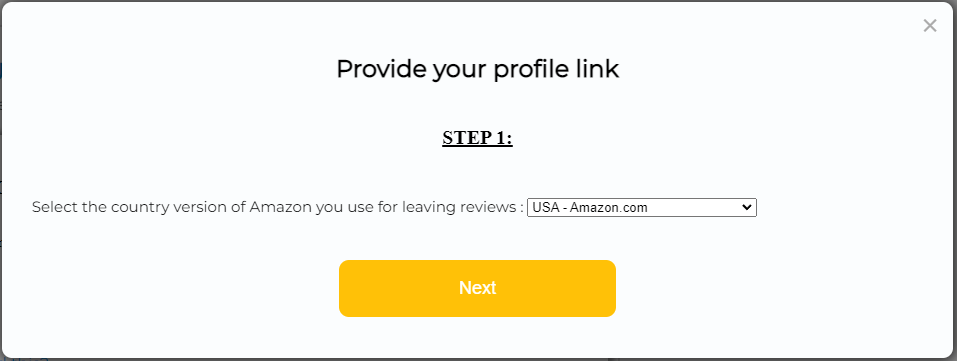
The first step is to select the country specific version of Amazon that you use, as that is the only one you are likely to be able to leave reviews on. If you’re in the USA, you would select USA – Amazon.com. But if you’re in the UK, for example, you would select the Amazon.co.uk link from the drop down, or if you’re in Canada you would select Amazon.ca. Once you’ve done that, click Next.
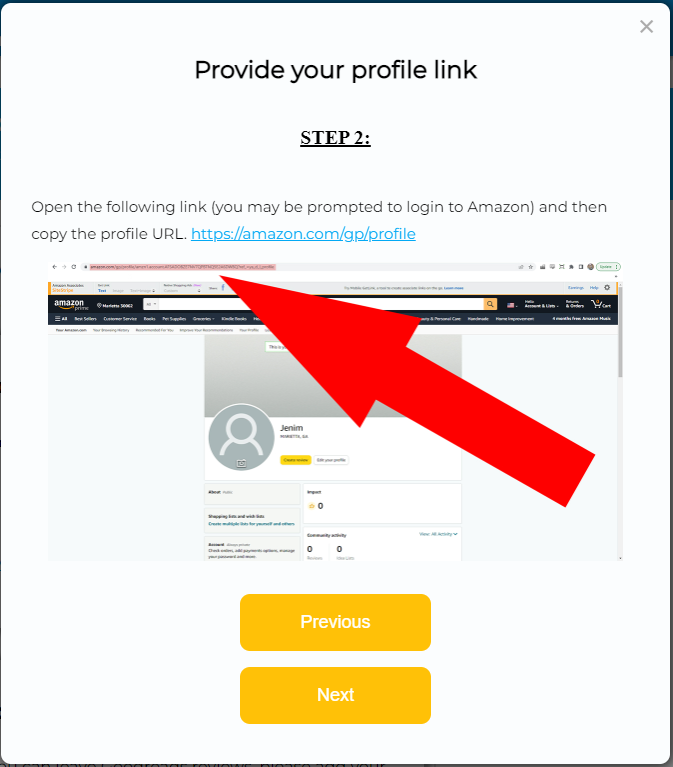
Next, you want to click the blue link at the top of the window, which will open your Amazon profile page. In the above example, it is going to open it on Amazon.com but if you had chosen a different country in the previous step, it would point to your country specific Amazon site instead.
When you click that link, your browser should open up (taking you out of the Hidden Gems app) to your Amazon profile page (the screenshot in the window above shows what that might look like – except yours will show your own public Amazon reviewer name) and what we need from here is the URL, which is found in the address bar of the browser up at the top – where the big red arrow is pointing. It would be something like “https://www.amazon.com/gp/profile/amzn1.account.AFLGHWB6KSW5REXXXX” where the ending is different for each profile. Highlight that whole URL from your browser and copy it so that you can paste it in the next screen. Once you’ve done that, return back to the app to continue.
Once you’ve copied it, click Next.
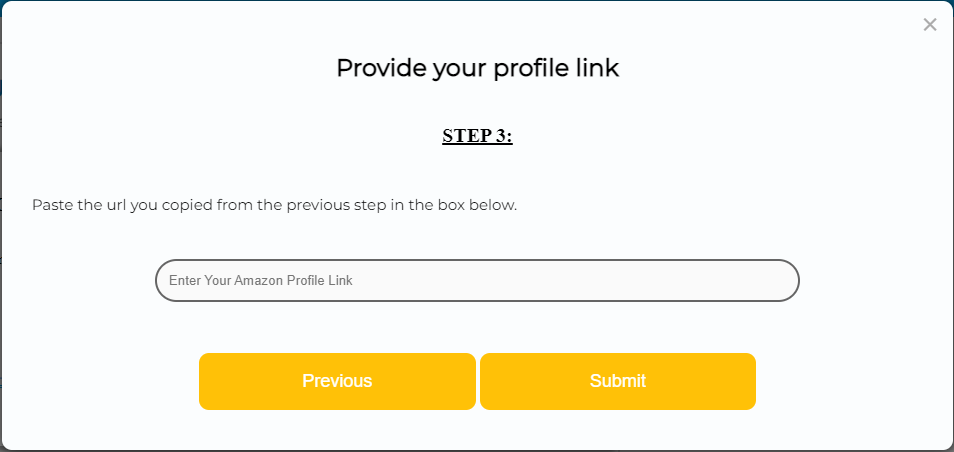
Finally, paste the URL you copied from the previous step into the box that says “Enter Your Amazon Profile Link”.
Tap Submit and then you’re all done (it may take a few seconds as it validates your profile).
We now have your Amazon profile and should be able to find your reviews whenever you try and submit your review from your Reader Form to let us know that they have been added and approved!
Note: If you have any problems with any of this, please contact us for help!
