
Any books that you were sent and haven’t yet filled out your reviews or reason for not reviewing for will show up in the Books You’re Reading section. This allows you to keep track of all the books you were sent that you’re still working on, as well review the key info, download the book files, etc.
By default, all books that you haven’t completed the reader form for will show up in this list, with 10 books showing per page. You can move to the next page via the arrows at the bottom of the list if you have more than 10.
Quick Tip: The Reader Form simply refers to each book found in this section. So when we say to fill out the reader form for a book, it just means to add your review, reason for not reviewing, etc, for that book.
Filtering, Sorting and Search
For those with many books in this list, you will find the ability to filter/sort your list or search for specific books useful.
To shorten the list, you can select New from the Filter By section at the top, which will filter the list to only show you books sent recently. Alternatively, you can select the Ready for reviews filter, which will show only the books that have reached or passed their review dates. As a reminder, the review dates are just dates that the author is hoping you aim for, but it is always okay to send your reviews in past those dates.
To sort your list, use the Select Order By Review Date field to toggle between either Oldest to newest or Newest to oldest.
To search for a specific book, you can type the title of the book in the Search by Title box and then select the title that matches. This will filter your list to only that book, and you can use the X to unfilter it.
Get the Book Files
If you haven’t yet downloaded the book files, you can get them from the book details as well, provided they are still available.
Simply tap the desired format you want the book sent in (most books will have both EPUB and PDF available). The PDF version will likely open on your device right away, but the EPUB version will be sent based on your EPUB delivery preference found in your Settings.
Fill Out Your Reader Form
Once you’ve downloaded and read the book, it’s time to leave your review and add it to our reader form. To begin, click the Review button (found under the cover image, to the right of the title/author/etc info) to fill out the reader form for the book.
The reader form will display info about the book that you saw when you reserved a copy, including the icons of the review sites you can leave reviews on.

Note that only the icons of the review sites you have added your profile for will show up here.
Quick Tip: If you haven’t yet left your review, just tap on the icon for the review site you want to leave it on and you will be taken directly to the book on that review site, without having to search for it. But if the icon is greyed out, that means we don’t yet have the link to the book on that site in our system.
Submitting Your Review Links
Once you have posted your review on at least one of the review sites and the site has approved it, you can click the Submit Review button. When you do so, you will be presented with the icons of the various review sites available for that book, and you can click on the one where you left your review. If you have left a review on more than once site, simply repeated that process for each.
Once you do that, you will see a Review Status section show up at the bottom that indicates the status of your review. We use your profile information for that site to try and find your review but if we can’t, you’ll be sent an email listing the various reasons. You will also see a message in this section asking if you want to try again, or even if you want to add the review link manually by copy and pasting it.
When Not Leaving Any Review
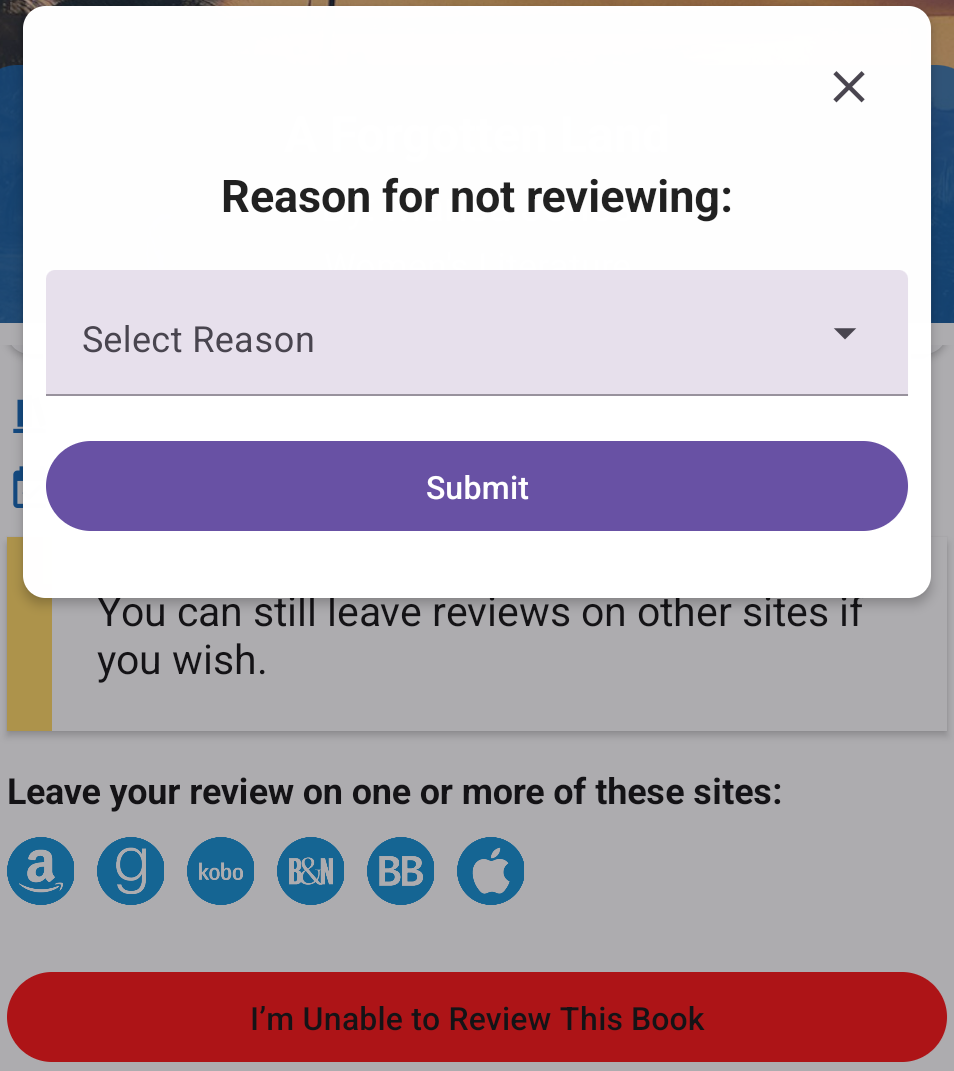
Although Hidden Gems is a program for book lovers that regularly leave reviews, there may be times where you cannot or choose not to leave a review for one of the books we send. For example, maybe you didn’t like it and decided to stop reading it, and thus didn’t want to leave a review for a book you didn’t complete. In cases like that, where you are not going to be leaving a review for a book at all (NOT for cases where your review is just late and you plan to do it later), you can tap the red I’m Unable to Review This Book button.
This will bring up a dialog that includes a dropdown list of potential reasons you are not reviewing. Simply select the one that applies and click Submit. If you select Other from the dropdown, you will be able to add in a custom reason if none of the selections are appropriate.
Finished With a Book?
After you’ve either successfully added at least 1 review link or a reason for not reviewing, you will be asked whether you are finished with the book. If so, you will have the option to leave a comment to the author and then the book will move over to the Completed Books section of the app. If you aren’t done, for example if you wish to leave further reviews for the book on other sites, just don’t click that you’re finished. Although you can still leave more reviews later, as well as add or edit your comments, from the Completed Books section. The Finished button is simply a way to clean up the Books You’re Reading section to keep it focused only on the books you’re still working on.
For more detailed instructions on completing your reader form, please click here.
Quick Tip: Don’t forget to complete your reader form for each book we send, and try not to fall too far behind as it may affect your gem level. Plus, you get additional HGB points for completing your form!