
If you can review books on Google Play Books, then your reviewer name is the same as your profile name for the reviews that you leave. To figure out what that is, go to https://myaccount.google.com/ and click the Personal Info link on the left. Your profile name is found in the Basic Info section on the right, under Name.
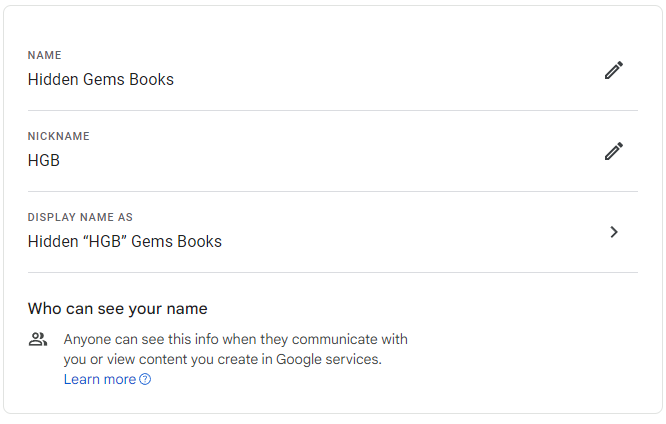
Note that if you click on the Name field, you can edit it or add a Nickname. You can then tell Google how to display your name and nickname in that Name field.
For example, after clicking the name field you are taken to the screen below and in this case we entered HGB as our nickname. Google combined them and thus the name we would enter into our reviewer name field would be: Hidden “HGB” Gem Books
Google Play Books reviewers can add your profile display name to our system via the Manage Profiles Links menu option. Find the Google section at the bottom of the page and check whether or not we already have your Profile name. If we do, it will be displayed in the Google Play Books box and you can change it to something else (if it’s wrong) by clicking the Request to Change Profile Link button, which we’ll talk more about in the Editing section of the main part of this FAQ question.
If we don’t have it, then you can add it via the Click to add your profile name button. This will open up a window that will allow you to type in your Google profile name (as described above), and then click the Submit button.
We now have your Google Play Books profile name and should be able to find your reviews whenever you submit your review on your Reader Form to let us know that they have been added and approved! Just remember that if you change your name or add a nickname on Google, etc, you must come back and edit your name on our form here!
Note: If you have any problems with any of this, please contact us for help!