
As we’ve explained in detail elsewhere, the main reason we need your review site profile information is to be able to tailor which books to show you based on where you can review. That means you need to fill out your profile information for the sites you can review, otherwise you won’t see any books! The Manage Profile Links menu item is where you do that.
From this page you can also request to change existing profiles or even temporarily pause getting offers for a specific review site.
Hidden Gems currently supports all six of these review sites:
- Amazon
- Goodreads
- Kobo
- Barnes & Noble
- Bookbub
- Google Play Books
Each individual author determines which of these sites they want reviews on for their books. That means that if, for example, you can only review on Amazon and Goodreads, you would not be able to see offers or reserve books that only want reviews on Bookbub and Google. That’s why you should add your profile info for ALL of the sites where you can leave reviews.
Each review site works in their own way, so the profile requirements you need to add for each differs. Each site is shown in it’s own section, with a button to add your profile information.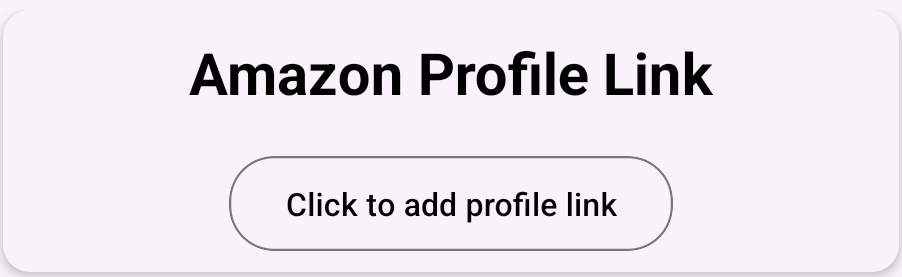
Tapping the button to add your profile info will open up a popup with instructions or steps you can follow to find the information you need, but you can also find that information below.
Profile Information Details
Amazon is the site that most authors want, which means if you can leave reviews on Amazon, you’ll have the biggest selection of free ARCs available. Not everyone can leave Amazon reviews, as they have a lot of rules and restrictions. One of the biggest ones is that you have to have spent at least $50 on Amazon in the past 12 months in order to leave a review on a book you didn’t buy from them. These purchases must be made with a credit card, and Amazon prime memberships don’t count.
But as your Amazon profile rarely changes (unless you create a new Amazon account), we only need you to send it once.
You can do this from the Manage Profiles Links menu option. The top section is for the Amazon Profile Link, and if we already have it you will see the URL to your profile there. If you click it, it will take you to your Amazon public profile page. If this is the wrong profile for you for some reason, then click the Request to Change Profile Link button, which we’ll talk more about in the Editing section of the main part of this FAQ question.
If we don’t have it, then you can add it via the Click to add profile link button. This will open up a set of windows that will guide you towards finding and adding your profile link, but we’ll go over all of that here as well.
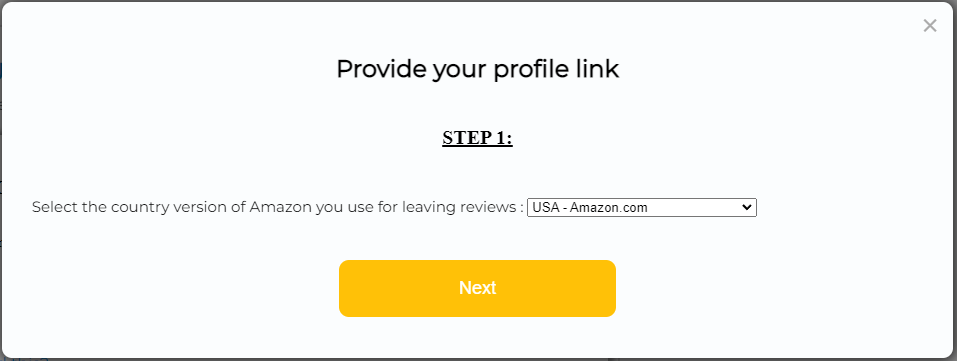
The first step is to select the country specific version of Amazon that you use, as that is the only one you are likely to be able to leave reviews on. If you’re in the USA, you would select USA – Amazon.com. But if you’re in the UK, for example, you would select the Amazon.co.uk link from the drop down, or if you’re in Canada you would select Amazon.ca. Once you’ve done that, click Next.
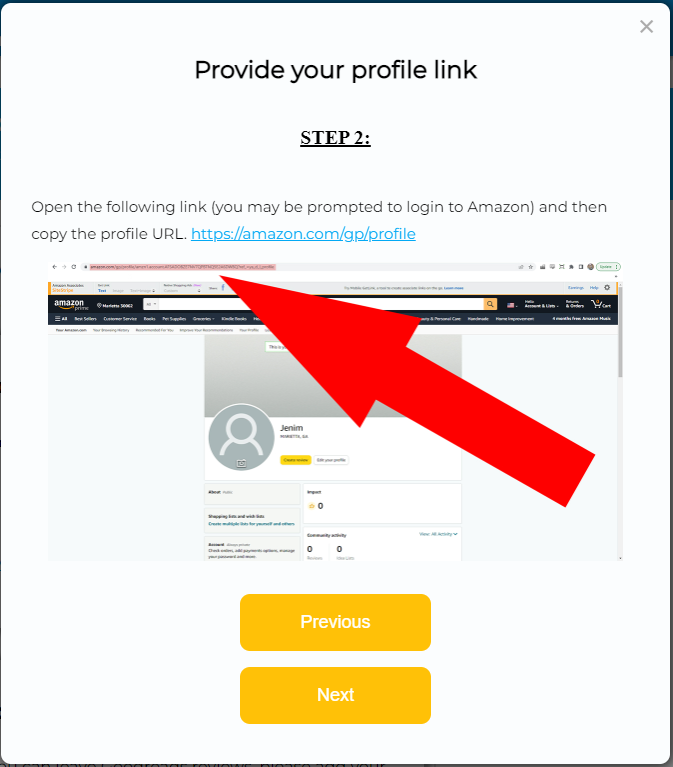
Next, you want to click the blue link at the top of the window, which will open your Amazon profile page. In the above example, it is going to open it on Amazon.com but if you had chosen a different country in the previous step, it would point to your country specific Amazon site instead.
When you click that link, your browser should open up (taking you out of the Hidden Gems app) to your Amazon profile page (the screenshot in the window above shows what that might look like – except yours will show your own public Amazon reviewer name) and what we need from here is the URL, which is found in the address bar of the browser up at the top – where the big red arrow is pointing. It would be something like “https://www.amazon.com/gp/profile/amzn1.account.AFLGHWB6KSW5REXXXX” where the ending is different for each profile. Highlight that whole URL from your browser and copy it so that you can paste it in the next screen. Once you’ve done that, return back to the app to continue.
Once you’ve copied it, click Next.
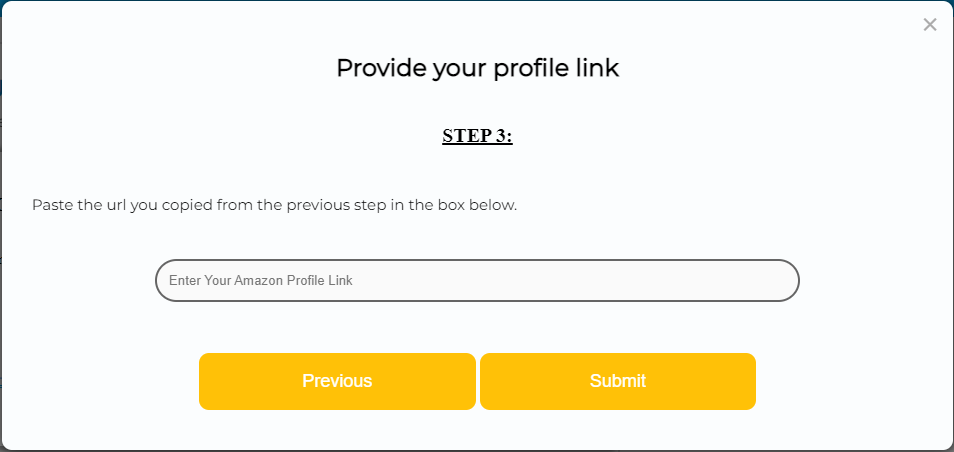
Finally, paste the URL you copied from the previous step into the box that says “Enter Your Amazon Profile Link”.
Tap Submit and then you’re all done (it may take a few seconds as it validates your profile).
We now have your Amazon profile and should be able to find your reviews whenever you try and submit your review from your Reader Form to let us know that they have been added and approved!
Note: If you have any problems with any of this, please contact us for help!
Not all authors want Goodreads reviews, but as anyone can create an account, it is an option available to all ARC readers and will provide you with some book review options even if you don’t have any other review sites you can use.
While it is possible to have more than one Goodreads account, we can only track one so please add your profile for the account you plan to use to leave reviews on from the books you get from us.
You can do this from the Manage Profiles Links menu option. The Goodreads section is near the top, and if we already have it you will see the URL to your profile there. If you click it, it will take you to your Goodreads public profile page. If this is not the profile you wish to use, then click the Request to Change Profile Link button, which we’ll talk more about in the Editing section of the main part of this FAQ question.
If we don’t have your profile yet, then you can add it via the Click to add profile link button. This will open up a couple of windows that will guide you towards finding and adding your profile link, but we’ll go over all of that here as well.
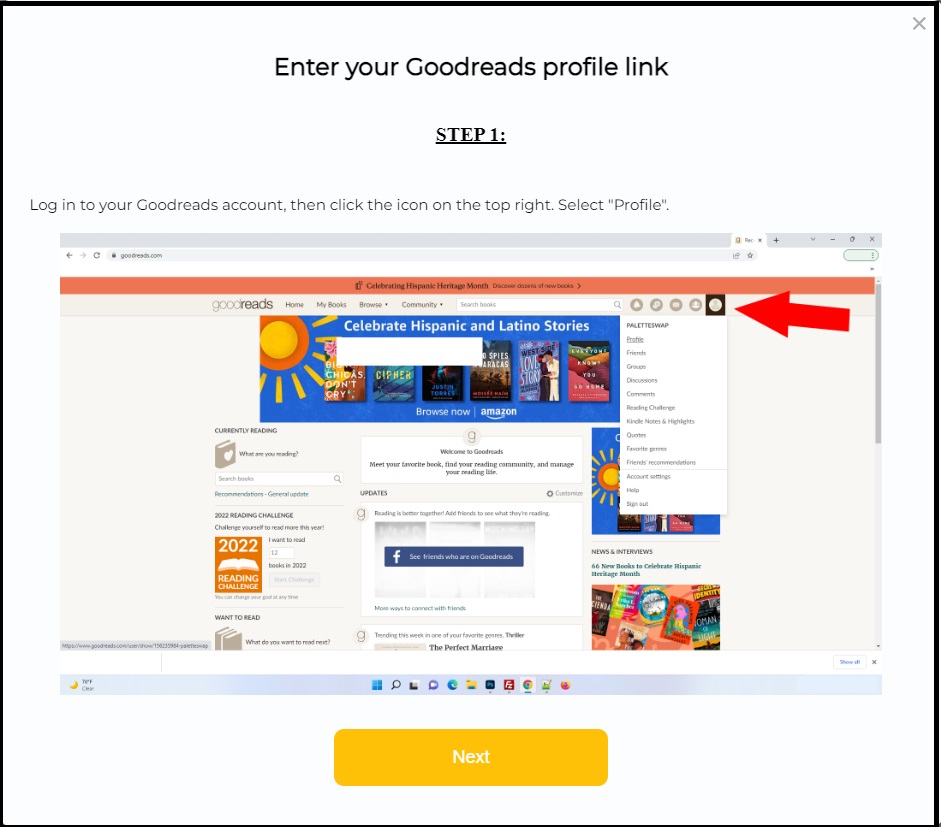
The first step is to login to your Goodreads account and click on the profile icon found at the top right of the screen, as indicated in the screenshot above by the big red arrow. This should open your Goodreads profile page (the screenshot in the window above shows what that might look like – except yours will show your own public Goodreads reviewer name) and what we need from here is the URL, which is found in the address bar of the browser up at the top – where the big red arrow is pointing. It would be something like “https://www.goodreads.com/user/show/XXX” where the ending is different for each profile. Highlight that whole URL from your browser and copy it. Once you’ve done that, return back to the app and click Next.
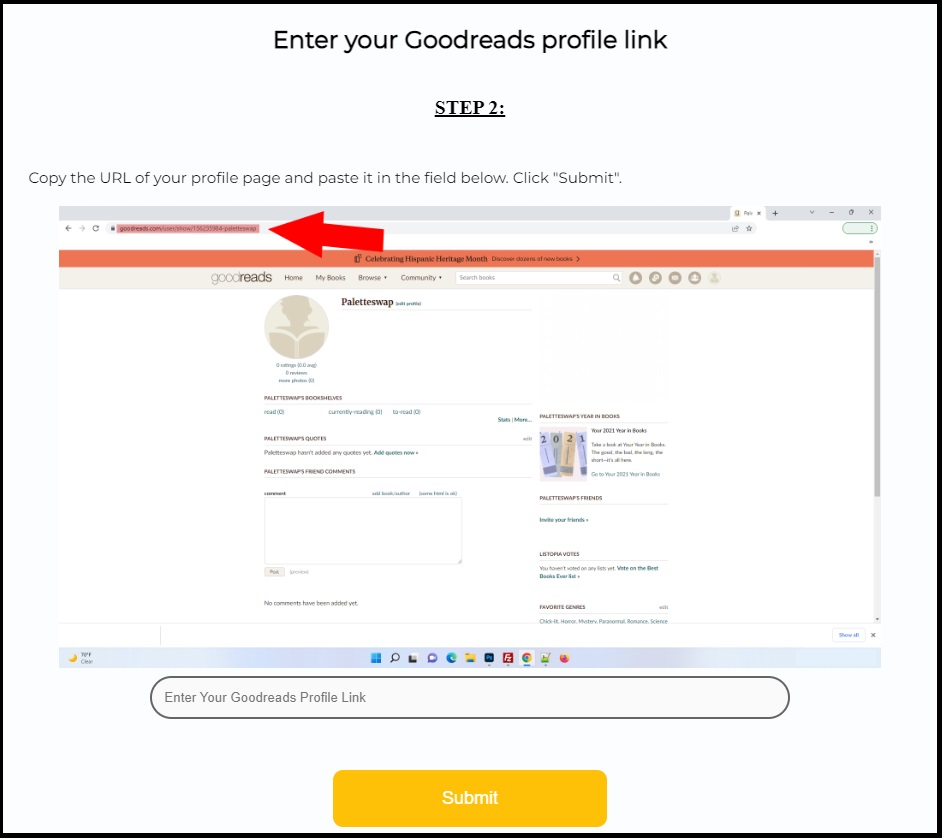
When you see the screen above, paste the link into the box that says “Enter Your Goodreads Profile Link” down at the bottom of that window.
Hit Submit and then you’re all done (it may take a few seconds as it validates your profile).
We now have your Goodreads profile and should be able to find your reviews whenever you try and submit your review from your Reader Form to let us know that they have been added and approved!
Note: If you have any problems with any of this, please contact us for help!
If you can review books on Kobo, then all we need is the reviewer name you are going to use on Kobo. However, because Kobo does not provide a unique url or account for us to track, we require that your reviewer name be unique amongst our readers. That is, although Kobo may allow more than one user to use the same reviewer name, we do not because it prevents us from knowing which Hidden Gem reader reviewed which book.
If you are a Kobo reviewer, please add the reviewer name that you use (or are planning to use) on Kobo. You can do this from the Manage Profiles Links menu item. Find the Kobo section near the middle of the page and check whether or not you’ve already added your Reviewer name. If you did, it will be displayed in the Kobo box and you can change it to something else by clicking the Request to Change Profile Link button, which we’ll talk more about in the Editing section of the main part of this FAQ question.
If we don’t have it, then you can add it via the Click to add your reviewer name button. This will open up a window that will allow you to type in your unique Kobo reviewer name, and then click the Submit button. If the name you enter is already used by another Hidden Gems user, you will get a message telling you to select a different, unique name. So it is to your benefit to add your Kobo reviewer name ASAP to ensure you get the name you want before someone else does!
Just remember to always leave reviews on Kobo under the name you enter here or we won’t be able to find them.
We now have your Kobo name and should be able to find your reviews whenever you submit your review on your Reader Form to let us know that they have been added and approved!
Note: If you have any problems with any of this, please contact us for help!
If you can review books on Barnes & Noble (B&N), then all we need is the reviewer name you are going to use on B&N for all of your Hidden Gems reviews. Note that Barnes and Noble allows you to use more than one reviewer name on their site if you choose, however it is important that you use the same one for all of your Hidden Gems reviews, at least. If you are choosing a new one, make sure to add it to your B&N account first to make sure it is available, as each reviewer name can only be used by one account (although one account can use multiple unique names).
If you are a B&N reviewer, please add the reviewer name that you will use for your Hidden Gems reviews. You can do this from the Manage Profiles Links menu option. Find the B&N section near the middle of the page and verify if you’ve already added your Reviewer name. If you did, it will be displayed in the B&N box. If you need to change it to something else, do so by clicking the Request to Change Profile Link button, which we’ll talk more about in the Editing section of the main part of this FAQ question.
If we don’t already have it, then you can add it via the Click to add your reviewer name button. This will open up a window that will allow you to type in your unique Barnes and Noble reviewer name, and then click the Submit button.
Just remember to always leave reviews on B&N under the name you enter here or we won’t be able to find them.
We now have your Barnes and Noble reviewer name and should be able to find your reviews whenever you submit your review on your Reader Form to let us know that they have been added and approved!
Note: If you have any problems with any of this, please contact us for help!
Not all authors want Bookbub reviews, but as anyone can create an account, it is an option available to all ARC readers and will provide you with some book review options even if you don’t have any other review sites you can use.
We can only track one Bookbub account per reader, so please add your profile from the Bookbub account you plan to use to leave reviews on from the books you get from us.
You can do this from the Manage Profiles Links menu option. The Bookbub section is near the bottom, and if we already have it you will see the URL to your profile there. If you click it, it will take you to your Bookbub public profile page. If this is not the profile you wish to use, then click the Request to Change Profile Link button, which we’ll talk more about in the Editing section of the main part of this FAQ question.
If we don’t have your profile yet, then you can add it via the Click to add profile link button. This will open up a couple of windows that will guide you towards finding and adding your profile link, but we’ll go over all of that here as well.
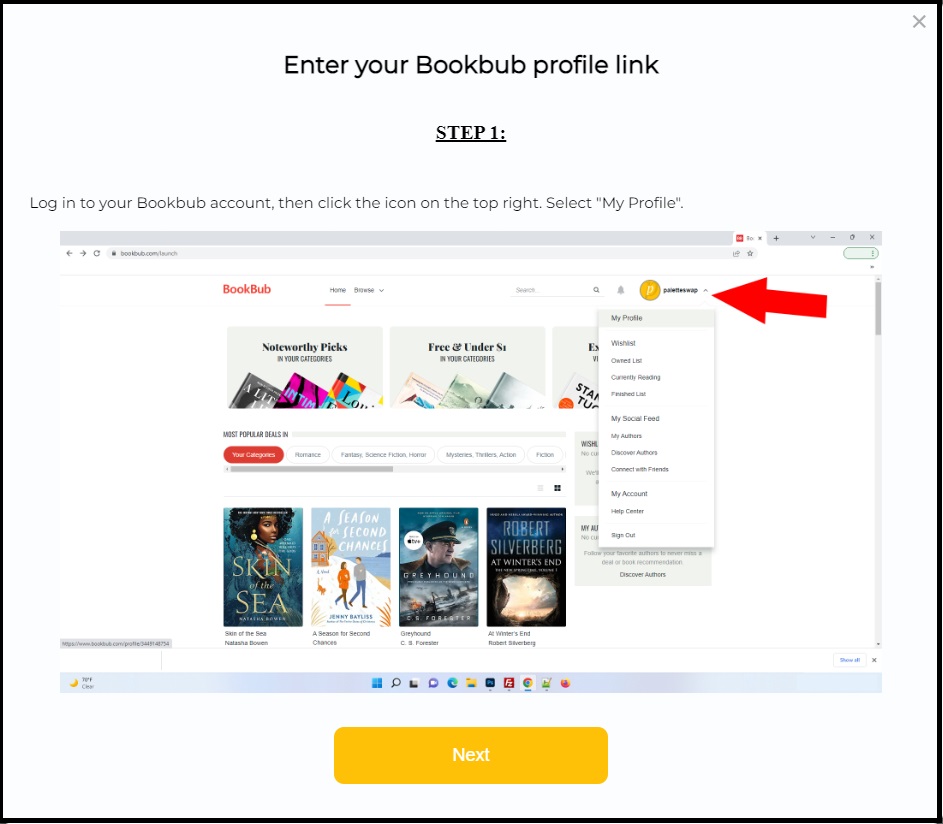
The first step is to login to your Bookbub account and click on the My Profile link found via the dropdown at the top right of the screen, as indicated in the screenshot above by the big red arrow. Once you’ve done that, click Next.
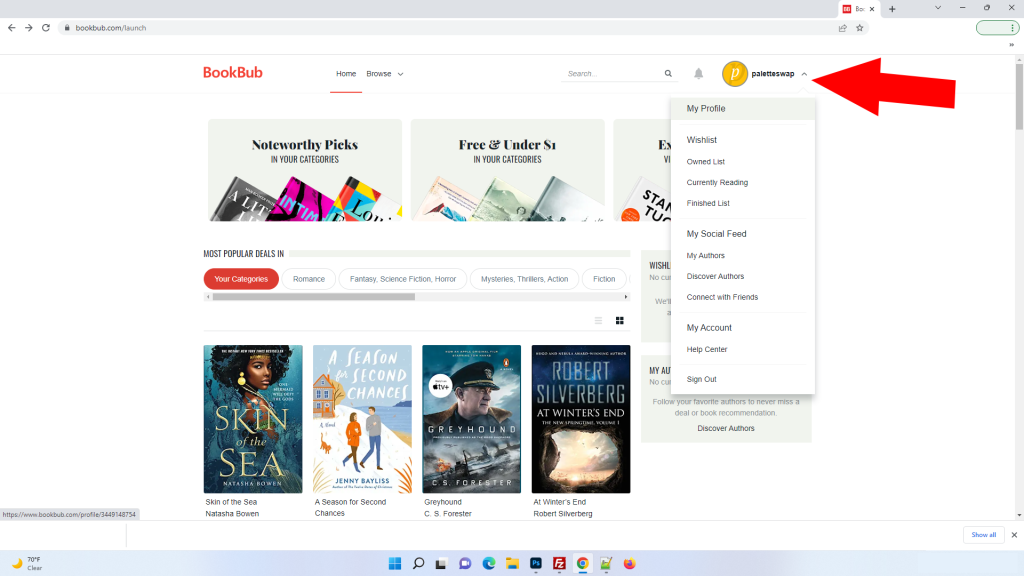
Once you click that, your browser should open up to your Bookbub profile page (the screenshot above shows what that might look like – except yours will show your own public Bookbub name) and what we need from here is the URL, which is found in the address bar of the browser up at the top – where the big red arrow is pointing. It would be something like “https://www.bookbub.com/profile/346290XXXX” where the ending is different for each profile. Highlight that whole URL from your browser and copy it, then paste it into the box in this step that says “Enter Your Bookbub Profile Link” down at the bottom of that window.
Hit Submit and then you’re all done (it may take a few seconds as it validates your profile).
We now have your Bookbub profile and should be able to find your reviews whenever you submit your review on your Reader Form to let us know that they have been added and approved!
Note: If you have any problems with any of this, please contact us for help!
If you can review books on Google Play Books, then your reviewer name is the same as your profile name for the reviews that you leave. To figure out what that is, go to https://myaccount.google.com/ and click the Personal Info link on the left. Your profile name is found in the Basic Info section on the right, under Name.
Note that if you click on the Name field, you can edit it or add a Nickname. You can then tell Google how to display your name and nickname in that Name field.
For example, after clicking the name field you are taken to the screen below and in this case we entered HGB as our nickname. Google combined them and thus the name we would enter into our reviewer name field would be: Hidden “HGB” Gem Books
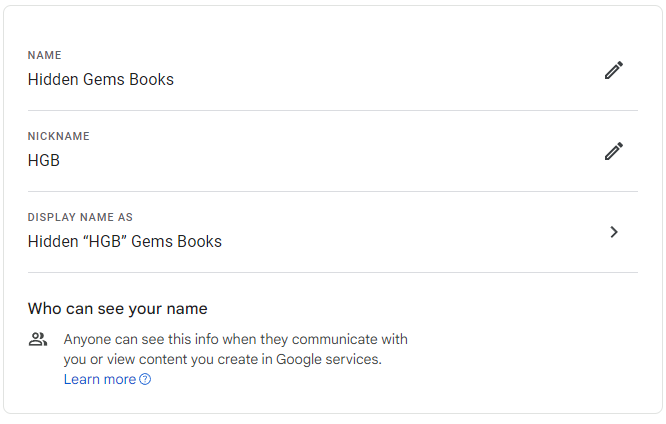
Google Play Books reviewers can add your profile display name to our system via the Manage Profiles Links menu option. Find the Google section at the bottom of the page and check whether or not we already have your Profile name. If we do, it will be displayed in the Google Play Books box and you can change it to something else (if it’s wrong) by clicking the Request to Change Profile Link button, which we’ll talk more about in the Editing section of the main part of this FAQ question.
If we don’t have it, then you can add it via the Click to add your profile name button. This will open up a window that will allow you to type in your Google profile name (as described above), and then click the Submit button.
We now have your Google Play Books profile name and should be able to find your reviews whenever you submit your review on your Reader Form to let us know that they have been added and approved! Just remember that if you change your name or add a nickname on Google, etc, you must come back and edit your name on our form here!
Note: If you have any problems with any of this, please contact us for help!
Once we have your profile, you’ll see it in the box for that review site.
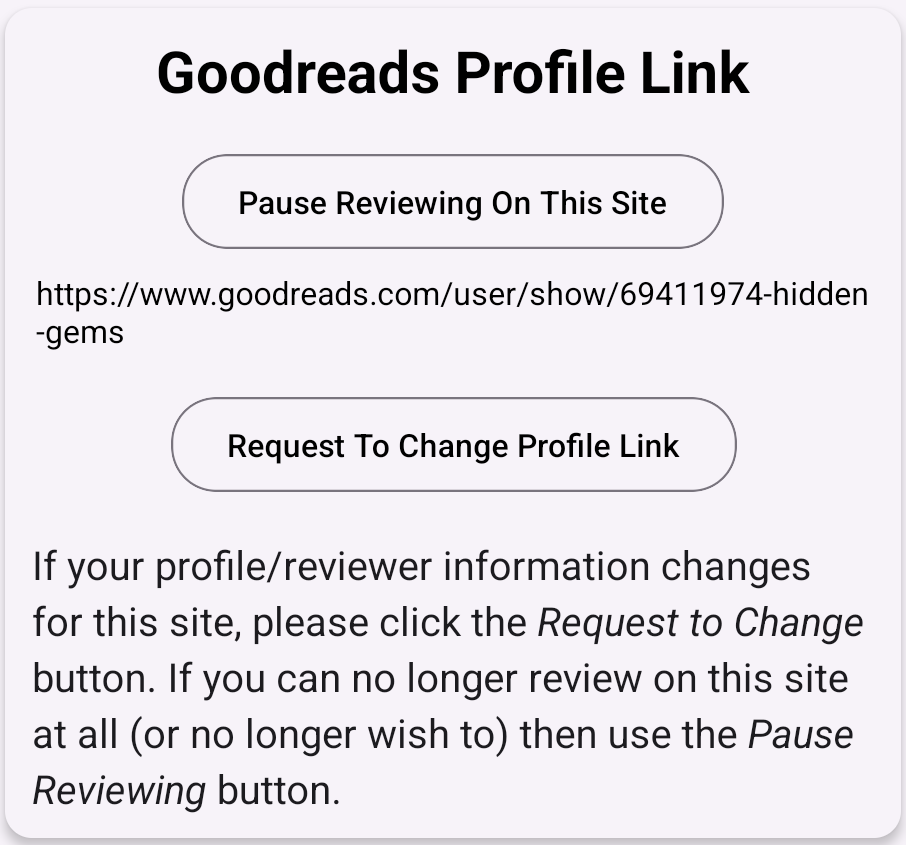
Pause Reviewing on a Specific Site
If you want to stop reviewing and getting offers from a specific site, you can click the Pause Reviewing On This Site button. Note that unless you pause all of your review sites where you have filled out your profile, you may still end up getting offers for books that want reviews on those unpaused sites. Also note that even if paused, you can still leave reviews for books you were previously sent. Just don’t forget to Unpause it once you want to start getting offers again!
Quick Tip: If you simply wish to stop getting sign up emails, but still want to reserve books using your app, do NOT use the pause button here. Instead, go to your Settings and select the No Sign up Email option.
Editing Review Site Information
Once we have your review info for a particular site, there is rarely a reason to edit it as most of the information is tied to your account on that site. However, there are occasions where someone needs to create a new account on a site or change their reviewer name. If you do that, the button to find your reviews will no longer work as it will be looking for reviews on your old profile. If that happens, return to this page and click the button to Request to Change your profile info for that specific site.
Once that request is approved (approval is required to prevent abuse and fake reviews), you will be able to add your new profile info using the same steps as outlined above.